एक JPG convert करें — या 50 तक को single PDF में merge करें
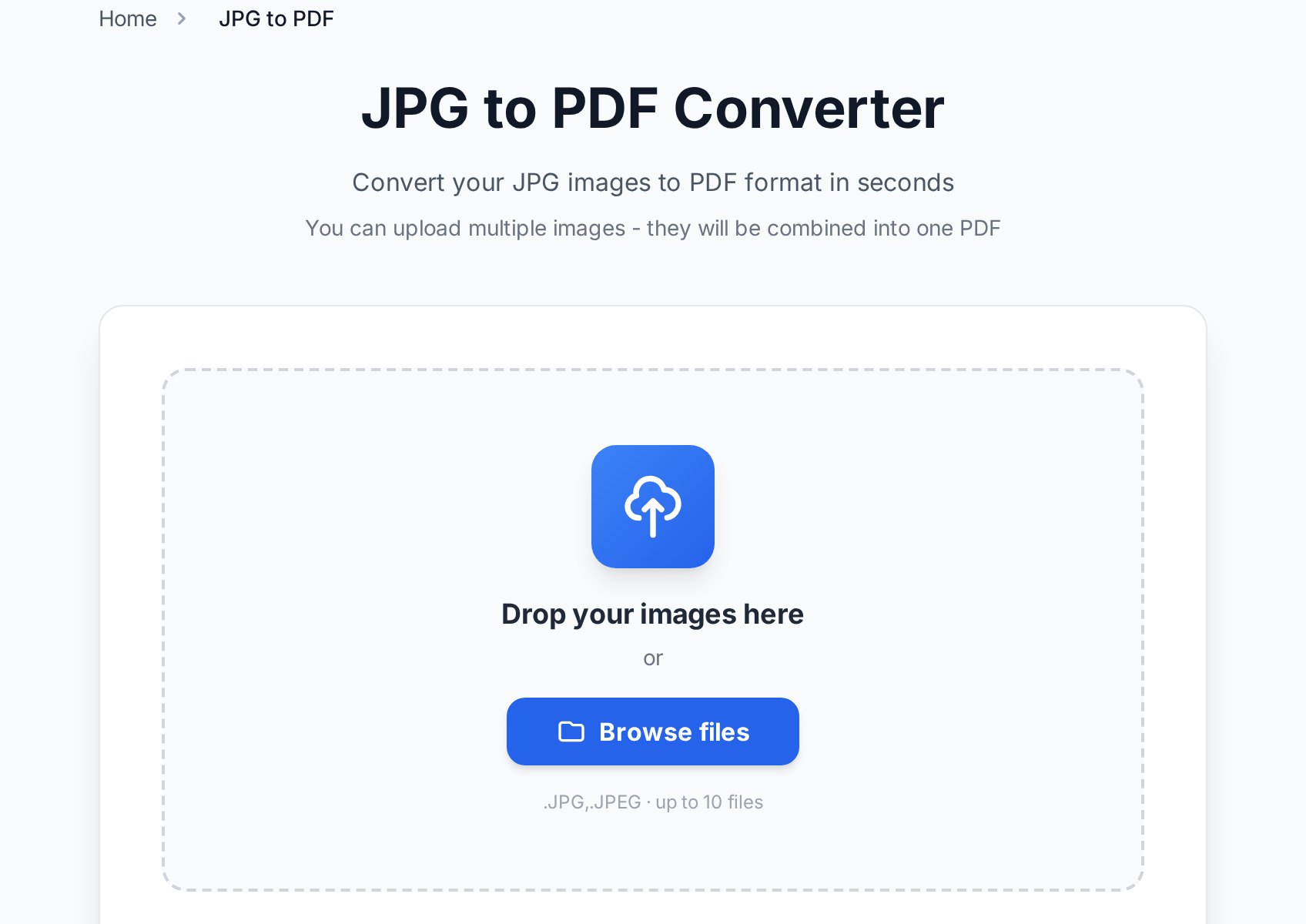
- JPG to PDF converter खोलें और अपनी images add करें। एक file से one-page PDF मिलती है; multiple files single document में merge होती हैं, हर image एक page, per request 50 images तक।
- Order matter करता है: images उसी order में pages बनती हैं जिसमें आप उन्हें add करते हैं। Select करने से पहले files को 01.jpg, 02.jpg, 03.jpg name कर दें और page order अपने आप सध जाएगा।
- ज़रूरत हो तो quality slider set करें (नीचे इस पर और), फिर Convert पर click करें।
- तैयार PDF download करें — कोई watermark नहीं, कोई registration नहीं।
हर image एक A4 page पर रखी जाती है, proper margins के साथ centered, ताकि result photo dump नहीं बल्कि document जैसा लगे। Portrait और landscape दोनों photos automatically fit होती हैं — image page पर scale होती है, कभी crop नहीं।
सही quality setting चुनना
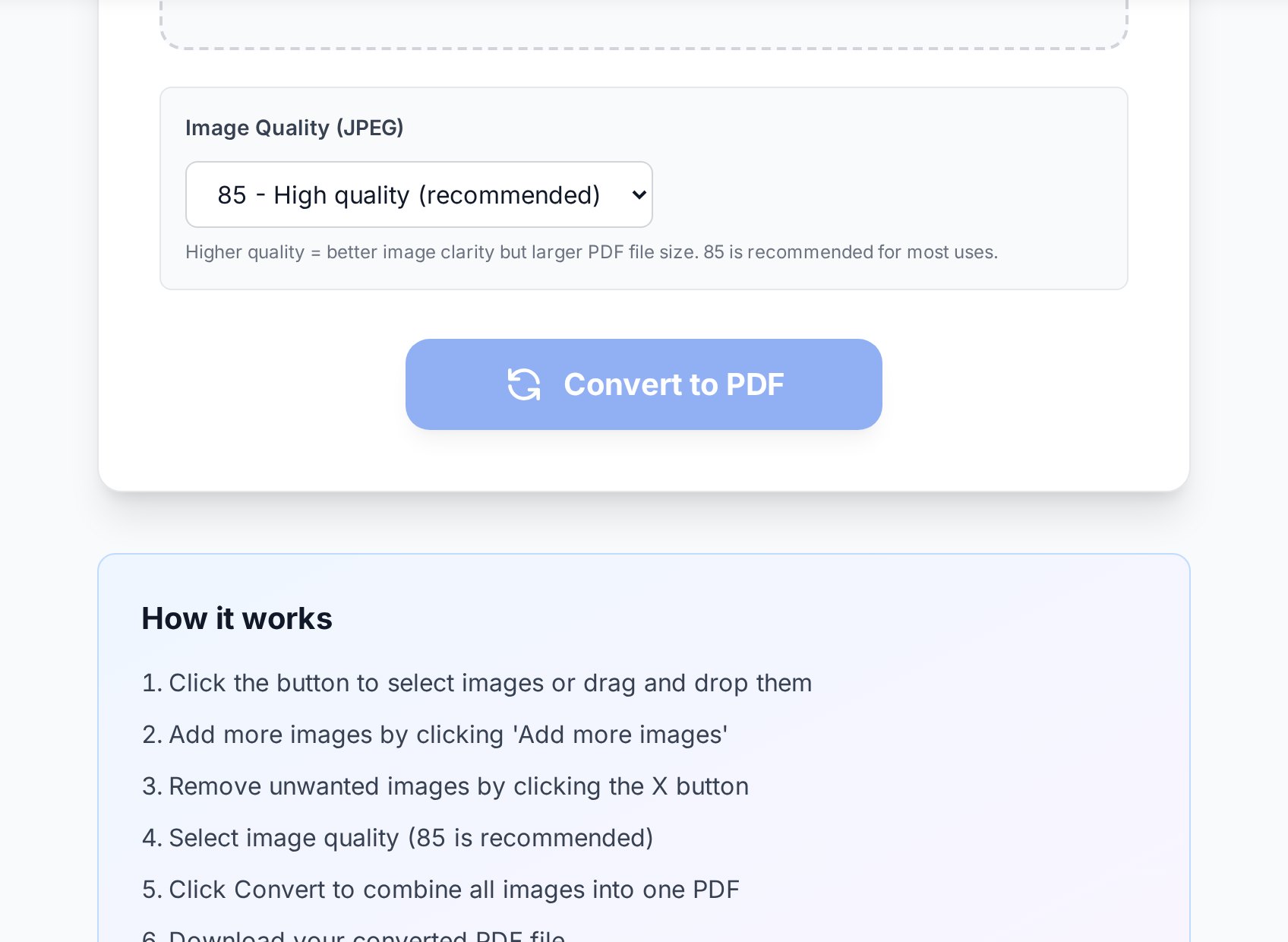
Quality control (60-95, default 85) decide करता है कि PDF के अंदर images कितनी recompress होंगी:
- 85 (default) — लगभग हर चीज़ के लिए सही। Documents readable रहते हैं, photos clean रहती हैं, file size reasonable रहता है।
- 90+ — उन photos के लिए जिन्हें close inspection झेलनी है: portfolio work, product shots, कुछ भी जो बड़े size में print हो सकता है। 90 और उससे ऊपर converter उन images को recompress करना भी skip कर देता है जो पहले से clean JPGs हैं — original pixels preserve रहते हैं।
- 60-75 — email-friendly output के लिए, जब source photos बहुत बड़ी हों। 12 MP पर दस phone photos high quality में आसानी से 30 MB की PDF बना सकती हैं; slider गिराने से यह काबू में आ जाती है।
अगर PDF फिर भी attachment limit के लिए बहुत heavy निकले, तो बाद में उसे Compress PDF से गुज़ारें — moderate quality plus compression का combination ज़्यादातर photo PDFs को typical email caps के नीचे ले आता है।
लोग actually इसे किसके लिए use करते हैं
- Expense reports. महीने भर की paper receipts photograph करके एक PDF में merge करना बिखरी images के folder से कहीं better file होता है — और accounting आपको thank करेगी।
- Photographed documents. Phone से page-by-page shoot किया हुआ contract या form एक single, ordered, printable document बन जाता है।
- Assignments और applications. कई portals exactly एक file accept करते हैं। दस photographed pages, एक upload field — यह उसका fix है।
- Portfolios और mood boards. Fixed order में images का curated set, chat apps के recompress और reshuffle करने से immune।
- Archiving. Filename में date वाले PDF pages, दो साल बाद वह एक receipt ढूँढने में camera roll को हरा देते हैं।
Phone photos से clean results पाना
- Documents को straight-on shoot करें और frame भरें — image page पर as-is रखी जाती है, इसलिए तिरछी photo तिरछी ही रहती है।
- Even, diffuse light flash से better है। Glossy paper पर glare सबसे common वजह है कि photographed page print में unreadable निकलता है।
- Convert करने से पहले clutter (table edges, उँगलियाँ) crop करें; page में document होना चाहिए, उसके आसपास का scene नहीं।
- iPhone photos HEIC format में हैं? पहले उन्हें HEIC to JPG tool से JPG में convert करें, फिर merge करें।
FAQ
क्या यह सच में free है? कोई watermark?
JPGs को PDF में convert करना free है, बिना watermark और बिना registration के। Free-tier file-size limits per image apply होती हैं; premium उन्हें बढ़ाता है।
एक बार में कितनी images merge कर सकता हूँ?
Per request 50 images तक, हर image resulting PDF का एक page बनती है। और चाहिए? Batch को split करें और resulting PDFs को Merge PDF tool से merge कर लें।
क्या upload के बाद page order बदल सकता हूँ?
Pages उसी order को follow करते हैं जिसमें images add हुईं। Reliable आदत है select करने से पहले filenames को number करना। अगर तैयार PDF में reshuffle की ज़रूरत है, तो Organize PDF tool drag-and-drop reordering करता है।
क्या यह PNG या other formats के साथ काम करता है?
यह tool JPG/JPEG लेता है। PNG, WebP, या other formats के लिए, या तो उन्हें पहले Convert Image tool से JPG में convert करें, या — single image के लिए — वहीं सीधे PDF में convert कर लें।
क्या मेरे photographed document का text searchable होगा?
नहीं — PDF में text की pictures हैं, text नहीं। अगर आपको words search, copy, या edit करने हैं, तो result को Scanned PDF to Word OCR tool से गुज़ारें, जो text recognize करता है और editable file वापस देता है।
क्या मेरा data safe है?
Files conversion के लिए process होती हैं और थोड़ी ही देर बाद scheduled maintenance से clean up हो जाती हैं। किसी भी online service की तरह, highly sensitive material upload करने से पहले privacy policy check करें।
अभी try करें
Photographed pages का वह folder उठाएँ, files को number करें, और उन्हें JPG to PDF converter में drop करें। तीस seconds बाद आपके पास वही होगा जो सबको actually चाहिए था: एक file, pages order में, भेजने के लिए ready।