

"PDF edit करना" के पाँच संभावित मतलब
कोई भी tool खोलने से पहले, figure out करें कि इनमें से actually आप कौन सा करने की कोशिश कर रहे हैं। गलत category pick करना ही वजह है कि लोग convinced हो जाते हैं कि उन्हें Acrobat चाहिए।- Pages edit करना - reorder, rotate, delete, या split। Text और layout untouched रहते हैं; आप सिर्फ़ पूरे pages rearrange या remove कर रहे हैं।
- ऊपर content add करना - एक signature, date, initials, stamp, watermark, या page numbers। आप existing page के ऊपर नए elements layer कर रहे हैं, नीचे जो है उसे change नहीं कर रहे।
- Content hide करना - file share करने से पहले किसी number, name, या paragraph को white out या redact करना।
- Form fill करना - किसी application, contract, या government form के blanks में type करना।
- Body text rewrite करना - किसी और के लिखे paragraph में words को actually change करना।
पहले चार किसी भी browser में quick और free हैं। सिर्फ़ पाँचवाँ - PDF के अंदर किसी और का body text rewrite करना - genuinely hard है, और तब भी एक free path है जो Acrobat के लिए pay करने से बेहतर है।
Pages edit करना: reorder, rotate, delete
यह सबसे common request है और सबसे easy। PDF pages का एक sequence है, और उस sequence को rearrange करना किसी page के content को touch नहीं करता। आप एक single view में PDF pages organize कर सकते हैं - reorder करने के लिए drag करें, delete करने के लिए click करें, और जो sideways आए उन्हें rotate करें - फिर एक clean file export करें। अगर आपको इनमें से सिर्फ़ एक action चाहिए, dedicated tools faster हैं: जब scan sideways आया तब pages को permanently rotate करें, या एक long document को page remover से trim करें। इसमें कुछ भी install करने की ज़रूरत नहीं, और आप जो pages रखते हैं उनमें से कोई degrade नहीं होता।Signature, date, या page numbers add करना
"मेरा signature add करो" का मतलब almost never document edit करना होता है - इसका मतलब है उसके ऊपर एक नया element draw करना। एक sign PDF tool use करके signature draw, type, या upload करें और उसे जहाँ belong करता है वहाँ drop करें। यही layering approach कुछ related jobs cover करता है:- हर page पर एक "Confidential" या "Draft" watermark stamp करें।
- एक report या merged bundle में page numbers add करें।
- एक empty margin में date या short note type करें।
Content को सही तरीके से hide करना
यहाँ एक dangerous trap है। कई free annotators में किसी sensitive number के ऊपर एक black box draw करना उसे सिर्फ़ visually cover करता है - text अब भी file में है, और कोई भी उसे copy out या box remove कर सकता है। Real redaction underlying data को remove करती है।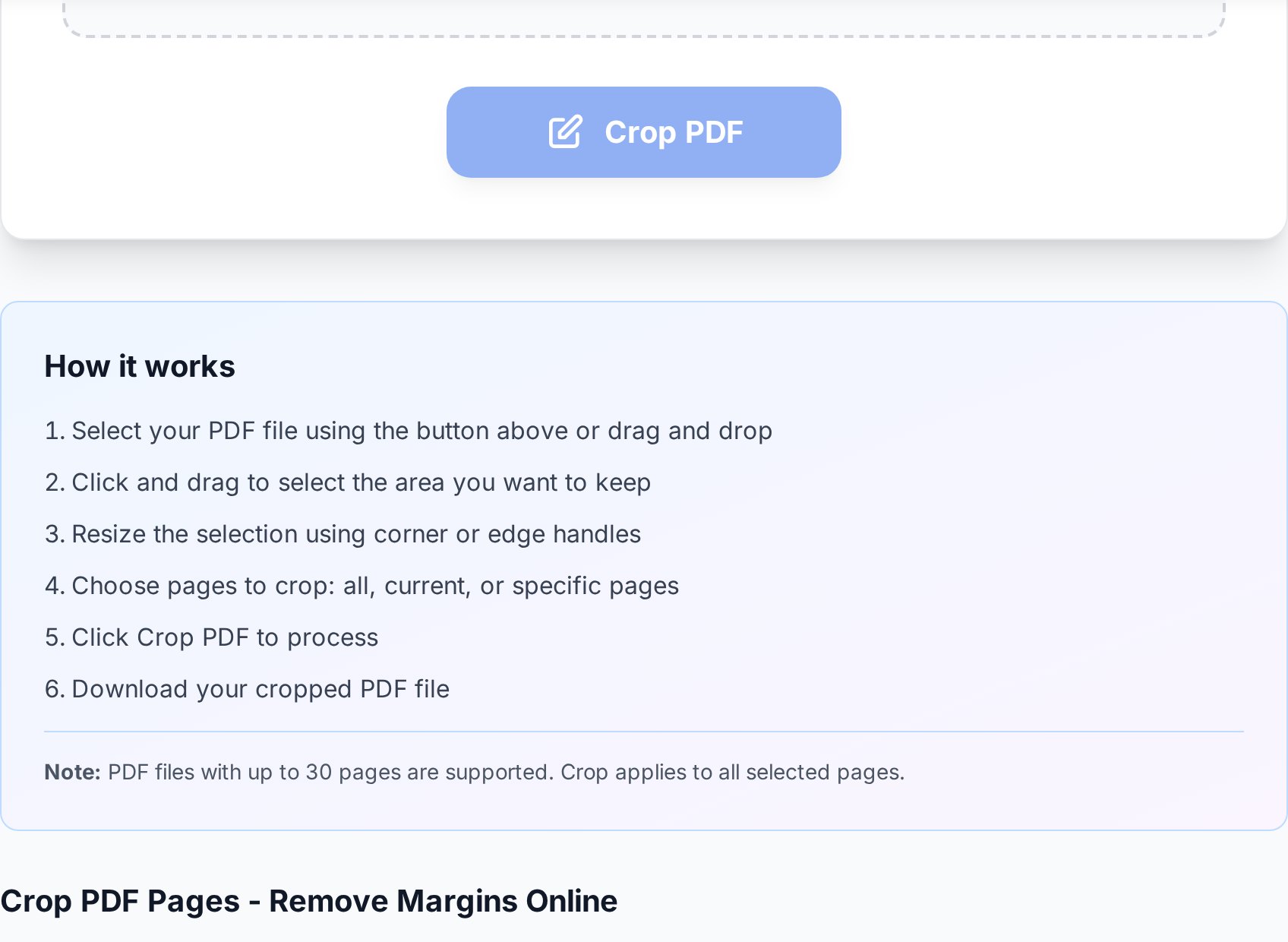
Form fill करना
PDF forms दो तरह के exist करते हैं। Interactive forms में real fields होते हैं जिन्हें आप click करके type कर सकते हैं - ज़्यादातर modern browsers इन्हें natively handle करते हैं, इसलिए आपको अक्सर एक separate tool की ज़रूरत ही नहीं होती। Flat forms सिर्फ़ scanned या printed layouts होते हैं जिनमें कोई fields नहीं; उनके लिए, ऐसा tool use करें जो आपको page पर कहीं भी एक text box place करने दे, अपना answer type करने दे, और export करने दे। एक sign-and-fill tool दोनों cover करता है: जहाँ blanks हों वहाँ text place करें, signature add करें, done।अगर एक form photo या scan के रूप में आया, उसे flat form की तरह treat करें। Click करने के लिए कोई fields नहीं - आप image के ऊपर एक layer पर type कर रहे हैं।
The hard one: body text rewrite करना
किसी और के लिखे paragraph में actual words change करना वो एकमात्र task है जो "आपको Acrobat चाहिए" की reputation पर खरा उतरता है। PDFs text को editable paragraphs के रूप में store नहीं करते; वे positioned glyphs store करते हैं, इसलिए एक word swap करने का मतलब है उसके आसपास सब कुछ re-flow करना। Free in-PDF text editors exist करते हैं, लेकिन वे उस moment struggle करते हैं जब font embedded न हो या layout complex हो, और result अक्सर visibly patched दिखता है। एक-word fix से ज़्यादा किसी भी चीज़ के लिए एक बेहतर free route है: PDF को Word में convert करें, एक real word processor में text को properly edit करें जहाँ re-flow automatic है, फिर वापस PDF में export करें। आपको glyph-by-glyph patch tool से fight करने के बजाय clean, native editing मिलती है। एक caveat scanned documents है - अगर PDF text की एक image है, conversion के दौरान आपको OCR चाहिए ताकि edit करने के लिए actual text हो।Acrobat use न करने से आप क्या छोड़ते हैं
Trade-off के बारे में honest रहें: Acrobat Pro कुछ ऐसी चीज़ें करता है जो browser tools नहीं करते, जैसे print production के लिए advanced preflight, deep accessibility tagging, और सैकड़ों files के पार bulk scripted edits। अगर आपका काम professional print या compliance work है, वह subscription अपनी कीमत वसूल करती है। रोज़मर्रा के "मुझे यह एक PDF fix करना है" task के लिए, यह overkill है - और ऊपर के free tools बिना account के पूरा workflow cover करते हैं। एक quick decision shortcut:- Pages rearrange या remove करना → page tools, free।
- Signing, dating, watermarking, numbering → layer tools, free।
- Content hide या trim करना → crop या flatten, free।
- Form fill करना → sign-and-fill, free।
- Paragraphs rewrite करना → Word में convert, free।
- Print-production या compliance pipelines → वही real Acrobat use case है।
Privacy पर एक note
आप जो भी edit करें, याद रखें कि file आपके device से तब निकल जाती है जब आप उसे किसी web tool पर upload करते हैं। Reputable browser tools file को process करते हैं और कुछ ही देर बाद discard कर देते हैं, लेकिन फिर भी आपको genuinely sensitive originals उन services पर upload करने से बचना चाहिए जिन्हें आप recognise नहीं करते। One-off personal documents के लिए यह कम ही issue होता है; confidential business files के लिए, पहले tool की retention policy check करें, और जो redact किया उसे आगे share करने से पहले flatten करें।FAQ
क्या मैं account बनाए बिना PDF free में edit कर सकता हूँ?
हाँ। Page edits, signatures, watermarks, page numbers, cropping, और form filling सब free browser tools में बिना sign-up के available हैं। सिर्फ़ specialised print-production और compliance features Acrobat Pro में genuinely paywalled हैं।
मैं PDF में actual text free में कैसे change करूँ?
एक-word fix के लिए, एक in-browser text editor काम कर सकता है। इससे बड़ी किसी भी चीज़ के लिए, PDF को Word में convert करें, अपने word processor में text edit करें जहाँ layout automatically re-flow होता है, फिर वापस PDF में export करें। यह PDF के अंदर glyphs patch करने से cleaner है।
क्या text के ऊपर black box draw करना उसे redact करने जैसा ही है?
नहीं - और यह एक common mistake है। कई annotators में draw किया गया box सिर्फ़ text को visually hide करता है; underlying characters file में रहते हैं और copy या reveal किए जा सकते हैं। Data remove करने के लिए, region को crop करके हटाएँ या document को flatten करें, फिर confirm करें कि text अब select नहीं हो सकता।
क्या मैं एक scanned PDF edit कर सकता हूँ?
सिर्फ़ OCR के बाद। एक scan text की एक image है, इसलिए तब तक edit करने के लिए कुछ नहीं है जब तक optical character recognition picture को real characters में न बदल दे। पहले scan को एक OCR-enabled conversion से run करें, फिर resulting text edit करें।
Text edit करने के बाद मेरा edited PDF थोड़ा off क्यों दिखता है?
In-PDF text editors individual glyphs को re-place करते हैं, और अगर original font embedded न हो तो वे एक near-match substitute करते हैं, जो spacing shift कर देता है। यही PDF के अंदर text edit करने की core limitation है, और वजह कि Word में convert करना बड़े changes के लिए एक cleaner result produce करता है।
अभी try करें
Software नहीं, task pick करें। अपनी file को browser में Organize pages, sign and fill, या flatten करें - या job के लिए exact वाला ढूँढने के लिए all PDF tools browse करें। कोई Acrobat नहीं, कोई account नहीं।


