

OCR कब चाहिए (और कब नहीं)
- Screenshots ऐसे text के जिसे select नहीं किया जा सकता (video frame, chat, error dialog)।
- Photos किसी printed page, whiteboard, sign, या slide की।
- Scans और faxes जो JPG, PNG, या TIFF के रूप में save हैं।
- Receipts और business cards जिन्हें आप text के रूप में file करना चाहते हैं।
Image से text कैसे extract करें
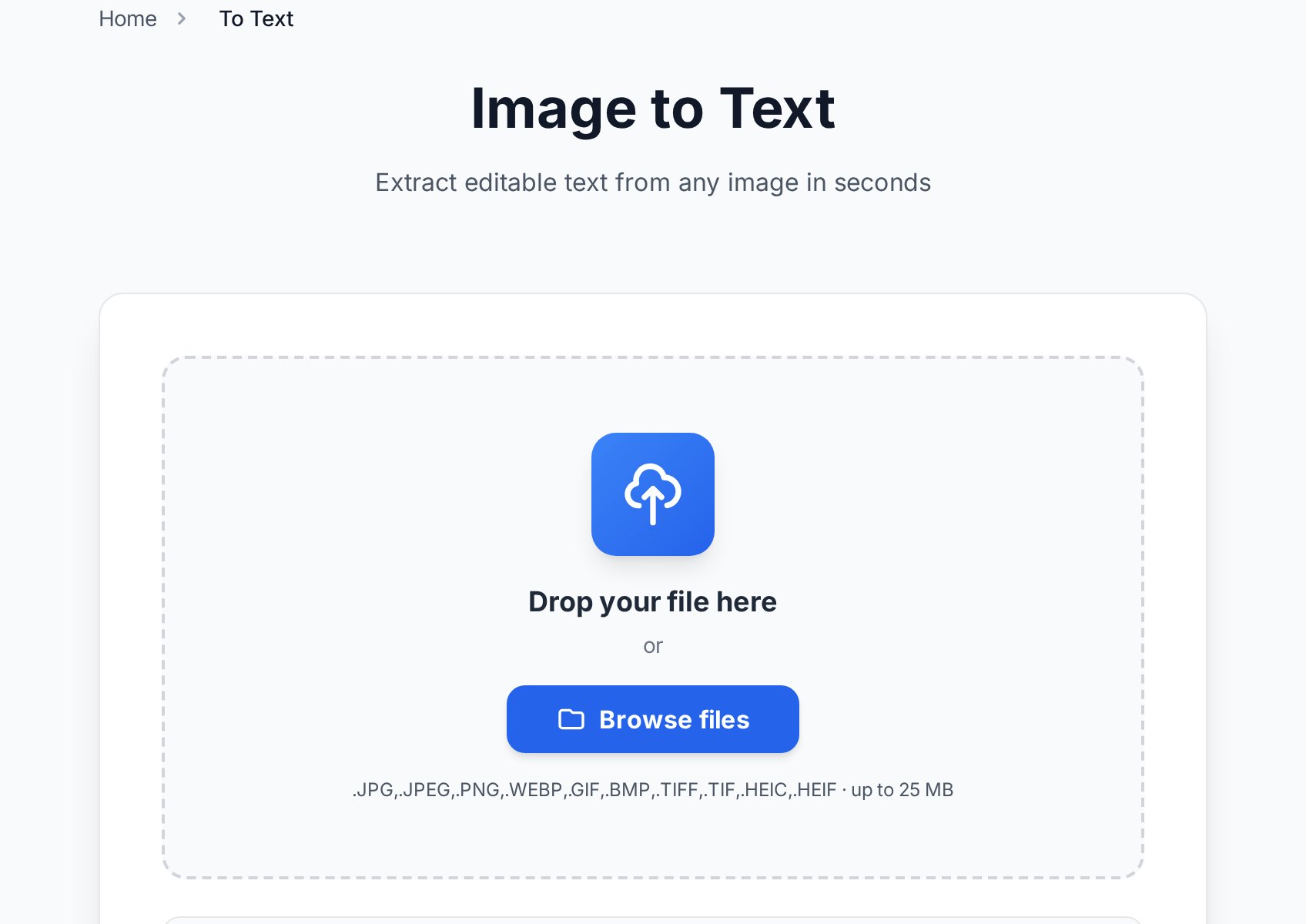
- Image to Text tool खोलें और अपनी image upload करें (JPG, PNG, WebP, HEIC, BMP, TIFF, या GIF)। आप इसे सीधे page पर drag कर सकते हैं।
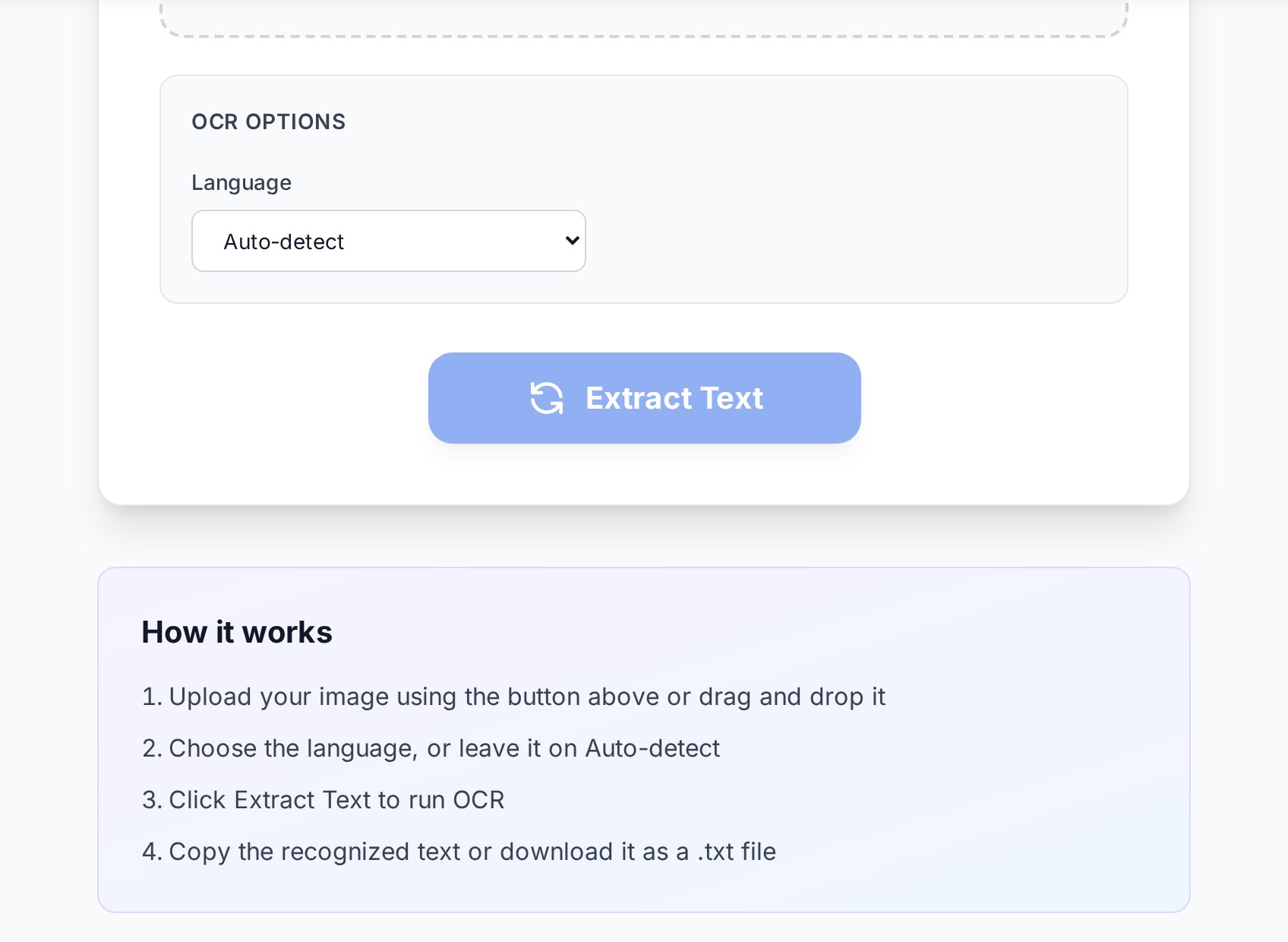
- Text की language choose करें, या इसे Auto-detect पर छोड़ दें। Language explicitly set करना non-English या accented text के लिए बहुत help करता है।
- Extract Text पर click करें। Recognised text कुछ seconds में page पर appear होता है।
- इसे grab करने के लिए Copy use करें, या plain text file के रूप में save करने के लिए Download .txt। इस पर भरोसा करने से पहले हमेशा quick proofread करें।
कुछ भी install नहीं होता और file temporary session में process होती है, फिर delete हो जाती है — लेकिन sensitive documents के लिए FAQ में confidentiality note देखें।
Accuracy को actually क्या affect करता है
OCR quality mostly उस image पर तय होती है जो आप feed करते हैं। तीन चीज़ें सबसे ज़्यादा matter करती हैं:- Sharpness. Crisp, in-focus text cleanly पढ़ता है। Motion blur और out-of-focus phone shots garbled output का number-one cause हैं।
- Contrast. OCR ink और background के बीच difference पर काम करता है। Faded photocopy या low-light photo recogniser को काम करने के लिए बहुत कम देती है, high resolution पर भी।
- Language. English-trained model accented characters और unfamiliar words misread करता है। जब भी पता हो, Auto की जगह correct language choose करें।
Resolution भी help करती है: aim करें कि text एक line में कम से कम कुछ सौ pixels tall हो। Scans के लिए, 300 DPI comfortable floor है। Low-resolution photo में छोटे footnotes — यहीं accuracy टूटती है।
iPhone photos (HEIC) और other formats
Modern iPhone या iPad से सीधे आई photos usually HEIC/HEIF होती हैं, JPG नहीं। आपको पहले उन्हें convert करने की ज़रूरत नहीं — HEIC upload करें और tool इसे directly decode करता है। JPG, PNG, WebP, BMP, TIFF, और GIF सभी same way से काम करते हैं। Multi-page TIFF या animated GIF के लिए, first frame use होता है।
Clean result के लिए tips
- Frame को text से भरें और backgrounds, hands, और table edges crop out करें — clutter layout detection को confuse करती है।
- Straight shoot करें। किसी angle पर photographed page letters को keystone करता है और accuracy कम करता है; tool mild skew straighten करता है, लेकिन flat-on best है।
- Glare और shadows avoid करें। Even, diffuse light bright window या phone flash से better है।
- Multi-column layouts के लिए, reconstructed columns के बजाय reading order में text expect करें।
- Usual suspects proofread करें: 0/O, 1/l/I, rn/m, और stray punctuation।
FAQ
क्या यह सच में free है?
हाँ। Single image से text extract करना free है, बिना registration और output पर बिना watermark के।
कौन सी languages supported हैं?
17 languages, जिनमें English, Russian, German, French, Spanish, Italian, Portuguese, Polish, Turkish, Ukrainian, Hindi, Indonesian, Arabic, Chinese (Simplified और Traditional), Japanese, और Korean शामिल हैं — plus automatic detection। Accented या non-Latin scripts के लिए, best accuracy के लिए language explicitly set करें।
क्या यह handwriting पढ़ सकता है?
कभी-कभी, और reliably नहीं। OCR printed type पर trained है; handwriting accuracy काफ़ी अलग-अलग होती है और cursive सबसे ख़राब पढ़ा जाता है। Block capitals — जैसे hand से भरा form — joined-up writing से बहुत better पढ़ते हैं।
कुछ text wrong या missing क्यों है?
Almost हमेशा source image: blur, low contrast, small text, या wrong language setting। Sharper और better lit re-shoot करें, correct language choose करें, और result usually dramatically improve होता है।
क्या यह confidential है?
Image temporary session में process होती है और shortly after delete होती है। फिर भी, sensitive material upload करने से पहले privacy policy पढ़ें। Highly confidential documents — medical records, privileged legal files — के लिए किसी भी web service पर local OCR (जैसे Tesseract) prefer करें।
क्या मैं text Word document के रूप में पा सकता हूँ?
यह tool plain text return करता है जिसे आप कहीं भी paste कर सकते हैं। अगर आपको specifically scanned PDF को formatted Word file में बदलना है, तो OCR के साथ PDF to Word converter use करें।
अभी try करें
Retyping बंद करें। अपना screenshot या photo Image to Text tool में drop करें, language choose करें, और seconds में editable text मिलेगा — बस use करने से पहले quick proofread दें।


