

आपका rotation गायब क्यों होता रहता है
PDFs file structure के अंदर हर page के लिए orientation flag store करते हैं। जब आप Adobe Reader के free version के अंदर "rotate" करते हैं, आप viewer को सिर्फ़ बता रहे हैं कि इस session के लिए page को आपकी screen पर कैसे display करे। File में flag untouched है। Behind the scenes तीन चीज़ें happen हो रही हैं:- Viewer-level rotation rendering change करता है, data नहीं। Document close करें और override gone है।
- File-level rotation page की orientation entry rewrite करता है। हर viewer फिर new value read करता है।
- Free Adobe Reader में "Save As" file को फिर से save कर सकता है, लेकिन यह view-only rotation commit नहीं करता। वो feature paid Acrobat के पीछे gated है।
अगर आप rotate कर सकते हैं लेकिन closing के बाद change vanish हो जाता है, आपने almost certainly viewer-level rotate use किया। ऐसा tool use करें जो page orientation को file में खुद rewrite करे।Adobe Reader DC versions 2019 और बाद में behaviour थोड़ा shift हुआ: rotate button अब Tools > Organize Pages के नीचे buried है, जहाँ ऐसा लगता है कि change commit होना चाहिए लेकिन तब तक नहीं होगा जब तक आप pay न करें। Free version एक छोटे footer message में explicitly बताता है कि "saving page rotations requires Acrobat Pro", जिसे कई users कभी read नहीं करते। Fastest fix एक browser-based rotator है जो file को directly re-encode करता है। आप कुछ install किए बिना PDF online rotate लगभग दस seconds में कर सकते हैं।
Step-by-step: हर page 90 degrees rotate करें
यह right approach है जब पूरा scan sideways आया, या जब किसी ने accidentally landscape report को portrait के रूप में export किया।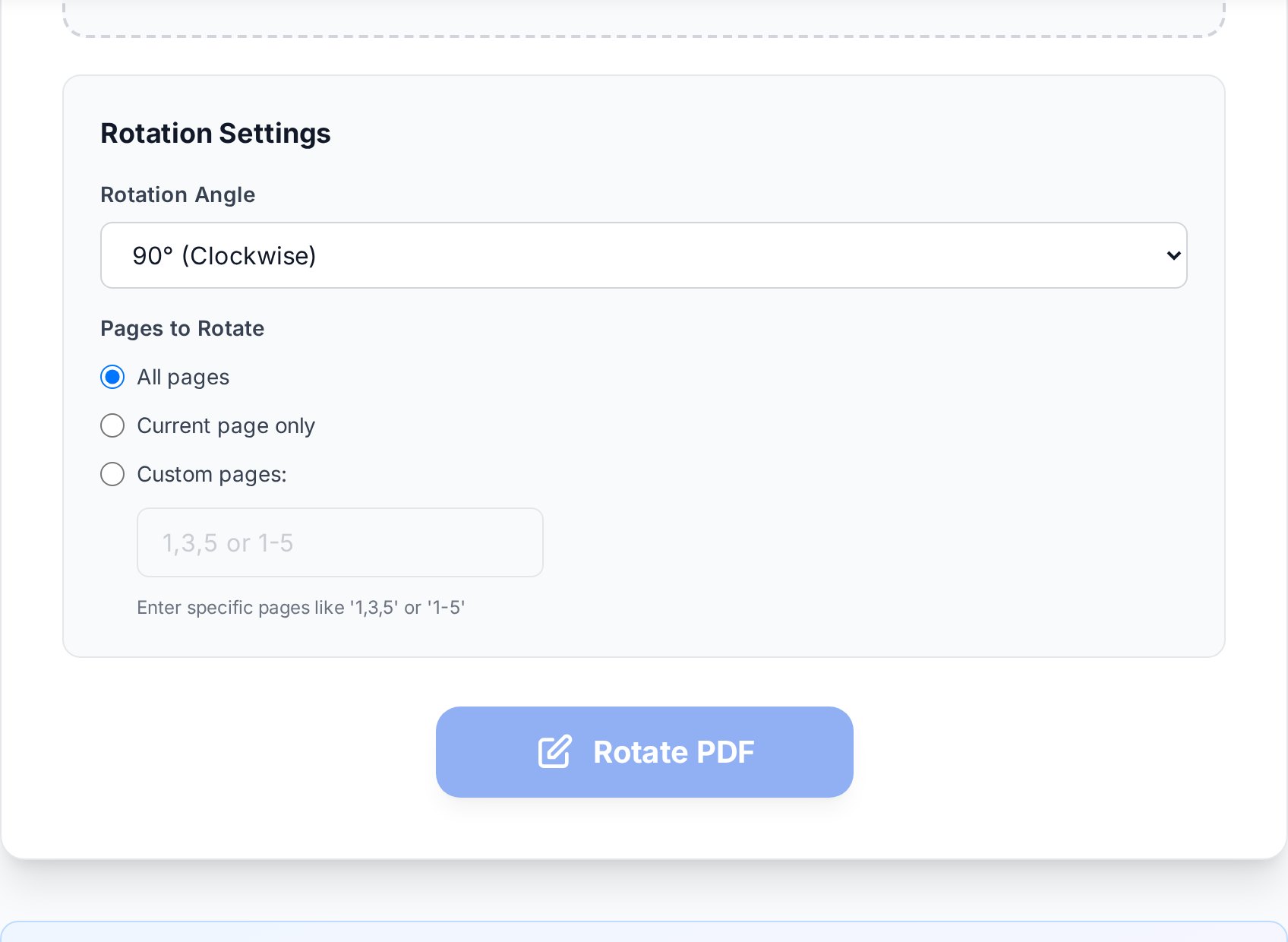
- Rotate tool खोलें और अपना PDF drop करें। Files upload session पर processing के लिए ज़रूरत तक ही stay करती हैं।
- Direction pick करें। 90 degrees clockwise ज़्यादातर sideways scans fix करता है। 180 degrees auto-feeders से wrong way up upside-down documents handle करता है।
- सभी pages पर apply करें। Tool एक pass में हर page के लिए orientation flag rewrite करता है।
- New file download करें। किसी भी viewer में open करके confirm करें।
contract_rotated.pdf से save करें ताकि आप mistakenly original overwrite न करें। Original रखना cheap insurance है अगर rotation गलत direction में चला जाए - और गलत direction में rotate होना rotate tool पहली बार use करने वालों की सबसे common "मैंने दस minutes waste किए" शिकायत है। दो clockwise turns एक counter-clockwise turn के बराबर है, इसलिए recovery fast है, लेकिन सिर्फ़ अगर आपके पास source है।
Step-by-step: सिर्फ़ specific pages rotate करें
Mixed-orientation PDFs तब common हैं जब scan batch में portrait letters और landscape spreadsheet दोनों हैं, या जब किसी ने different sources से files merge कीं।- PDF upload करें। Thumbnail grid देखें identify करने के लिए कि कौन से pages गलत हैं।
- Pages को number से select करें। ज़्यादातर tools आपको पूरी file के बजाय page 3, 7, और 9 independently rotate करने देते हैं।
- ज़रूरत हो तो per page rotation direction set करें। Page 5 पर upside down scanned receipt को 180 degrees चाहिए हो सकती है जबकि page 7 को 90 clockwise।
- Apply करें और download करें। File ship करने से पहले thumbnails corrected orientation दिखा रहे हैं verify करें।
Common scenarios
Sideways scanned receipts
Flatbed scanners और phone-camera apps अक्सर small receipts को गलत orientation में capture करते हैं। 90-degree clockwise rotation usually उन्हें fix करती है। अगर आप mixed orientations के साथ stack scan करें, सबको एक साथ करें और rescanning के बजाय per page rotate करें। Thermal-paper receipts (जो fade हो जाती हैं) ख़ासकर 180 degrees off आती हैं क्योंकि उन्हें protection के लिए print-side down stack किया जाता है।Mobile photos PDF में convert
iOS और Android कभी-कभी photo orientation को EXIF metadata में encode करते हैं जिसे PDF converter ignore करता है। Result एक portrait photo है जो landscape PDF page के रूप में saved है। File-level rotation cleanest fix है। एक बात जानने लायक: iOS 14 के आसपास यह noticeably worse हो गया, जब Apple ने default photo format को JPEG से HEIC में change किया। पुराने PDF tools जो conversion के दौरान HEIC orientation tags strip करते हैं हर बार sideways pages produce करते हैं। Camera को shooting से पहले "Most Compatible" पर वापस set करने से source पर problem solve होती है।Mixed landscape और portrait reports
Annual reports और pitch decks अक्सर portrait text pages को landscape charts के साथ combine करते हैं। अगर converter ने सब कुछ portrait force किया, आपको chart pages को 90 degrees rotate करना पड़ सकता है ताकि वे landscape में scrolled या printed होने पर correctly read हों। PowerPoint में बने और PDF में export किए गए investor decks common offenders हैं; PowerPoint का "Print to PDF" path पूरी file को per slide के बजाय एक ही orientation के रूप में treat करता है।Faxes के रूप में received forms
कई medical और legal forms आज भी fax से आते हैं, मतलब वो एक printer से pass होते हैं जो page को paper में fit करने के लिए rotate कर सकता है। Signature block का top पर आ जाना एक clue है - 180 rotate करें, save करें, ज़रूरत हो तो same fax line से वापस भेजें।Verifying कि rotation stuck
File send करने से पहले, 30-second sanity check करें:- Rotated PDF को ऐसे viewer में reopen करें जिसे आपने rotate करने के लिए use नहीं किया। Chrome, macOS पर Preview, और Edge सब file को Acrobat से differently read करते हैं।
- File को खुद को email करें और attachment phone से open करें। Mobile viewers file-level orientation flag respect करते हैं और instantly दिखाएँगे कि change real है या नहीं।
- Print preview run करें। Preview file orientation reflect करता है, viewer override नहीं, इसलिए sideways preview मतलब rotation save नहीं हुई।
- अपने file manager में thumbnail panel check करें। Windows Explorer और macOS Finder दोनों अपने preview pane में file-level orientation दिखाते हैं। अगर वहाँ thumbnail expected से match करता है, rotation committed हुआ।
Bulk rotation tips
जब आप कई PDFs combine करने वाले हैं, merge करने से पहले orientations fix करें। नहीं तो, आपको 200-page bundle के अंदर rotated pages identify करने होंगे, जो हर source file को individually fix करने से बहुत slower है। Reverse advice straight duplex feeder से scans पर apply होती है। अगर हर alternate page upside-down आया क्योंकि scanner ने back side को गलत flip किया, पहले rotate करें, फिर उन्हें एक file में merge करें। Combined PDF के अंदर alternate pages rotate करने की कोशिश करने के मुक़ाबले एक step बचेगा। एक और बात: rotation underlying image data नहीं change करती, सिर्फ़ orientation entry। इसलिए आप quality lose नहीं करते, और file size effectively same रहती है (rewritten metadata के लिए कुछ bytes give or take)। यह rotation को legal exhibits और evidence files पर run करने के लिए safe बनाता है जहाँ underlying bitstream की integrity matter करती है - data hash change होगा क्योंकि metadata changed, लेकिन page content byte-identical है। Print-driver gotcha worth flagging: कुछ enterprise printers PDF orientation flag ignore करते हैं और longest text run के basis पर अपनी auto-rotate logic use करते हैं। अगर आपका rotated PDF office Konica या Xerox से sideways print होता है, printer आपको overrule कर रहा है। Print dialog में "Auto-rotate" या "Orientation: From file" option check करें और इसे manual पर switch करें।FAQ
मेरा PDF Chrome में correct क्यों दिखता है लेकिन Adobe में sideways?
Chrome कभी-कभी text-direction heuristics के basis पर orientation auto-correct करता है, जबकि Adobe file में literal page-orientation flag respect करता है। अगर दो viewers disagree करते हैं, file-level flag wrong है भले ही Chrome problem hide करता है। File को properly rotate करें ताकि दोनों viewers agree करें।
क्या मैं multi-page PDF में सिर्फ़ एक page rotate कर सकता हूँ?
हाँ। ऐसा tool use करें जो आपको individually pages select करने दे, या file को page-organizer view में open करें। Rotate करने वाले pages pick करें, per page direction choose करें, और export करें। आपने जो pages select नहीं किए वे untouched रहते हैं।
क्या Rotating PDF की quality कम करेगी?
नहीं। Rotation सिर्फ़ file metadata में orientation entry change करती है। Image और text data re-encoded नहीं हैं, इसलिए कोई quality loss नहीं और file size essentially unchanged।
मेरी rotation Adobe Reader free version में save क्यों नहीं होगी?
Free Adobe Reader सिर्फ़ viewer-level rotation support करता है। File save करने से rotation disk पर commit नहीं होती। Permanent rotation paid Acrobat feature है, या आप एक free browser-based tool use कर सकते हैं जो orientation flag को directly rewrite करता है।
क्या मैं password-protected PDF rotate कर सकता हूँ?
आपको पहले password supply करना होगा। ज़्यादातर online rotators encrypted file upload होने पर इसके लिए prompt करते हैं। अगर आपके पास password नहीं है, आप file legitimately modify नहीं कर सकते। अगर आप document own करते हैं और password भूल गए, यह एक different (और unfortunate) recovery problem है।
अभी try करें
Viewer से fight करना बंद करें। Rotate PDF tool खोलें और एक pass में orientation file में commit करें, या all PDF tools browse करें अगर आपको साथ में merge या reorder भी करना है।


