

Accountants कई के बजाय एक PDF क्यों prefer करते हैं
Bookkeeping software evolve हुआ है, लेकिन document handoff नहीं। लगभग हर accountant, चाहे वो QuickBooks, Xero या FreshBooks use करे, single bundled file prefer करता है क्योंकि:- यह cleanly archive होता है. Document management systems per period एक file index करते हैं, 47 floating attachments नहीं।
- Page numbering audit trail support करती है. "April invoices के page 12 देखें" real reference है; "17th को email से invoice देखें" नहीं है।
- इसे forward करना easier है. Bookkeeper आपके records को tax preparer को सौंपते समय एक file attach करता है, folder नहीं।
- यह QuickBooks और Xero में attachment workflows के साथ align होता है. दोनों per journal entry या transaction एक PDF attach करना support करते हैं; multiple juggle करना friction है जो month-end पर कोई नहीं चाहता। (हाँ, आज भी: Xero ने 2024 तक journal-entry attachments को per entry one file पर capped रखा था और सिर्फ़ paid tiers के लिए relax किया।)
- यह e-discovery और tax audit requests से cleanly map होता है. जब tax authority "सभी April invoices" माँगे, single file देना folder explain करने से बेहतर है।
Per month एक well-named PDF 90-minute archive job और 10-minute वाले के बीच का difference है।
Merge करने से पहले naming convention
पहले source files order करें, बाद में merge करें। ज़्यादातर online merge tools, including ours, files को आपके upload order में या alphabetical order में combine करते हैं। यह filename को steering wheel बनाता है। हर invoice के लिए यह format use करें:YYYY-MM-DD_vendor_amount.pdf
2026-04-03_aws_142-50.pdf
2026-04-08_adobe_19-99.pdf
2026-04-11_office-supplies_88-30.pdf
2026-04-22_internet_45-00.pdf- ISO date correctly sort होता है किसी भी operating system में, locale चाहे कुछ भी हो।
- Vendor middle में आपको "क्या मैंने इस महीने AWS को pay किया था?" के लिए visually scan करने देता है।
- Amount end में आपके bank reconciliation से match होता है file open किए बिना।
2026-04-03_aws_142-50_a.pdf और 2026-04-03_aws_142-50_b.pdf. Letter date के नीचे sort होता है और overwriting avoid करता है। Time को tie-breaker की तरह use करने से बचें; suppliers के invoice timestamps inconsistent हैं और इस बारे में गुमराह कर सकते हैं कि work actually कब billed हुआ था।
एक और habit बनाने योग्य: जब आप vendor portal से file save करें, इसे Downloads folder से निकलने से पहले ही rename करें। Receipt के moment पर करना दस seconds लेता है। Month-end पर तीस files के लिए एक साथ करना chore लगता है और आप दूसरे महीने skip कर देंगे।
Step-by-step: browser में invoices merge करें
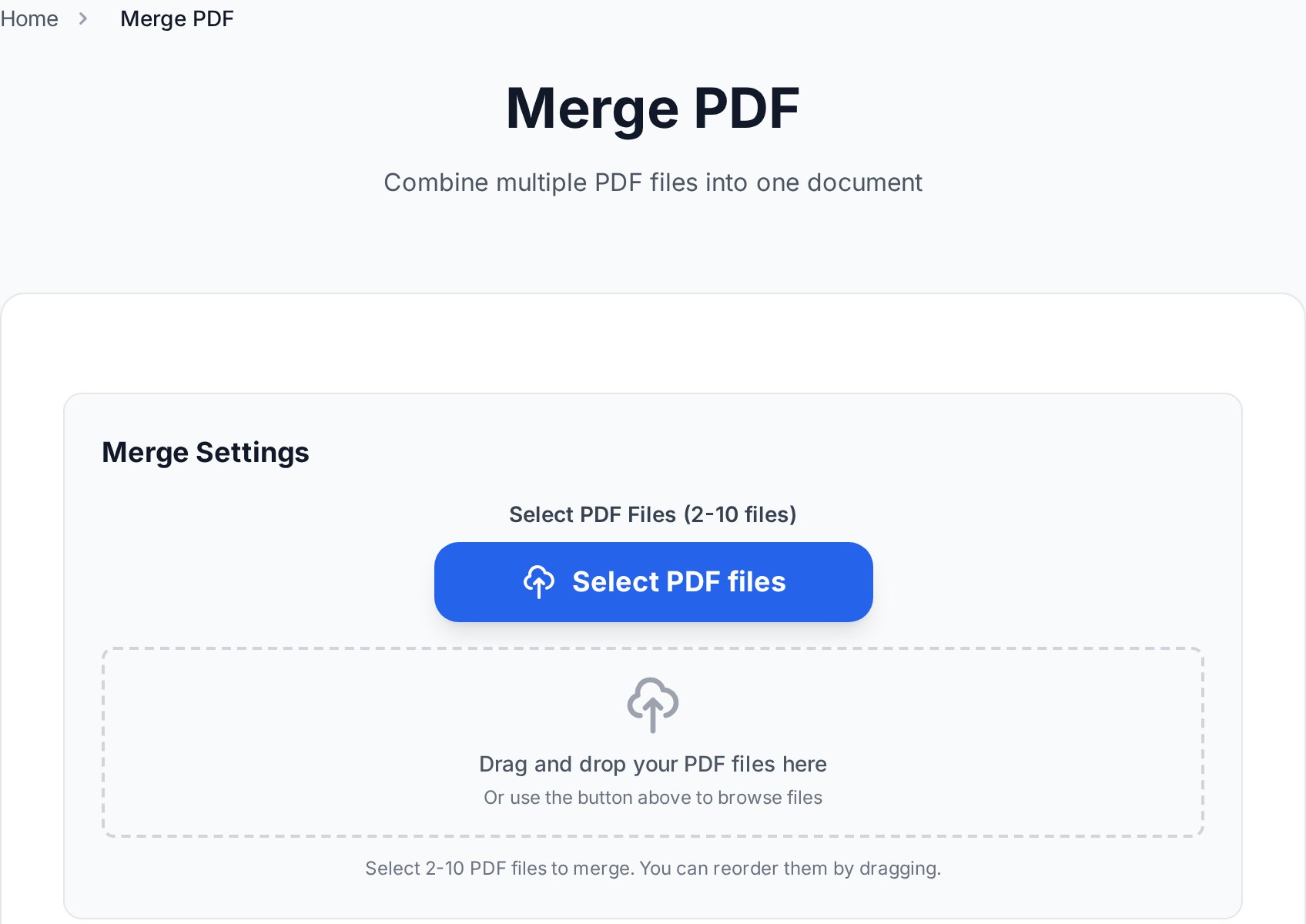
जब आपकी files renamed हो जाएँ:- किसी भी browser में Convertica का merge tool खोलें। Install करने को कुछ नहीं, log in करने को कुछ नहीं।
- अपने folder से हर invoice file को upload area पर एक साथ drag करें। Tool आपकी filename order keep करता है।
- Thumbnail strip में order verify करें। किसी भी out-of-place invoice को सही slot पर drag करें।
- Merge click करें। Result एक PDF के रूप में download होता है।
- Output को period match करने के लिए rename करें:
2026-04_invoices_yourname.pdf.
merged.pdf, जो छह महीने बाद Downloads folder में रखने की worst possible चीज़ है। (मैंने एक बार fifteen minutes specific bundle hunt करने में बिताए क्योंकि तीन अलग "merged.pdf" files cloud sync में collide हो गई थीं। बहुत-से लोग पहले ही महीने में इससे टकराते हैं।)
Cover page या table of contents add करना
Larger expense submissions के लिए (20+ invoices, या finance team को जाने वाला कुछ भी, अपने bookkeeper के बजाय), cover page उन दो minutes को repay करता है जो लगते हैं। Simple summary sheet काम करती है:| Date | Vendor | Amount | Page |
|---|---|---|---|
| 2026-04-03 | AWS | 142.50 | 1 |
| 2026-04-08 | Adobe | 19.99 | 2 |
| 2026-04-11 | Staples | 88.30 | 3 |
Mixed formats: JPG receipts और PDF invoices
Reality check: small-business receipts का कम से कम एक तिहाई photos के रूप में आता है। Restaurant tabs, taxi receipts, hardware-store paper slips, corner की deli जो fading thermal paper पर print करती है। Merge tool सिर्फ़ PDFs accepts करता है, इसलिए merge से पहले one-step conversion चाहिए।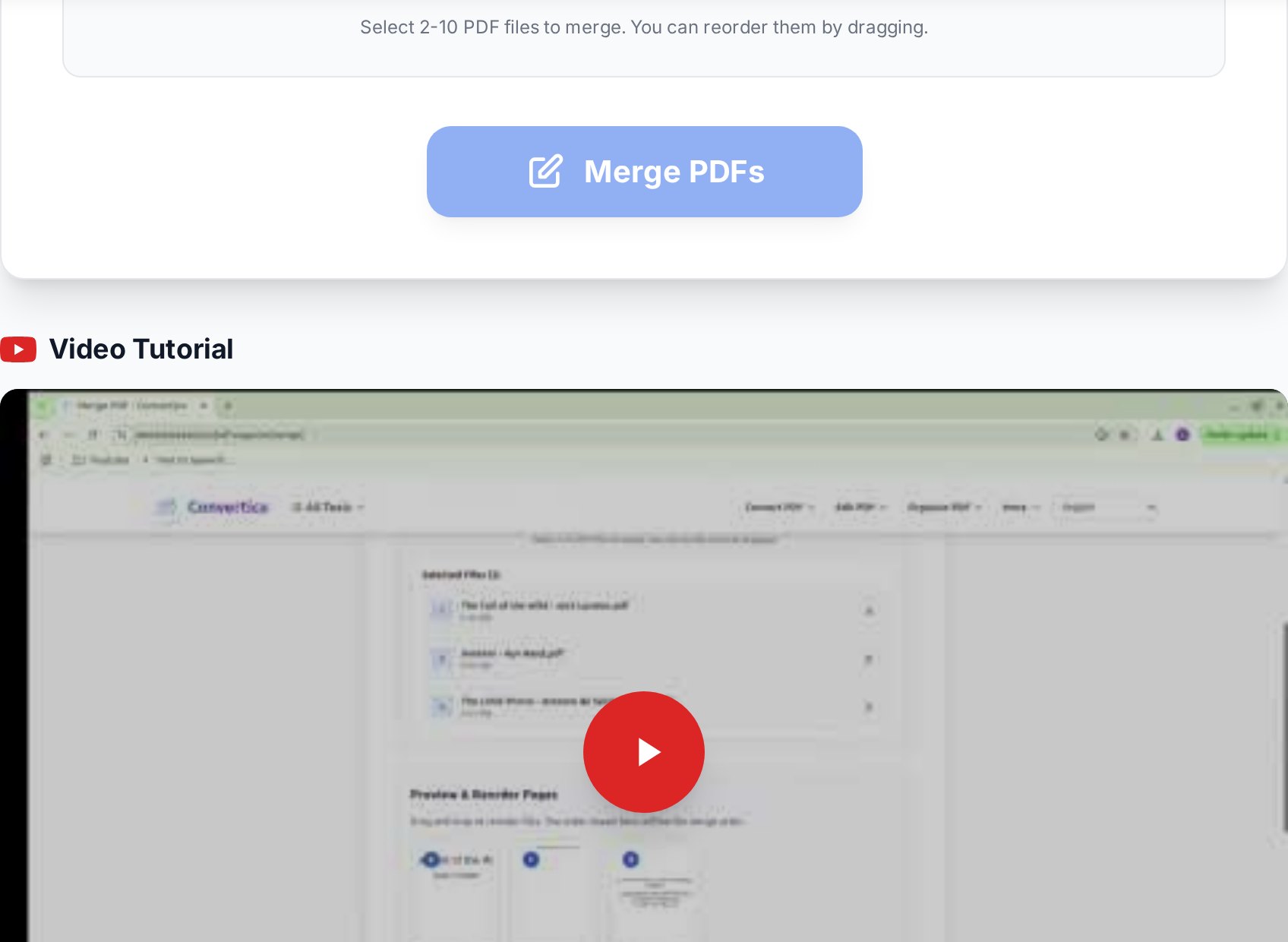
- अपनी सभी JPG receipts को एक folder में group करें।
- एक batch में JPG receipts को PDF में convert करें। Tool per image एक PDF produce करता है (या एक combined PDF अगर आप prefer करें)।
- हर output को ऊपर वाले YYYY-MM-DD vendor format match करने के लिए rename करें।
- उन्हें अपनी PDF invoices के same folder में drop करें।
- Chronological order में merge करें।
Freelancers के लिए monthly workflow
पूरा point इसे routine बनाना है, heroic नहीं। एक workable monthly close:End-of-month routine (लगभग 10 minutes)
- नए महीने का पहला, सुबह. अभी ख़त्म हुए महीने के लिए अपना "Invoices" folder open करें।
- Bank के against cross-check करें. अपना business bank statement open करें। Statement पर कुछ भी जो folder में नहीं है, missing invoice hunt करें। Folder में कुछ भी जो statement पर नहीं है, अगले महीने के लिए flag करें।
- YYYY-MM-DD_vendor_amount में rename करें. 15 files के लिए दो minutes।
- कोई JPG receipts convert करें. JPG-to-PDF tool से एक round trip।
- Merge करें. सबको merge tool में drag करें, order verify करें, download करें।
- Bundle save करें as
2026-04_invoices_yourname.pdfअपने "Accounting/2026" folder में। - Accountant को email करें. एक attachment, unusual कुछ भी के बारे में one-line note के साथ।
Merging से पहले Backup
Originals रखें। हमेशा। Merged PDF आपका handoff format है, archive नहीं। अगर कोई supplier amount dispute करे या आपके accountant को single invoice का un-redacted version चाहिए, आप source file चाहते हैं, merge से extracted page नहीं। ज़्यादातर cloud drives files automatically version करते हैं; अगर आपका नहीं करता, renaming शुरू करने से पहले month folder को "raw_originals" subfolder में copy करें। एक simple retention rule set करें: originals को सात years के लिए रखें (ज़्यादातर jurisdictions में standard tax-record window), merged bundles को indefinitely रखें क्योंकि वो कुछ नहीं cost करते।Accountant को भेजना
अगर merged PDF 20 MB से ऊपर land करता है (common जब आपके पास बहुत photographed receipts हों), final bundle को email के लिए compress करें medium preset से। Sensitive bundles के लिए (आपके bank details दिखाने वाली invoices, salary breakdowns, या client NDA cover करने वाला कुछ भी), PDF को password-protect करना और password अलग channel से share करना consider करें - text message, same email thread नहीं। अगर आपका accountant portal use करता है (Karbon, ClientHub, या QuickBooks Online का Accountant view), email attach करने के बजाय वहाँ directly upload करें। Portals usually higher size limits, automatic versioning, और audit log रखते हैं जो email match नहीं कर सकता।FAQ
क्या Invoices merge करने से original files change हो जाएँगी?
नहीं। Merge tool हर source PDF read करता है और एक new combined file write करता है। आपके originals exactly वैसे ही supplied stay करते हैं, जो matter करता है अगर supplier या auditor कभी unmodified copy माँगे।
Invoices को chronological order में कैसे रखें?
Merging से पहले हर file को YYYY-MM-DD prefix के साथ rename करें। Tool आपकी filename order follow करता है, इसलिए clean naming convention आपके लिए sorting कर देती है। अगर rename करना भूल जाएँ, merge click करने से पहले thumbnails को order में drag करें।
क्या मैं JPG receipts को PDF invoices के साथ merge कर सकता हूँ?
JPG files को पहले JPG-to-PDF tool से PDF में convert करें, फिर existing PDF invoices के साथ merge करें। ज़्यादातर online merge tools (हमारा included) सिर्फ़ PDFs को input के रूप में accept करते हैं।
क्या bank details वाली invoices को online tool पर upload करना safe है?
एक tool use करें जो files को in-session process करे और उन्हें shortly after delete करे। Convertica short retention window के बाद uploads remove करता है। Especially sensitive invoices के लिए, sharing से पहले merged PDF password-protect करें, और public Wi-Fi network से uploading avoid करें जहाँ upload intercept हो सकता है।
एक बार में कितने PDFs merge कर सकते हैं?
Practical ceiling आम तौर पर browser memory और total upload size है, tool नहीं। 10-50 invoices के typical month-end bundles के लिए, आप किसी भी limit पर hit नहीं होंगे। 200+ files के लिए, दो merges में split करें और results combine करें।
अभी try करें
April के invoices के pile को एक neat file में लाएँ जिसके लिए आपका accountant actually thank you कहेगा। Merge PDF tool open करें →


