Convert one JPG - or merge up to 50 into a single PDF
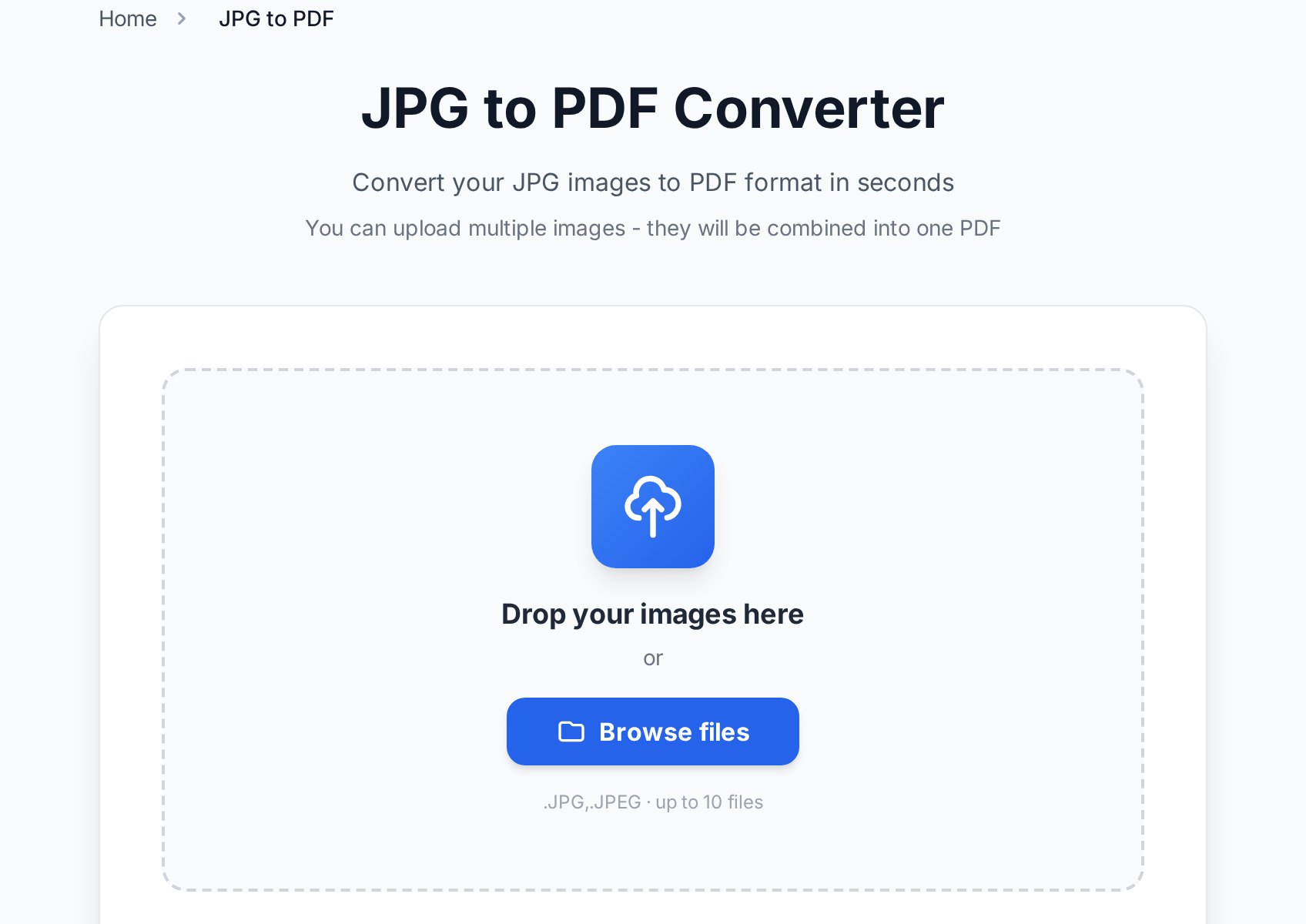
- Open the JPG to PDF converter and add your images. One file gives you a one-page PDF; multiple files are merged into a single document, one image per page, up to 50 images per request.
- Order matters: images become pages in the order you add them. Name files 01.jpg, 02.jpg, 03.jpg before selecting them and the page order takes care of itself.
- Set the quality slider if you need to (more on that below), then click Convert.
- Download the finished PDF - no watermark, no registration.
Each image is placed on an A4 page, centered with proper margins, so the result looks like a document rather than a photo dump. Portrait and landscape photos both fit automatically - the image is scaled to the page, never cropped.
Picking the right quality setting
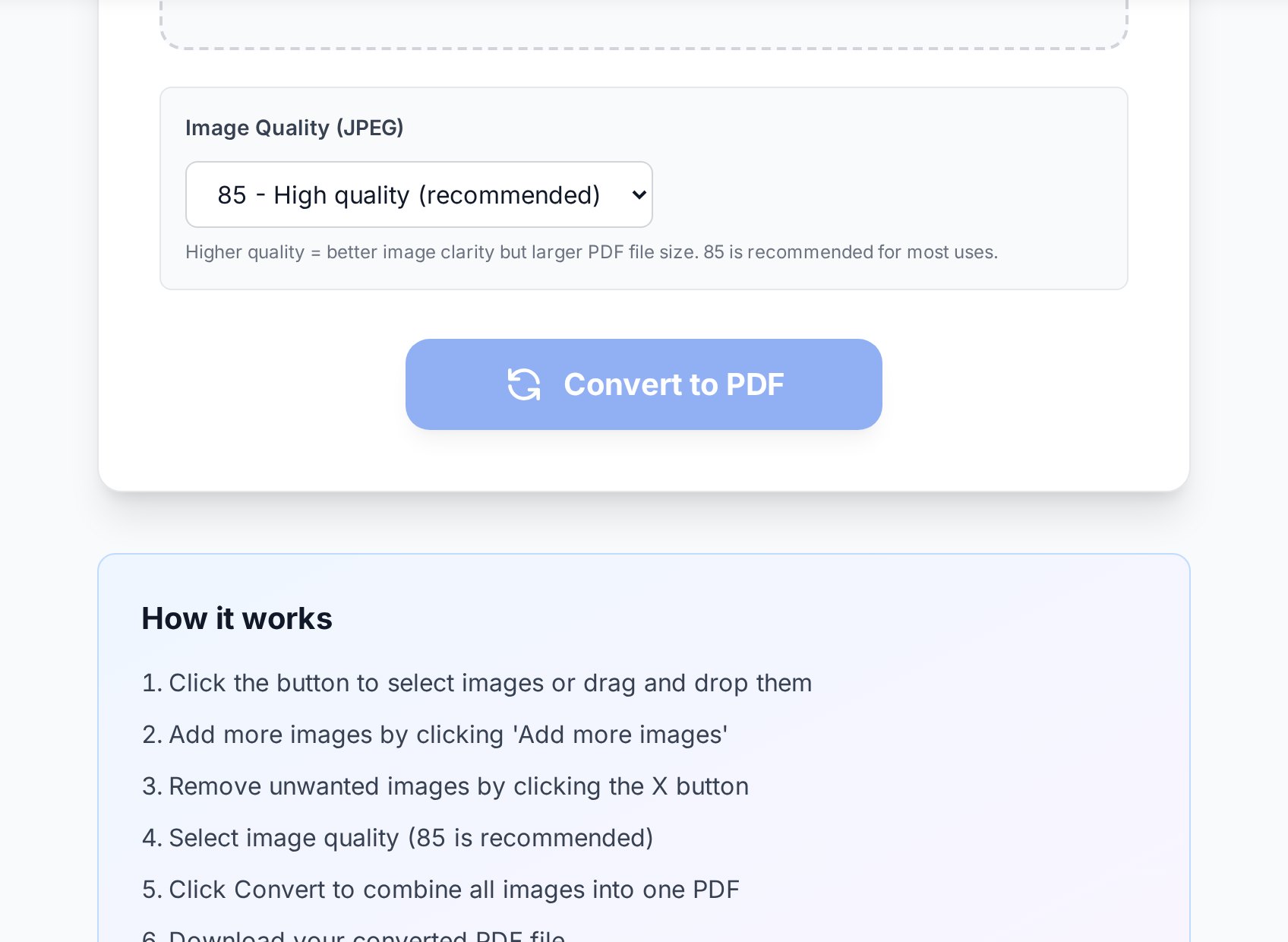
The quality control (60-95, default 85) decides how much the images are recompressed inside the PDF:
- 85 (default) - right for nearly everything. Documents stay readable, photos stay clean, file size stays reasonable.
- 90+ - for photos that must survive close inspection: portfolio work, product shots, anything that may be printed large. At 90 and above the converter also skips recompressing images that are already clean JPGs, preserving the original pixels.
- 60-75 - for email-friendly output when the source photos are huge. Ten phone photos at 12 MP can easily make a 30 MB PDF at high quality; dropping the slider tames it.
If the PDF still comes out too heavy for an attachment limit, run it through Compress PDF afterwards - the combination of moderate quality plus compression gets most photo PDFs under typical email caps.
What people actually use this for
- Expense reports. A month of paper receipts photographed and merged into one PDF files far better than a folder of loose images - and accounting will thank you.
- Photographed documents. A contract or form shot page by page with a phone becomes a single, ordered, printable document.
- Assignments and applications. Many portals accept exactly one file. Ten photographed pages, one upload field - this is the fix.
- Portfolios and mood boards. A curated set of images in fixed order, immune to chat apps recompressing and reshuffling them.
- Archiving. PDF pages with a date in the filename beat a camera roll for finding that one receipt two years later.
Getting clean results from phone photos
- Shoot documents straight-on and fill the frame - the image is placed on the page as-is, so a skewed photo stays skewed.
- Even, diffuse light beats flash. Glare on glossy paper is the most common reason a photographed page is unreadable in print.
- Crop clutter (table edges, fingers) before converting; the page should contain the document, not the scene around it.
- iPhone photos in HEIC format? Convert them to JPG first with the HEIC to JPG tool, then merge.
FAQ
Is it really free? Any watermark?
Converting JPGs to PDF is free, with no watermark and no registration. Free-tier file-size limits apply per image; premium raises them.
How many images can I merge at once?
Up to 50 images per request, each becoming one page of the resulting PDF. Need more? Split the batch and merge the resulting PDFs with the Merge PDF tool.
Can I change the page order after uploading?
Pages follow the order the images were added. The reliable habit is numbering the filenames before you select them. If a finished PDF needs reshuffling, the Organize PDF tool does drag-and-drop reordering.
Does it work with PNG or other formats?
This tool takes JPG/JPEG. For PNG, WebP, or other formats, either convert them to JPG first with the Convert Image tool, or - for a single image - convert it directly to PDF there.
Will the text in my photographed document be searchable?
No - the PDF contains pictures of text, not text. If you need to search, copy, or edit the words, run the result through the Scanned PDF to Word OCR tool, which recognizes the text and returns an editable file.
Is my data safe?
Files are processed for the conversion and cleaned up by scheduled maintenance shortly afterwards. As with any online service, check the privacy policy before uploading highly sensitive material.
Try it now
Grab that folder of photographed pages, number the files, and drop them into the JPG to PDF converter. Thirty seconds later you'll have the thing everybody actually wanted: one file, pages in order, ready to send.