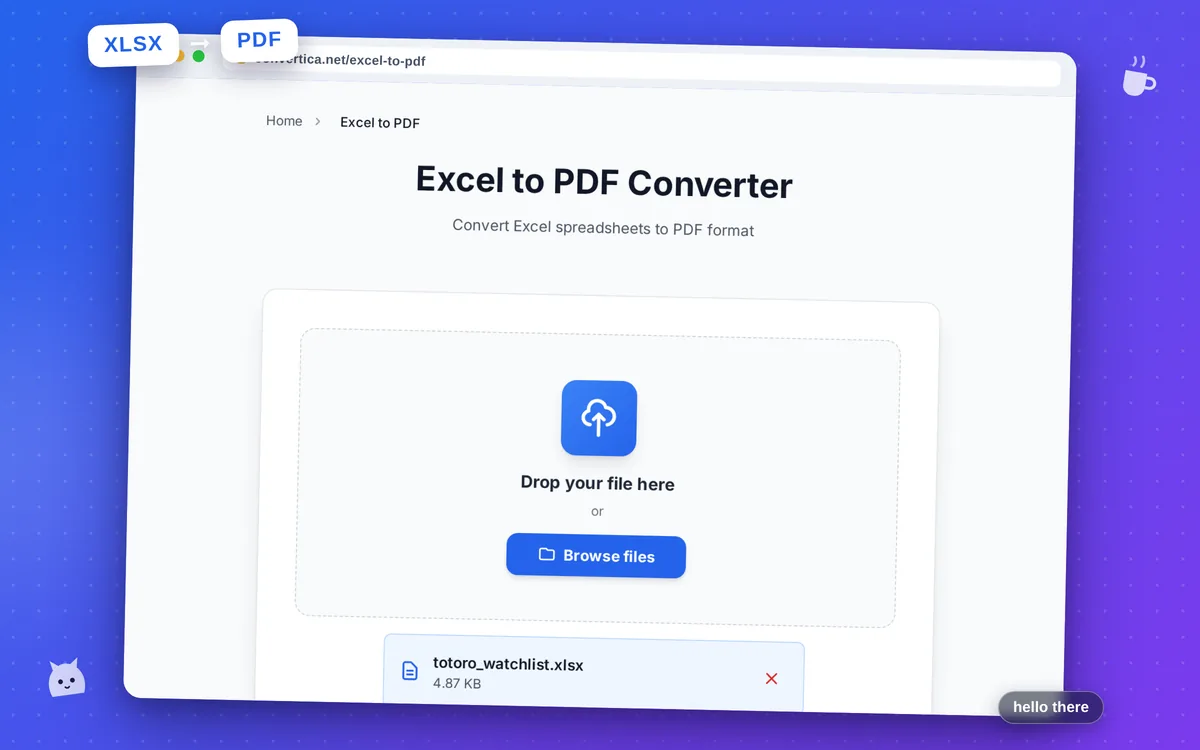
Excel to PDF Converter
Convert Excel spreadsheets to PDF format
Free conversions left today: /
Create a free account to get 4× more daily conversions. Sign up free · or go unlimited with Premium
Video Tutorial
How it works
- Select your Excel file (XLS or XLSX) using the button above or drag and drop it
- Click the convert button
- Wait for the conversion to complete
- Download your PDF file
Convert Excel Spreadsheets to Professional PDFs
Converting Excel spreadsheets to PDF format is essential for sharing financial reports, invoices, and business documents. PDF ensures your carefully formatted spreadsheets look identical on any device, without requiring recipients to have Excel installed.
Our Excel to PDF converter handles complex spreadsheets with ease, preserving all formatting elements including conditional formatting, data bars, charts, and images. Whether you're converting a simple data table or a complex financial model with multiple worksheets, the output PDF maintains professional quality.
Perfect for accountants sharing reports with clients, businesses sending invoices, analysts distributing data summaries, and anyone who needs to convert Excel files to a universal, non-editable format for secure distribution.
Why Choose Our Tool?
Perfect Formatting Preservation
Convert Excel spreadsheets to PDF while maintaining all formatting, including fonts, colors, borders, merged cells, and column widths. Your PDF will look exactly like your Excel file.
Charts & Graphics Support
All charts, graphs, images, and graphics in your Excel file are accurately converted to PDF. Perfect for financial reports and presentations.
Multi-Sheet Conversion
Excel workbooks with multiple sheets are converted seamlessly. Each worksheet becomes a separate section in your PDF document.
Secure & Private
Your Excel files are processed securely and deleted automatically after conversion. We never store your files permanently. Perfect for confidential business documents.
Tips for Best Results
- Set your print area in Excel before converting to control which cells appear in the PDF.
- Adjust page orientation (portrait/landscape) in Excel for better PDF output.
- Use 'Fit to Page' settings in Excel to ensure all columns fit on one page width.
- Remove hidden rows and columns before conversion to reduce PDF file size.
- Check print preview in Excel to see how your PDF will look before converting.
Frequently Asked Questions
How do I convert Excel to PDF online?
Will my Excel formatting be preserved in the PDF?
Can I convert Excel files with multiple sheets?
What Excel formats are supported?
Is there a file size limit for Excel to PDF conversion?