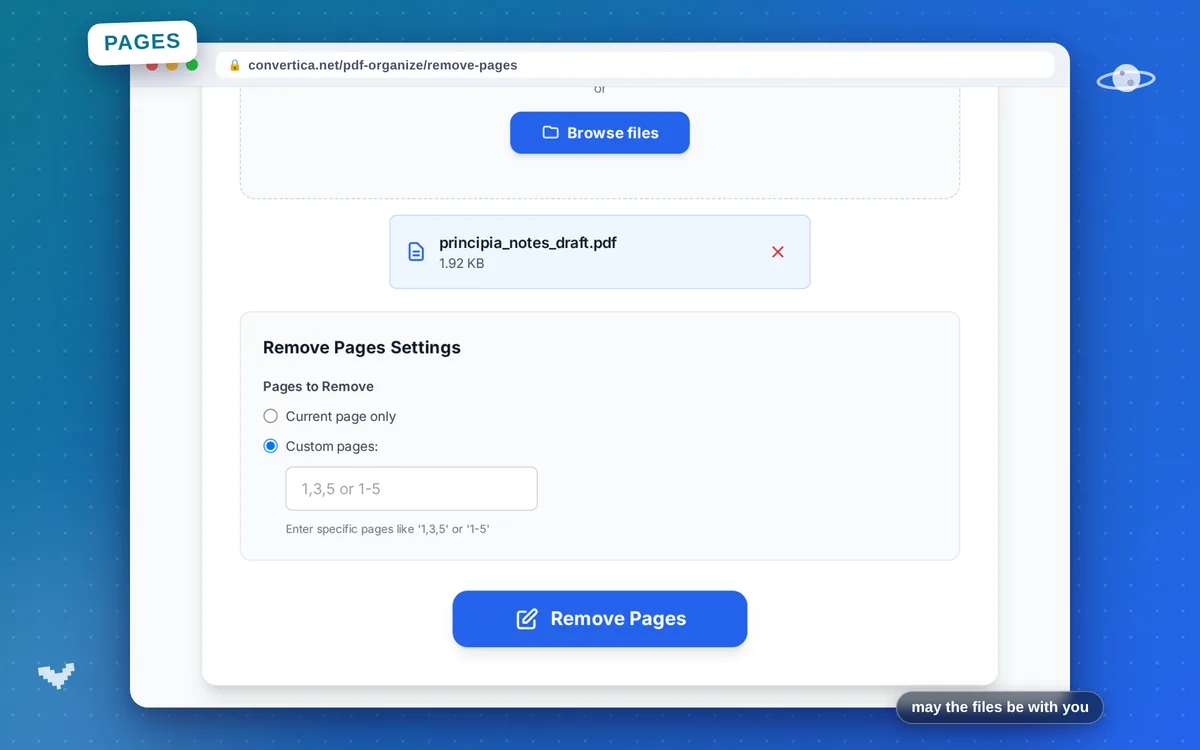
Remove Pages
Remove unwanted pages from your PDF
Video Tutorial
How it works
- Select your PDF file using the button above or drag and drop
- Choose pages to remove: current or specific pages (e.g., 1,3,5)
- Click Remove Pages to delete the selected pages
- Download your cleaned PDF file
Note: PDF files with up to 30 pages are supported. Remaining pages are preserved in original order.
Remove Pages from PDF - Delete Unwanted Pages
Our free PDF page remover lets you delete unwanted pages from any PDF document. Perfect for removing blank pages, cover pages, or unnecessary content.
Simply upload your PDF, preview the pages using thumbnails, select the ones you want to remove, and download the cleaned-up document. The remaining pages maintain their original quality and formatting.
Common uses: Remove blank pages from scanned documents, delete cover pages or advertisements, trim unnecessary appendices, or clean up exported presentations before sharing.
Why Choose Our Tool?
Quick Page Deletion
Remove unwanted pages from your PDF in seconds
Quality Preserved
Original content quality remains unchanged
Visual Preview
See page thumbnails before removing
Instant Processing
Fast removal with immediate download
Tips for Best Results
- Preview pages before removing to avoid mistakes
- Use page ranges for faster selection (e.g., '1-3, 7, 10-12')
- Remove blank pages to reduce file size
- Keep a backup of your original PDF before removing pages
- Use Extract Pages instead if you want to keep specific pages as a new document
Frequently Asked Questions
How do I remove pages from a PDF?
Can I remove multiple pages at once?
Will removing pages affect the document quality?
Can I undo page removal after saving?
How do I remove blank pages from a PDF?