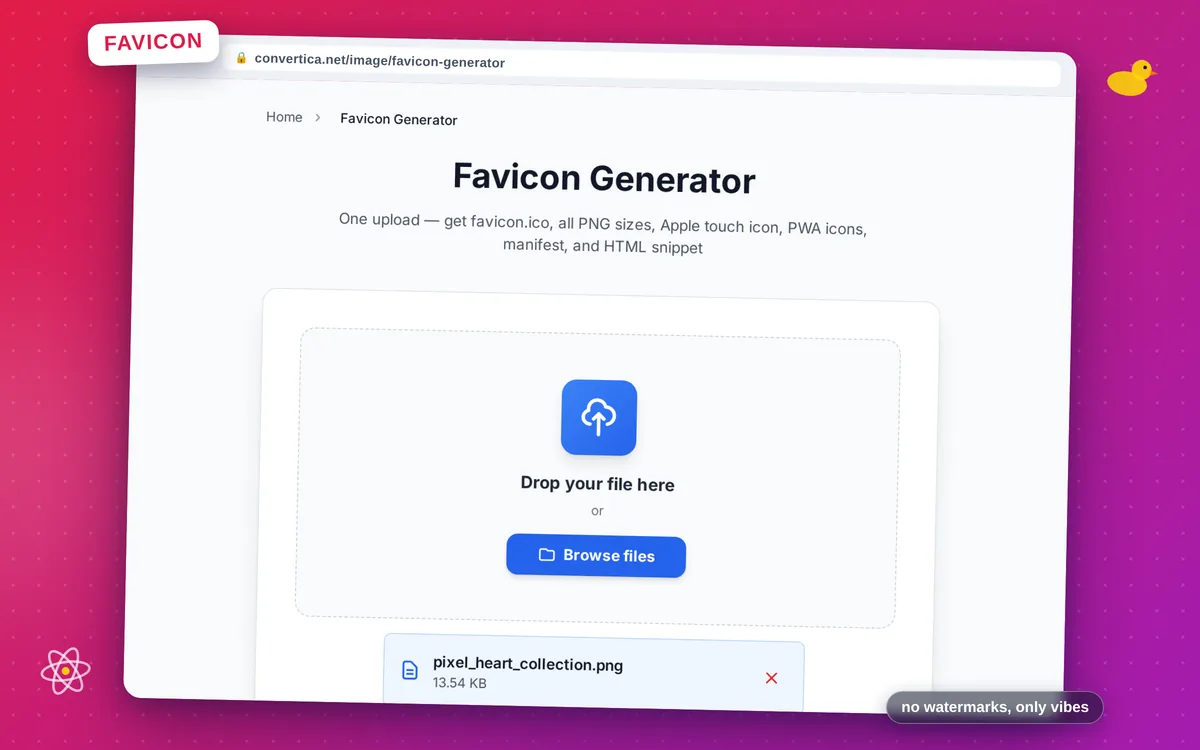
Favicon Generator
One upload — get favicon.ico, all PNG sizes, Apple touch icon, PWA icons, manifest, and HTML snippet
Free conversions left today: /
Create a free account to get 4× more daily conversions. Sign up free · or go unlimited with Premium
How it works
- Click the button above to select your file, or drag and drop it into the zone below
- Click the convert button
- Wait for the conversion to complete
- Download your converted file using the download button
Generate a complete favicon package for your website
Favicon Generator creates everything your website needs to display a professional icon — in one click. Instead of manually creating a dozen different files for different browsers and devices, upload a single image and receive a ZIP containing favicon.ico (with 16×16, 32×32, and 48×48 frames), ten PNG sizes from 16 to 512 px, an apple-touch-icon at the exact 180×180 px Apple requires, PWA manifest icons at 192×192 and 512×512 px, a ready-made site.webmanifest, and an HTML snippet you can copy straight into your <head>.
Modern websites need more than a single favicon.ico: iOS home-screen bookmarks use the apple-touch-icon PNG, Progressive Web Apps read icons from the web manifest, and high-DPI displays benefit from larger PNG variants. This generator produces the entire set in seconds, so you never have to guess which files or sizes a particular platform expects. SVG sources give the sharpest results because each size is rasterized directly from the vector outlines.
To install, extract the ZIP into your website's root directory and paste the provided HTML tags from snippet.html into the <head> of every page. That's all — your site will show a crisp, correctly sized icon in every browser tab, home-screen bookmark, and PWA install prompt. Fully free, no registration, files deleted after download.
Why Use Our Favicon Generator?
Complete Package in One ZIP
favicon.ico, PNG icons from 16 to 512 px, apple-touch-icon 180×180, PWA icons 192×192 and 512×512, site.webmanifest, and a ready-to-paste HTML snippet — all in one download
Apple & PWA Ready
apple-touch-icon at the required 180×180 px and PWA manifest icons at 192×192 and 512×512 px are included automatically — no extra steps
HTML Snippet Included
Copy the generated <link> and <meta> tags directly into your HTML <head> — no guessing which tags you need
Any Source Format
Upload PNG, JPG, WebP, or SVG — SVG sources produce the sharpest results because they are rasterized at each size from vector outlines
Tips for Creating the Perfect Favicon
- Upload a 512×512 px or larger square image for the sharpest icons — smaller or non-square sources are scaled and center-cropped to fit.
- Use a simple, bold design: intricate logos become unrecognizable at 16×16 px.
- Place all generated files in your site's root directory so browsers can find them automatically.
- After uploading the files, paste the HTML snippet from snippet.html into your site's <head> so every browser and device finds the right icon.
Favicon Generator FAQ
What files are included in the favicon ZIP package?
How do I install the favicon on my website?
Do I really need multiple favicon files?
What image should I upload for the best results?
What is the site.webmanifest file used for?
Are my uploaded images kept private?