Split PDF
Split your PDF into multiple files
Video Tutorial
How it works
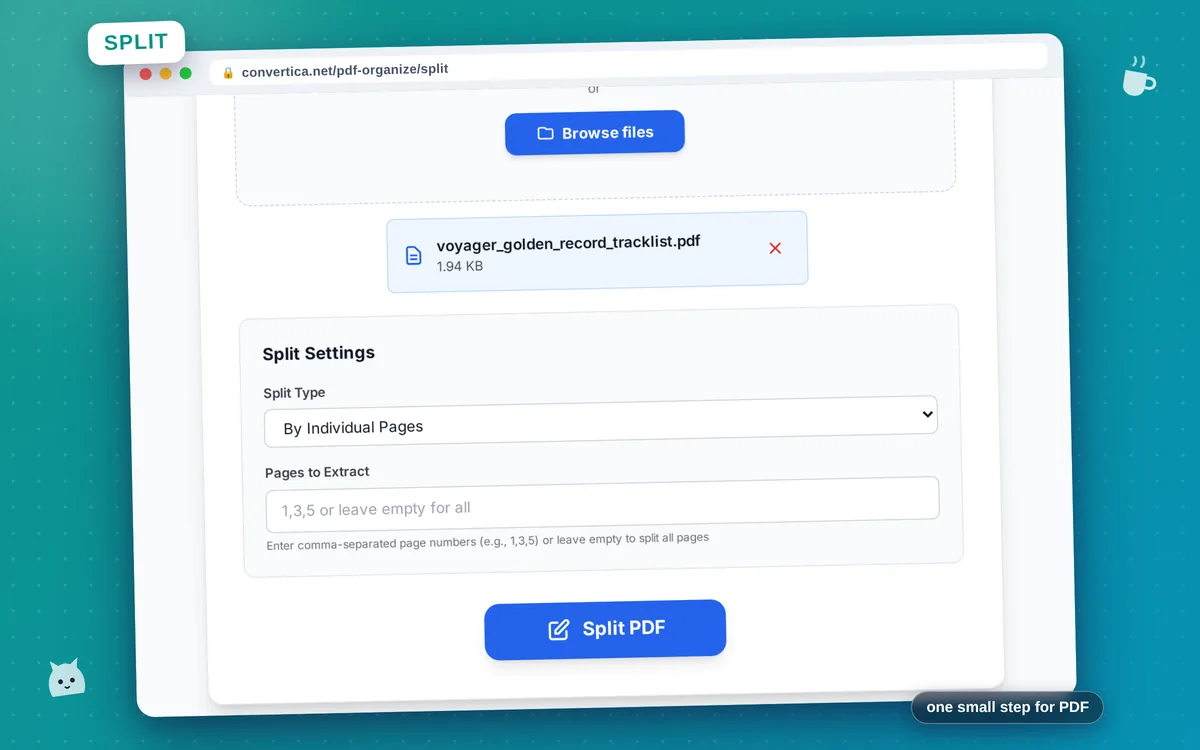
- Select your PDF file using the button above or drag and drop it into the zone
- Choose how to split your PDF: by individual pages, by page ranges, or every N pages
- Enter the pages or ranges you want to split (e.g., 1,3,5 or 1-5)
- Click the Split button to process and create separate PDF files
- Download the ZIP archive containing all split PDF files
Note: PDF files with up to 30 pages are supported. Output is a ZIP archive with all split files.
Split PDF Online - Extract Pages Easily
Need to extract specific pages from a PDF? Our free PDF splitter lets you divide PDF documents by page ranges, extract individual pages, or split every page into separate files.
Perfect for extracting chapters from ebooks, separating invoices, splitting contracts, or preparing documents for printing. The original quality is preserved - no compression or quality loss.
Flexible options: Enter page ranges (1-5, 10-15), individual pages (1, 3, 7), or split every page. All extracted pages download as a convenient ZIP file.
Why Split PDFs with Convertica?
Multiple Split Options
Split by page ranges, extract every page, or select specific pages
No Quality Loss
Original PDF quality preserved. Pages extracted exactly as they are
Download as ZIP
All split pages downloaded as a single ZIP file for convenience
Secure & Private
Files deleted automatically after processing. Your documents stay private
Tips for Splitting PDF Files
- Use ranges like '1-5, 10-15' to extract multiple sections at once
- Select 'Split every page' to create individual PDFs from each page
- Extract odd or even pages only for double-sided printing preparation
- For large PDFs, split into smaller parts for easier sharing via email
- After splitting, use Merge PDF to combine pages in a new order
Split PDF - Frequently Asked Questions
How do I split a PDF by page ranges?
Can I extract specific pages from a PDF?
Will splitting affect the quality of my PDF?
How do I download the split pages?
Is there a limit on how many pages I can split?