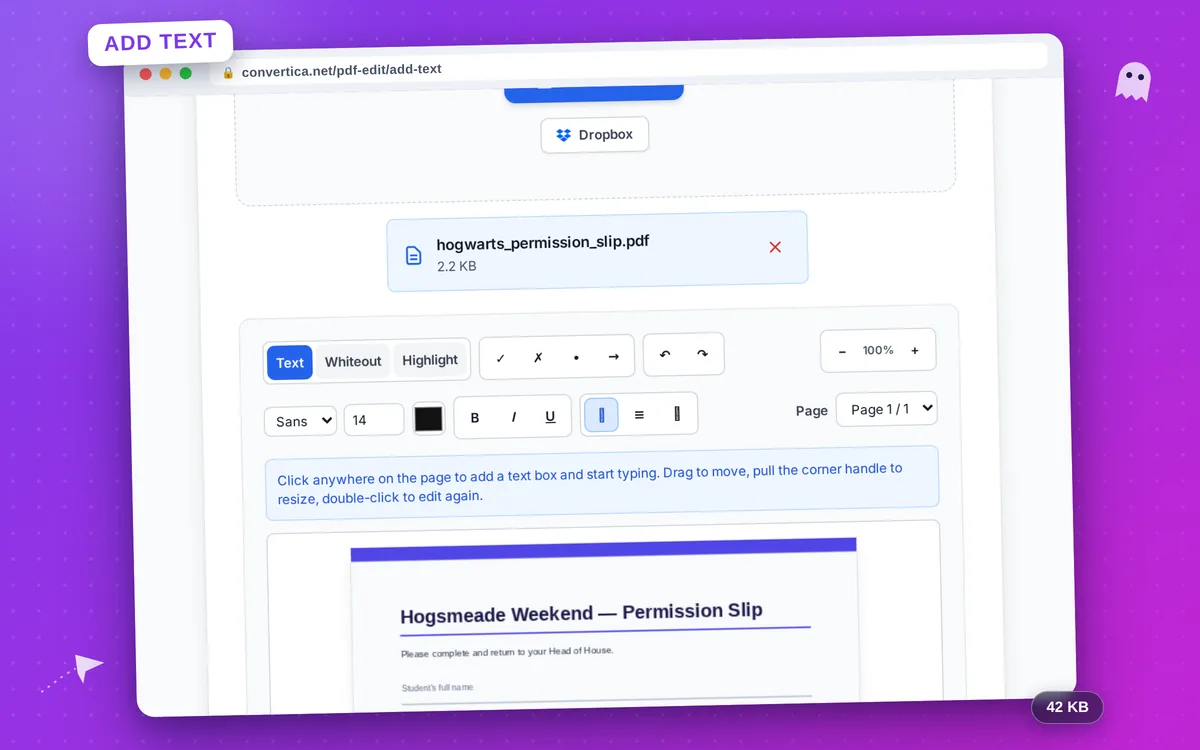
Add Text to PDF
Click anywhere on the page, type your text, download — the text stays real and selectable
Free — no sign-up needed
Click anywhere on the page, type your text, and download the edited PDF. Whiteout and highlight included. A daily free limit applies. Unlimited use is available with Premium.
How it works
- Select your PDF file or drag and drop it
- Click anywhere on the page and type your text
- Style it: font, size, color, bold, italic, underline, alignment
- Use Whiteout to cover mistakes and Highlight to mark important parts
- Add checkmarks and symbols to fill out forms without form fields
- Download the edited PDF — your text stays real, selectable text
Tip: Your work is kept in this browser tab, so an accidental reload will not lose your edits. Ctrl+Z undoes, arrow keys nudge the selected object.
Add text to a PDF online — type, whiteout, highlight
Add Text to PDF puts words exactly where you need them: click anywhere on the page, type, and style the result with font, size, color, bold, italic, underline, and alignment. The text is written into the PDF as real, selectable text with the font embedded — not as a picture.
Beyond text, the editor includes a whiteout tool that samples the page background to cover mistakes cleanly, a translucent highlighter, and checkmark, cross, bullet, and arrow symbols — everything needed to fill out a form that has no fillable fields. Files are deleted automatically right after download; whiteout is a visual cover-up, not redaction, so the original content remains in the file underneath.
Why Choose Our Tool?
Real, Selectable Text
Your text is embedded as genuine PDF text with the font included — it stays selectable and copyable, not a blurry picture of text
Whiteout & Highlight
Cover mistakes with a background-matched rectangle and mark important lines with a translucent highlight — no extra tools needed
Fill Forms Without Fields
Type into scanned or flat forms and drop checkmarks and crosses exactly where they belong — no fillable form fields required
Any Language
Latin, Cyrillic, Arabic, and Devanagari text all render correctly with embedded Noto fonts — most online editors break on non-Latin scripts
Tips for Adding Text to PDFs
- Double-click any placed text box to edit it again; drag to move it, pull the corner handle to resize.
- Whiteout samples the page color under your click, so it blends in even on non-white backgrounds.
- Use Shift with the arrow keys to nudge the selected object in bigger steps for quick alignment.
Add Text to PDF FAQ
Will the added text stay selectable in the PDF?
Can I fill out a form that has no fillable fields?
Does whiteout really remove the covered content?
Can I write in Russian, Arabic, or Hindi?
What happens if I accidentally reload the page?