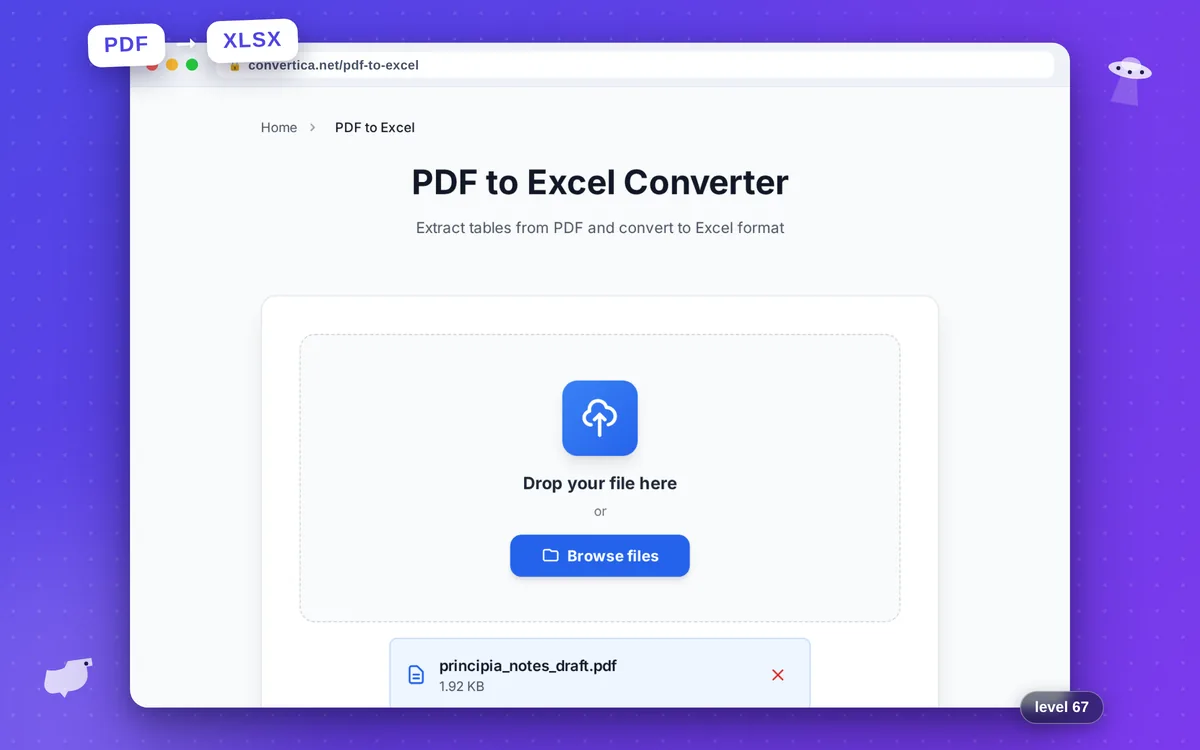
PDF to Excel Converter
Extract tables from PDF and convert to Excel format
Free conversions left today: /
Create a free account to get 4× more daily conversions. Sign up free · or go unlimited with Premium
Video Tutorial
How it works
- Select your PDF file using the button above or drag and drop it into the zone below
- Click the convert button to start converting PDF to Excel (PDF to XLSX conversion)
- Wait for the PDF to Excel conversion to complete - tables and data will be extracted from your PDF and converted to editable Excel format
- Download your editable Excel file (XLSX format) - your PDF tables have been successfully converted to Excel
Note: Free users can convert PDF files with up to 30 pages. Premium users have higher limits. For larger files, please split them into smaller parts. PDF files with tables work best - plain text will be placed in separate cells, and images will be embedded in the Excel file.
Professional PDF to Excel Conversion
Converting PDF documents to Excel spreadsheets is essential for modern business workflows. Whether you're extracting financial data from invoices, analyzing reports, or importing data from PDF tables into your accounting software, our PDF to Excel converter makes the process simple and accurate.
Our advanced conversion technology uses intelligent table detection to identify rows, columns, and cell boundaries in your PDF documents. The extracted data is then formatted as a proper Excel spreadsheet, ready for editing, calculations, and analysis. This eliminates hours of manual data entry and reduces the risk of transcription errors.
Perfect for accountants, financial analysts, data entry professionals, and anyone who needs to work with data locked in PDF format. Convert bank statements, invoices, purchase orders, inventory lists, and any other tabular PDF documents to editable Excel files in just a few clicks.
Why Choose Our Tool?
Accurate Table Extraction
Our advanced AI-powered engine accurately extracts tables from PDF documents and converts them to editable Excel spreadsheets with preserved cell structure and formatting.
Lightning Fast Conversion
Convert PDF to Excel in seconds. Our optimized servers process your documents quickly so you can start working with your data immediately.
Secure Data Handling
Your PDF files are processed securely and automatically deleted after conversion. We never store or share your sensitive financial data.
Completely Free Service
Convert PDF to Excel completely free without watermarks, email registration, or hidden fees. Perfect for invoices, reports, and financial data.
Tips for Best Results
- For best results, use PDFs with clearly defined table borders and consistent formatting.
- If your PDF has multiple tables, they will each be placed on separate sheets in Excel.
- Check the converted Excel file for any cells that may need manual adjustment after conversion.
- Use PDFs created from spreadsheet applications for the most accurate conversion results.
- For large PDFs with many pages, consider splitting them before conversion for faster processing.
Frequently Asked Questions
How do I convert a PDF with tables to Excel?
Will the table formatting be preserved after conversion?
Can I convert scanned PDF documents to Excel?
Is there a limit on the number of PDF pages I can convert?
What types of PDFs work best for Excel conversion?