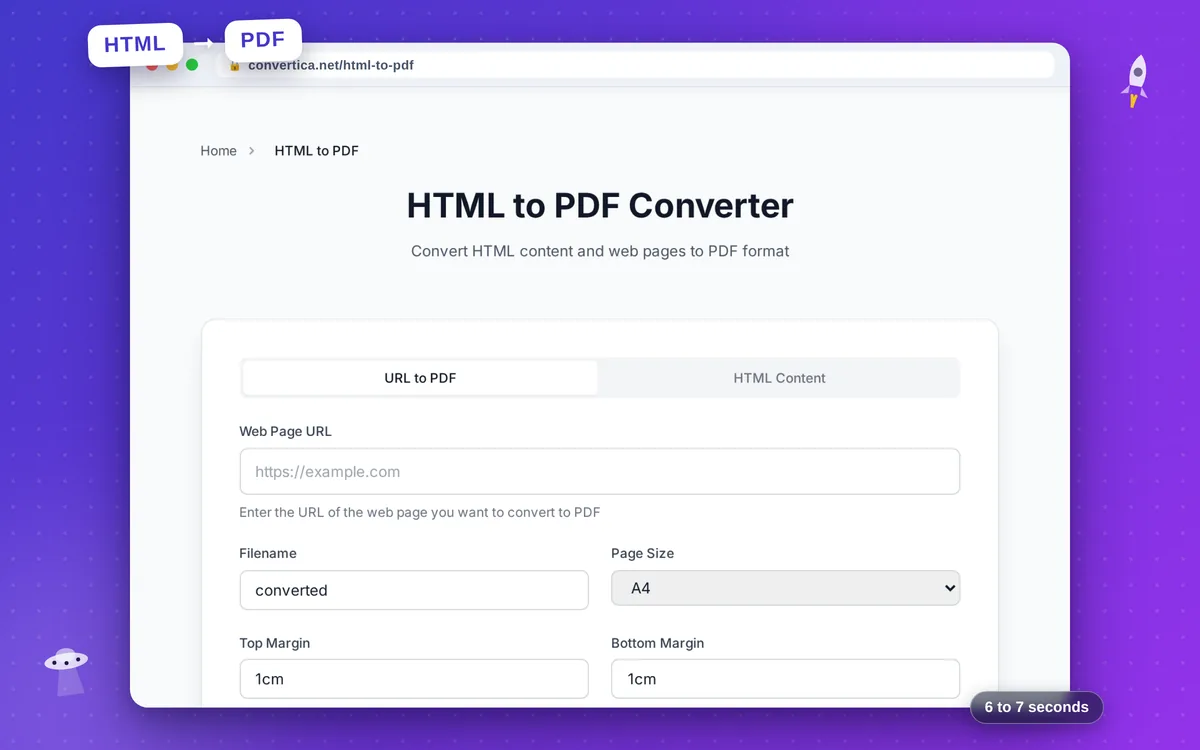
HTML to PDF Converter
Convert HTML content and web pages to PDF format
Please wait while we convert your content to PDF...
Conversion Complete!
Your content has been converted to PDF successfully.
How it works
- Paste your HTML or enter a URL
- Click the convert button
- Wait for the conversion to complete
- Download your PDF file
Convert HTML and Web Pages to PDF Documents
Converting HTML content and web pages to PDF is essential for archiving, sharing, and printing web-based information. Whether you need to save an article, create documentation from a web page, or convert your HTML email templates to PDF, our converter handles it all.
Our HTML to PDF converter uses a powerful rendering engine that accurately captures web content including complex layouts, images, fonts, and CSS styling. The result is a professional PDF document that looks exactly like the original web page, ready for distribution or printing.
Perfect for developers creating PDF reports from HTML templates, marketers archiving web campaigns, researchers saving online articles, and anyone who needs to convert web content to a portable document format.
Why Choose Our Tool?
URL to PDF Conversion
Convert any public web page to PDF by simply entering its URL. Our service captures the page exactly as it appears in a browser, including images, styles, and layout.
HTML Code to PDF
Paste your HTML code directly and convert it to PDF. Perfect for developers, designers, and anyone working with HTML content that needs to be exported as a document.
Customizable Page Settings
Control page size (A4, Letter, Legal) and margins to get exactly the PDF layout you need. Perfect for printing or document archiving.
Fast & Reliable
Our powerful rendering engine converts HTML and web pages to PDF quickly and accurately. CSS, JavaScript, and modern web features are supported.
Tips for Best Results
- For URL conversion, ensure the page is publicly accessible without login requirements.
- When converting HTML, include all CSS styles inline or in <style> tags for best results.
- Use print-friendly CSS media queries in your HTML for optimal PDF output.
- Adjust margins to leave space for binding if you plan to print the PDF.
- Test with a simple page first to understand how your content will be rendered.
Frequently Asked Questions
How do I convert a web page URL to PDF?
Can I convert HTML code directly to PDF?