Extract Pages
Extract specific pages from your PDF
Video Tutorial
How it works
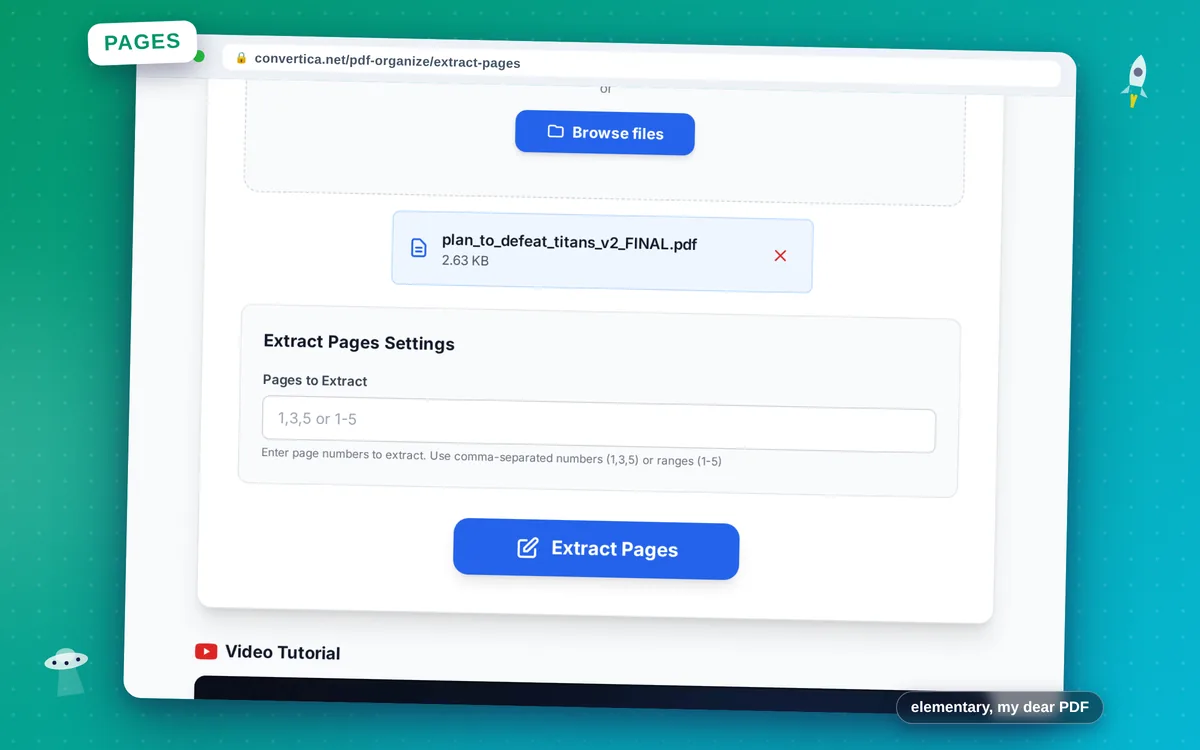
- Select your PDF file using the button above or drag and drop
- Enter pages to extract (e.g., 1,3,5 or 1-5)
- Click Extract Pages to create a new PDF
- Download your new PDF with selected pages
Note: PDF files with up to 30 pages are supported. Extracted pages combine into one new PDF.
Extract Pages from PDF - Create Custom Documents
Our free PDF page extractor lets you select and extract specific pages to create a new PDF document. Perfect for extracting chapters, important sections, or creating custom document packages.
Select individual pages, ranges like '1-10', or combinations like '1-5, 8, 12-15'. The extracted pages are combined into a new PDF that you can download immediately. All formatting and quality are preserved.
Common uses: Extract specific chapters from ebooks, pull out important contract sections, create document excerpts for sharing, extract forms from multi-page documents, or prepare specific pages for printing.
Why Choose Our Tool?
Flexible Selection
Extract individual pages, ranges, or specific combinations
Quality Preserved
Extracted pages maintain original quality
New PDF Created
Get a new PDF containing only your selected pages
Instant Processing
Fast extraction with immediate download
Tips for Best Results
- Use ranges for consecutive pages (e.g., '1-10')
- Combine ranges and individual pages (e.g., '1-5,8,10-15')
- Preview pages before extracting to ensure correct selection
- Extract odd or even pages for double-sided printing needs
- Use Extract instead of Split when you need just one combined PDF
Frequently Asked Questions
How do I extract specific pages from a PDF?
What's the difference between Extract and Split?
Can I extract non-consecutive pages?
Will extracted pages maintain their original quality?
Can I extract pages from a password-protected PDF?