

The five things "edit a PDF" can mean
Before you open any tool, figure out which of these you're actually trying to do. Picking the wrong category is why people end up convinced they need Acrobat.- Editing pages - reorder, rotate, delete, or split. The text and layout stay untouched; you're just rearranging or removing whole pages.
- Adding content on top - a signature, a date, initials, a stamp, a watermark, or page numbers. You're layering new elements over the existing page, not changing what's underneath.
- Hiding content - whiting out or redacting a number, a name, or a paragraph before you share the file.
- Filling a form - typing into the blanks of an application, contract, or government form.
- Rewriting the body text - actually changing the words in a paragraph that was authored by someone else.
The first four are quick and free in any browser. Only the fifth - rewriting someone else's body text inside the PDF - is genuinely hard, and even then there's a free path that beats paying for Acrobat.
Editing pages: reorder, rotate, delete
This is the most common request and the easiest. A PDF is a sequence of pages, and rearranging that sequence doesn't touch the content of any page. You can organize PDF pages in a single view - drag to reorder, click to delete, and rotate the ones that came out sideways - then export a clean file. If you only need one of those actions, dedicated tools are faster: rotate pages permanently when a scan came out sideways, or trim a long document down with a page remover. None of this requires installing anything, and none of it degrades the pages you keep.Adding a signature, date, or page numbers
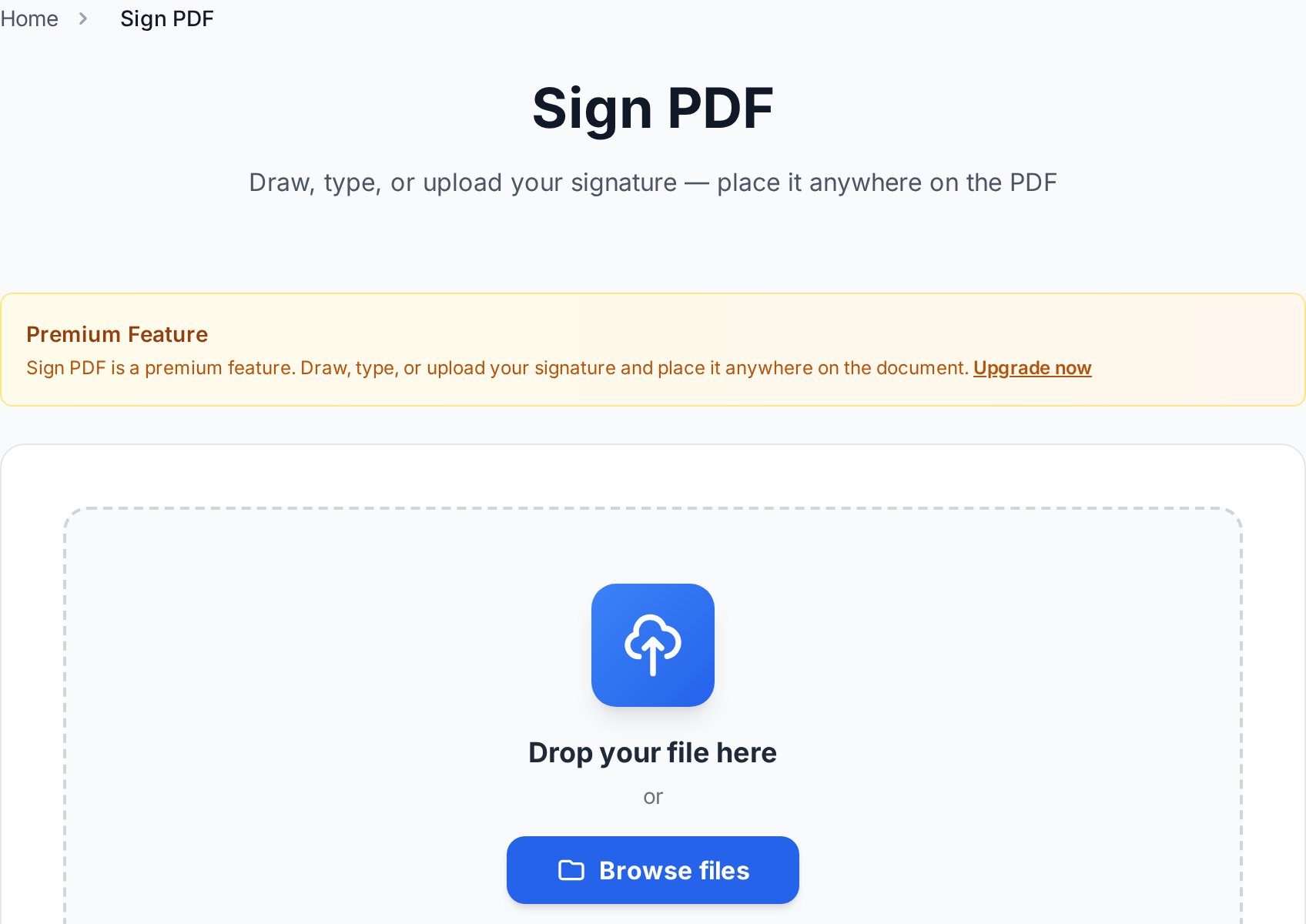
"Add my signature" almost never means editing the document - it means drawing a new element on top of it. Use a sign PDF tool to draw, type, or upload a signature and drop it where it belongs. The same layering approach covers a few related jobs:- Stamp a "Confidential" or "Draft" watermark across every page.
- Add page numbers to a report or a merged bundle.
- Type a date or short note into an empty margin.
Hiding content the right way
There's a dangerous trap here. Drawing a black box over a sensitive number in many free annotators only covers it visually - the text is still in the file, and anyone can copy it out or remove the box. Real redaction removes the underlying data.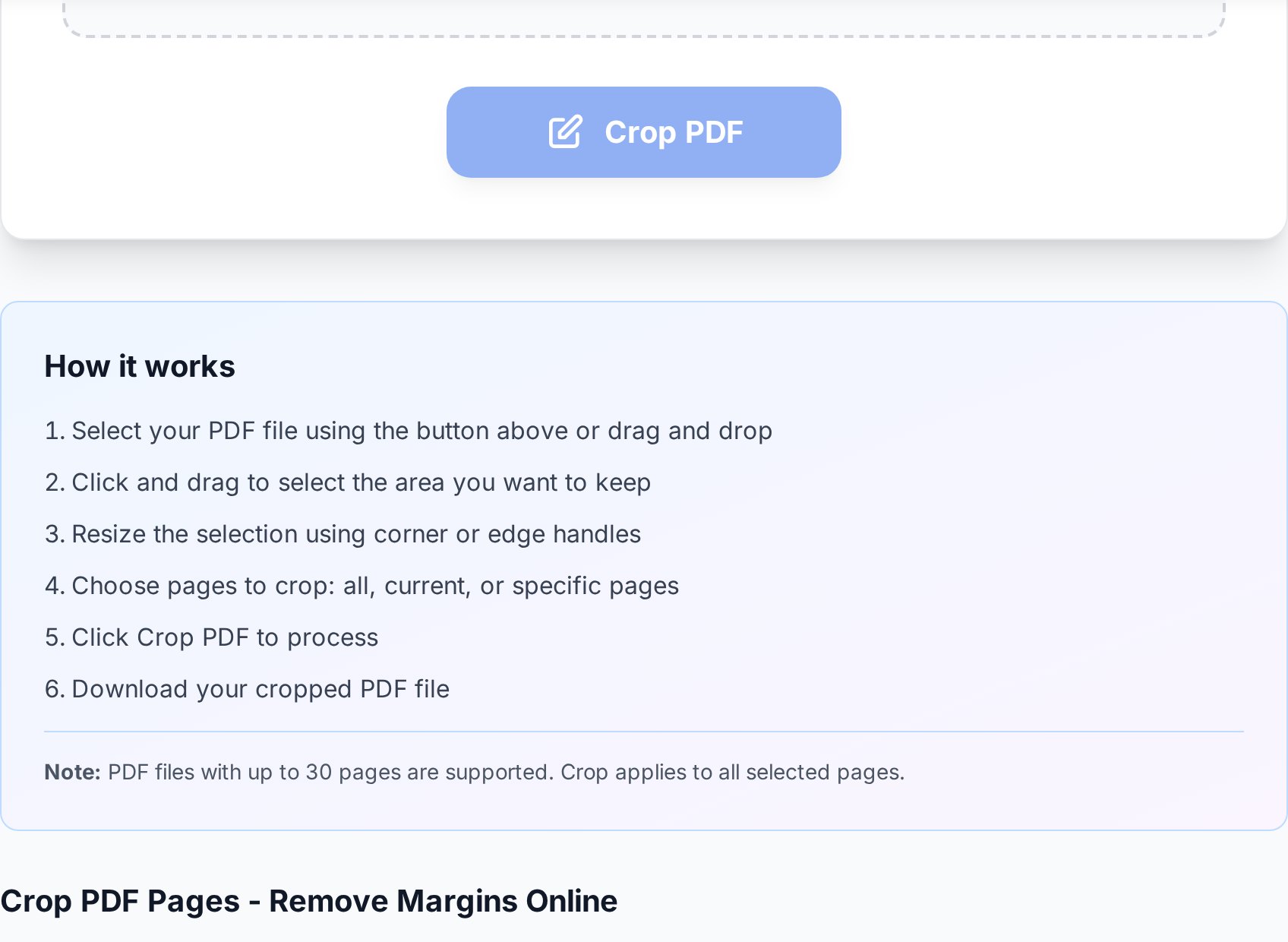
Filling out a form
Two kinds of PDF forms exist. Interactive forms have real fields you can click and type into - most modern browsers handle these natively, so you often don't need a separate tool at all. Flat forms are just scanned or printed layouts with no fields; for those, use a tool that lets you place a text box anywhere on the page, type your answer, and export. A sign-and-fill tool covers both: place text where the blanks are, add a signature, done.If a form arrived as a photo or a scan, treat it as a flat form. There are no fields to click - you're typing on a layer above the image.
The hard one: rewriting body text
Changing the actual words in a paragraph someone else wrote is the only task that lives up to the reputation of "you need Acrobat." PDFs don't store text as editable paragraphs; they store positioned glyphs, so swapping a word means re-flowing everything around it. Free in-PDF text editors exist, but they struggle the moment the font isn't embedded or the layout is complex, and the result often looks visibly patched. There's a better free route for anything more than a one-word fix: convert the PDF to Word, edit the text properly in a real word processor where re-flow is automatic, then export back to PDF. You get clean, native editing instead of fighting a glyph-by-glyph patch tool. The one caveat is scanned documents - if the PDF is an image of text, you'll need OCR during the conversion so there's actual text to edit.What you give up by not using Acrobat
Being honest about the trade-off: Acrobat Pro does some things browser tools don't, like advanced preflight for print production, deep accessibility tagging, and bulk scripted edits across hundreds of files. If your job is professional print or compliance work, that subscription earns its keep. For the everyday "I need to fix this one PDF" task, it's overkill - and the free tools above cover the entire workflow without an account. A quick decision shortcut:- Rearranging or removing pages → page tools, free.
- Signing, dating, watermarking, numbering → layer tools, free.
- Hiding or trimming content → crop or flatten, free.
- Filling a form → sign-and-fill, free.
- Rewriting paragraphs → convert to Word, free.
- Print-production or compliance pipelines → that's the real Acrobat use case.
A note on privacy
Whatever you edit, remember the file leaves your device when you upload it to any web tool. Reputable browser tools process the file and discard it shortly after, but you should still avoid uploading genuinely sensitive originals to services you don't recognise. For one-off personal documents this is rarely an issue; for confidential business files, check the tool's retention policy first, and flatten anything you redacted before sharing it onward.FAQ
Can I edit a PDF for free without creating an account?
Yes. Page edits, signatures, watermarks, page numbers, cropping, and form filling are all available in free browser tools with no sign-up. Only specialised print-production and compliance features are genuinely paywalled in Acrobat Pro.
How do I change the actual text in a PDF for free?
For a one-word fix, an in-browser text editor can work. For anything larger, convert the PDF to Word, edit the text in your word processor where the layout re-flows automatically, then export back to PDF. It's cleaner than patching glyphs inside the PDF.
Is drawing a black box over text the same as redacting it?
No - and this is a common mistake. A box drawn in many annotators only hides the text visually; the underlying characters remain in the file and can be copied or revealed. To remove data, crop the region away or flatten the document, then confirm the text can no longer be selected.
Can I edit a scanned PDF?
Only after OCR. A scan is an image of text, so there's nothing to edit until optical character recognition turns the picture into real characters. Run the scan through an OCR-enabled conversion first, then edit the resulting text.
Why does my edited PDF look slightly off after editing the text?
In-PDF text editors re-place individual glyphs, and if the original font isn't embedded they substitute a near-match, which shifts spacing. That's the core limitation of editing text inside a PDF, and the reason converting to Word produces a cleaner result for larger changes.
Try it now
Pick the task, not the software. Organize pages, sign and fill, or flatten your file in the browser - or browse all PDF tools to find the exact one for the job. No Acrobat, no account.


