

What a favicon actually is
A favicon, short for "favorite icon", is the small square image that represents a website. It started life in the late 1990s as a single 16x16 pixel file called favicon.ico, and for a long time that was the end of the story. It is not anymore. Today the same little logo has to render crisply in a browser tab on a high-resolution laptop, in a bookmark, on an iPhone home screen at 180 pixels, on an Android device, inside an installable web app, and sometimes beside your listing in a search engine. Each of those places wants a different size, and a few of them want a specific filename.
This is why "just upload a 16x16" advice from years ago now produces a fuzzy mess. A tiny image scaled up to a 180 pixel home-screen icon looks soft and pixelated. The right approach is to start from one large, clean image and produce a small set of correctly sized files from it.
Why one size is no longer enough
Different surfaces pull different icons. Understanding where each one goes makes the size list below feel logical instead of arbitrary:
- Browser tabs and bookmarks use the classic favicon, typically a 16x16 or 32x32 image, with 32 preferred on modern high-DPI screens.
- iPhone and iPad home screens use a 180x180 apple-touch-icon when someone adds your page to their home screen.
- Android and installable web apps (PWAs) use 192x192 and 512x512 icons defined in a small manifest file.
- Windows and higher-resolution displays benefit from the in-between sizes like 48, 64, 96, 128 and 256 so the icon never has to be scaled far from a native size.
- Search results can show your favicon next to the page title, which quietly reinforces your brand on every listing.
The sizes you actually need in 2026
You do not need to guess or generate hundreds of files. This is the practical set that covers every mainstream browser and device, and it maps exactly to what a good generator hands you:
| File | Size | Where it appears |
|---|---|---|
| favicon.ico | 16, 32, 48 (multi-size) | The universal fallback: tabs, address bar, bookmarks, older browsers |
| favicon-16x16.png | 16x16 | Small tab and bookmark rendering |
| favicon-32x32.png | 32x32 | Standard tab icon on modern desktop browsers |
| apple-touch-icon.png | 180x180 | iPhone and iPad home screen shortcut |
| android-chrome-192x192.png | 192x192 | Android home screen and PWA install |
| android-chrome-512x512.png | 512x512 | Android splash screen and high-resolution PWA |
| 48, 64, 96, 128, 256 px PNGs | various | High-DPI displays and Windows, so the icon rarely scales |
That is eleven files in total: one ICO, ten PNGs, plus a small manifest and a snippet of HTML. Making all of them by hand in an image editor is tedious and easy to get wrong. Making them in one step is the whole point of the next section.
The fastest way: generate the whole package at once
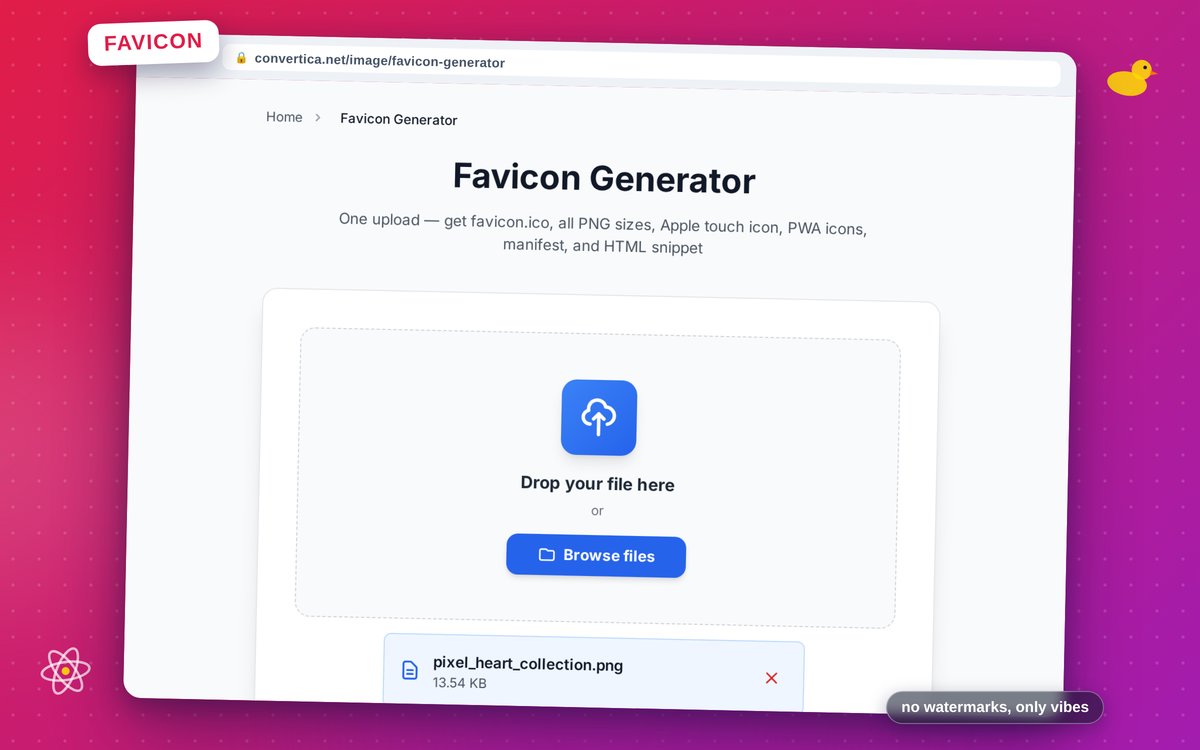
Instead of exporting sizes one at a time, start from a single high-quality image and let a generator build the full set. Here is the flow with the favicon generator:
- Open the favicon generator and upload your source image. A PNG, JPG, WebP or an SVG all work, and an SVG or a large PNG gives the crispest results.
- The tool center-crops your image to a square and renders every size for you: the multi-resolution favicon.ico, the full range of PNG icons from 16 up to 512, the 180 pixel apple-touch-icon, and the 192 and 512 Android icons.
- Download the ZIP. Inside you get all the icons, a ready-made site.webmanifest for PWA and Android support, and a small block of HTML to paste into your site.
Your uploaded image is removed from the server after processing, so a logo you have not launched yet does not linger anywhere. The result is a complete, standards-correct icon set from a single upload, no image editor required.
The HTML you paste, explained line by line
A favicon only works if the browser knows where to find it. The generator hands you a snippet like this to place inside the <head> of your pages:
<link rel="icon" type="image/x-icon" href="/favicon.ico">
<link rel="icon" type="image/png" sizes="32x32" href="/favicon-32x32.png">
<link rel="icon" type="image/png" sizes="16x16" href="/favicon-16x16.png">
<link rel="apple-touch-icon" sizes="180x180" href="/apple-touch-icon.png">
<link rel="manifest" href="/site.webmanifest">
Line by line, here is what each one does:
- The first line points to favicon.ico, the universal fallback every browser understands, including older ones.
- The two PNG lines give modern browsers a sharper 32x32 and 16x16 icon and let them pick the right one for the screen.
- The apple-touch-icon line is what iPhones and iPads use when someone saves your page to their home screen, so it looks like a real app icon rather than a blurry screenshot.
- The manifest line points to the web manifest, which is where Android and installable web apps read their icons and app details.
Upload the icon files and the manifest to the root of your site so the paths above resolve, and the browser handles the rest.
What the web manifest is for
The site.webmanifest is a small text file that describes your site as an installable app. Its most important job for favicons is listing the 192x192 and 512x512 icons that Android and Progressive Web Apps use for the home screen and the splash screen. If you never intend to make your site installable, the manifest still does no harm and keeps Android happy. If you do, those two icons are exactly what it needs, and the generator fills them in for you.
Choosing and preparing the source image
The single biggest quality lever is the image you start from. A few habits make every generated size look better:
- Start big and square. A 512x512 image, or an SVG, downsizes cleanly. A tiny source can only ever look tiny.
- Keep it simple. A favicon is often shown at 16 pixels. Fine detail, thin lines and small text disappear at that size. A single bold letter, a symbol or a simplified logo mark reads far better than your full logo with a tagline.
- Use strong contrast. The icon has to stand out against both light and dark browser themes. High contrast between the mark and its background keeps it legible everywhere.
- Mind the margins. Leave a little breathing room around the mark so it is not clipped when a platform rounds the corners of an app icon.
If you are weighing which format to start from, the guide on WebP vs JPEG vs PNG covers the trade-offs, and if you are wondering what happens to the logo you upload, our note on how Convertica handles your files explains the privacy side.
Common mistakes that leave a favicon broken
- Shipping only favicon.ico. It covers tabs but not iPhone home screens or PWA installs. The apple-touch-icon and the manifest icons are what fill those gaps.
- Wrong file paths. If the
hrefin the link tags does not match where you actually uploaded the files, the browser shows nothing. Keep the icons at the site root or update the paths to match. - Blaming the browser cache. Favicons are cached aggressively. After you add or change one, a hard refresh or a visit in a private window usually shows the new icon that a normal reload was still hiding.
- Starting from a tiny image. Scaling a small logo up to 180 or 512 pixels produces a soft, pixelated icon. Always start from the largest clean version you have.
FAQ
Do I still need favicon.ico, or is PNG enough?
Keep both. Modern browsers happily use the PNG icons, but favicon.ico remains the safe universal fallback, and some browsers and tools still look for it by name at the site root. A complete set includes both, which is why the generator produces the ICO alongside the PNGs.
What is the difference between ICO and PNG here?
ICO is an older format that can bundle several sizes (16, 32 and 48) inside one file, which is why it works so well as the single fallback favicon. PNG holds one size per file but supports crisp, high-quality images and transparency, which is why the larger icons are PNGs. You want both, each doing the job it is best at.
Can I use a transparent background?
Yes, and PNG supports it. A transparent background lets the icon sit naturally on light and dark browser themes. Just make sure the mark itself has enough contrast to stay visible on both.
Why does my new favicon not show up?
Almost always the cache. Browsers hold on to favicons longer than most assets. Do a hard refresh, open the site in a private window, or check the icon file directly by its URL to confirm it uploaded. Once the cache clears, the new icon appears.
Do I need a favicon for SEO?
It is not a ranking factor, but a favicon can appear beside your page title in search results, which strengthens your brand and can lift click-through. It is a small, one-time task with a lasting visual payoff, so there is no reason to skip it.
Create yours now
If your site is running without a favicon, or with a blurry leftover from years ago, fix it in a couple of minutes. Upload your logo to the favicon generator, download the ZIP, drop the files at your site root, and paste in the HTML snippet. If you only need a single icon file rather than the full package, the PNG to ICO and SVG to ICO converters do that one job, and image optimizer helps trim your source image first.


