Why "convert first, merge second" is the rule
It is tempting to look for one tool that swallows a Word file, a spreadsheet, and three photos and spits out a PDF. That approach is fragile: every format has its own quirks - a spreadsheet that overflows the page, a photo that comes in sideways - and a single black-box converter hides those problems until the final file is wrong.
Converting each file to PDF on its own lets you check it looks right before it joins the packet. A PDF is also the only format that merges cleanly: once everything is a PDF, combining is a lossless copy, not a re-render. So the workflow is always two stages.
Stage 1: turn each file into a PDF
Handle each file type on its own terms.
Word documents
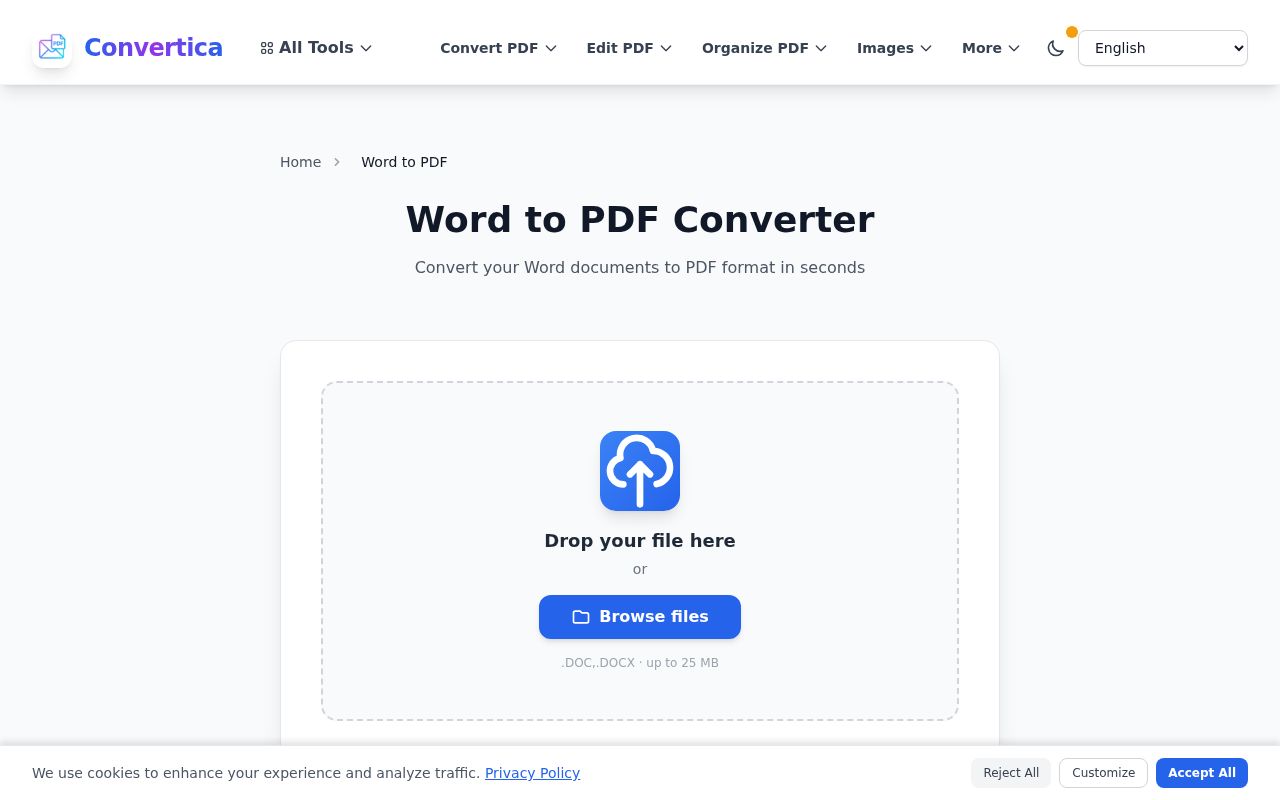
A .docx or .doc goes straight through the Office to PDF tool with formatting intact - fonts, headings, page breaks all survive. This is the easy one: what you see in Word is what lands in the PDF.
Excel spreadsheets
Spreadsheets are the trap. A wide sheet that looks fine in Excel can spill across eight pages once it becomes a PDF, splitting a single table down the middle. Before converting, set the print area and turn on "Fit Sheet on One Page" (or scale to fit width) inside Excel, then run it through the same Office to PDF tool. The two minutes you spend on print setup is the difference between a tidy one-page table and a sliced mess. The full layout playbook is in the Excel to PDF guide.
JPG and photos
Photos and scanned images go through JPG to PDF, which wraps each image in a PDF page. If you have several images that belong together - say four pages of a scanned certificate - you can convert them into a single multi-page PDF in one pass, which saves a merge step later.
Stage 2: merge the PDFs in order
With every piece now a PDF, open the Merge PDF tool, add all the files, and drag them into the sequence you want. Order is the whole point of this stage - a hiring manager expects the CV first, then supporting documents; an accountant expects the summary sheet before the receipts. Set the order here and the merged file reads like a deliberately assembled document instead of a random pile.
If you only realise the order is wrong after merging, you do not have to start over - the Organize PDF tool lets you drag pages into place in the combined file.
Stage 3: the finishing touches
Three quick passes turn a functional merge into a polished packet:
- Fix sideways pages. A phone photo often imports rotated. Rotate the page permanently so the recipient is not tilting their head.
- Add page numbers. For anything longer than a few pages, page numbers make a multi-document packet feel like one coherent file and make it easy to reference ("see page 4").
- Shrink it for email. Photo-heavy packets balloon in size. If it is too big to send, compress the final PDF down to an email-friendly size.
Common scenarios, mapped
| What you're assembling | The pieces | Recommended order |
|---|---|---|
| Job application | CV (Word), cover letter (Word), certificates (JPG) | Cover letter → CV → certificates |
| Expense report | Summary (Excel), receipt photos (JPG) | Summary sheet → receipts in date order |
| Rental / loan application | Form (Word), pay slips (JPG/PDF), ID (JPG) | Form → ID → pay slips |
| Project handover | Report (Word), budget (Excel), screenshots (JPG) | Report → budget → screenshots |
| Property pack | Listing (Word), floor plan (JPG), costs (Excel) | Listing → floor plan → costs |
Pitfalls to avoid
Skipping the Excel print setup. This is the single most common cause of an ugly packet. Always set the print area and fit-to-page before converting a spreadsheet.
Merging in upload order instead of reading order. The merge tool keeps the order you arrange, not the order you added files. Always drag into reading sequence before you export.
Forgetting the file gets big. Each photo can add a megabyte or more. A five-photo packet can easily exceed an email limit - compress at the end, not before, so you only compress once.
Naming the final file "document.pdf". Give the packet a clear name like Smith-Application-2026.pdf. The reasoning and a full naming system are in the PDF naming conventions guide.
A note for accounting and invoices
If your packet is specifically invoices or financial statements being bundled for bookkeeping, there is a tailored walkthrough - including how to keep a consistent order and a clean audit trail - in the merge invoices for accounting guide.
The whole job is two stages: convert every file to its own PDF, then merge those PDFs in reading order. Everything else - rotating, numbering, compressing - is optional polish on top of that.
FAQ
Can I combine a Word file and a JPG into one PDF directly?
Not in one step reliably. Convert the Word file to PDF and the JPG to PDF separately, then merge the two PDFs. This two-stage approach gives you control over layout and order and avoids surprises.
How do I keep my files in the right order?
In the merge tool, drag the files into the sequence you want before exporting - the output follows the arranged order, not the order you added them. If you notice a mistake afterwards, use the organize tool to drag pages around in the combined file.
Why does my Excel sheet break across many pages in the PDF?
The print area is not set. Before converting, define the print area in Excel and enable "Fit Sheet on One Page" or scale-to-fit-width, then convert. This keeps a wide table on a single page.
My combined PDF is too big to email. What do I do?
Photo-heavy packets get large fast. Run the finished PDF through a compressor as the last step to bring it under your email provider's limit (around 25 MB for Gmail, 20 MB for Outlook).
One of my scanned pages is sideways - how do I fix it?
Phone photos often import rotated. Use the rotate tool to turn the page permanently so it saves in the correct orientation, not just for the current view.
Can I add several images as one PDF instead of merging them one by one?
Yes. The JPG to PDF tool can take multiple images at once and produce a single multi-page PDF, which saves you a separate merge step for grouped images like a multi-page certificate.
Try it now
Convert your loose files, then bring them together in the right order. Open the Merge PDF tool →