

Why Excel-to-PDF often goes wrong
Excel does not treat your spreadsheet as a "document" the way Word does. There is no fixed page. The grid is essentially infinite, and PDF export has to make decisions about where to slice it. By default, those decisions are not great:
- The default print area is the entire used range, including a lonely cell in column AZ that you typed once and forgot.
- Automatic page breaks fall wherever the page math says they should, which rarely lines up with logical row groupings.
- Header rows do not repeat unless you tell them to. Page 2 onwards can look like a tableless data dump.
- Hidden columns still print unless they are properly hidden, depending on Excel version.
The result is a PDF that looks nothing like the cleanly framed spreadsheet you saw on screen.
Pre-conversion Excel setup
Spend two minutes on these four settings and the conversion itself becomes trivial.
1. Set the print area
Select the exact range you want in the PDF. In Excel, go to Page Layout > Print Area > Set Print Area. From this point on, only that range will export. If you also have a tiny sparkline or note off to the right that you do not want printed, this single step removes it.
2. Scale to fit one page wide
Wide spreadsheets are the number one cause of "PDF sliced across 8 pages" reports. On the Page Layout tab, find the Scale to Fit group and set Width: 1 page, Height: Automatic. The result is a PDF where every column fits horizontally and the data flows down across as many pages as needed - which is how spreadsheets should print.
If your sheet is so wide that scaling to one page makes the text microscopic, that is a sign you should switch to landscape orientation, or split the data into two PDFs covering different column groups.
3. Repeat header rows on every page
This is the single most-skipped step. Open Page Layout > Print Titles and in the Rows to repeat at top field, click row 1 (or whichever rows make up your header). Now every PDF page begins with the same column labels. Readers no longer have to flip back to page one to remember what column F was.
4. Hide vs delete columns you do not need
Hide columns you may need later (right-click column letter, Hide). Delete columns you are sure are scrap. Hidden columns are excluded from the print area as long as you set the print area after hiding. If you set the area first, then hide columns, behaviour can vary by Excel version - re-set the print area after any hide/unhide round to be safe.
Step-by-step: convert with Convertica
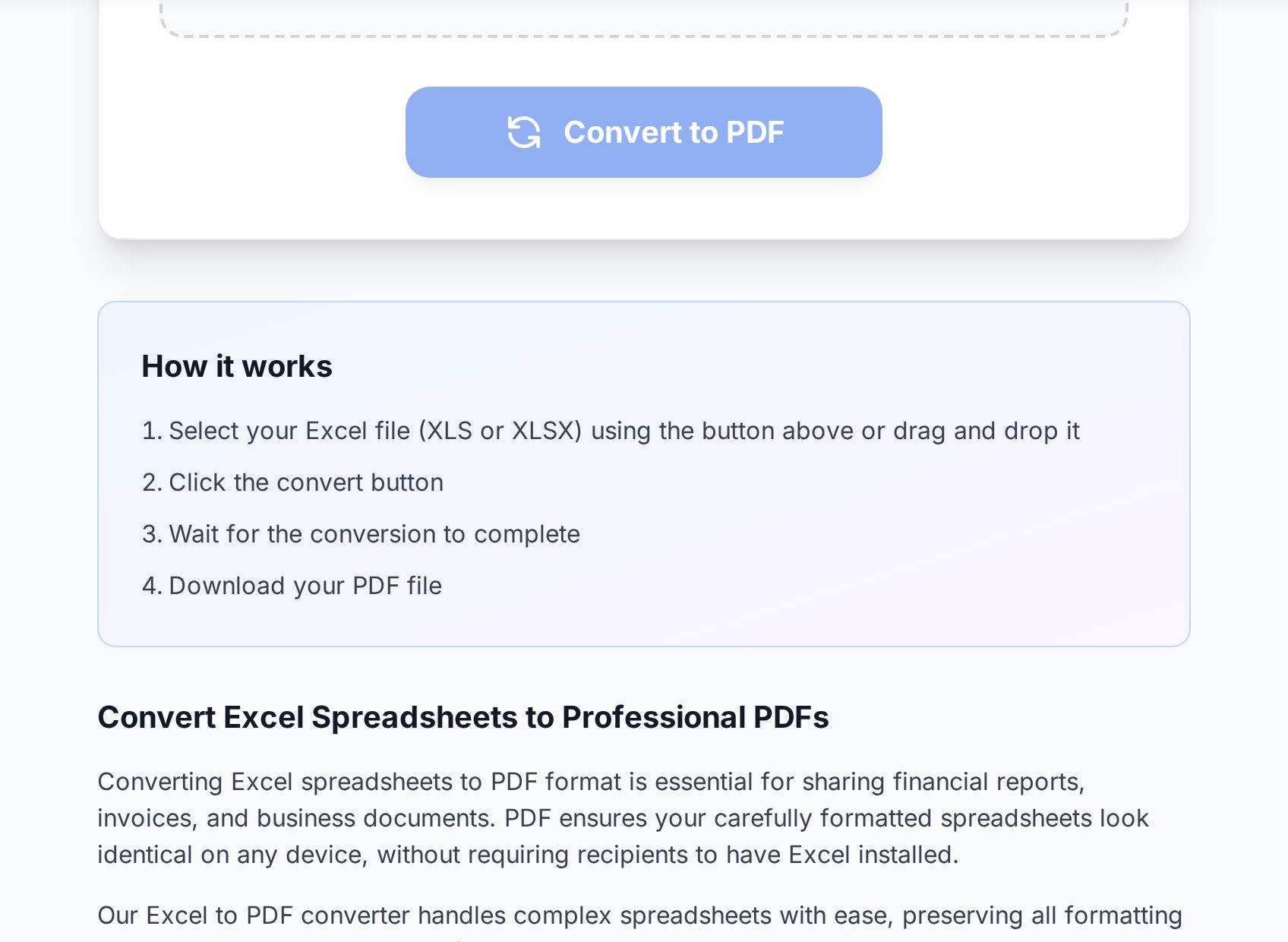
With the spreadsheet configured, the actual conversion is the easy part. You can convert Excel to PDF in three steps:
- Upload the .xlsx file. Drag and drop into the upload box. Older .xls files work too.
- Pick orientation if prompted. Portrait for tall, narrow data; landscape for wide tables.
- Download the PDF. Open it once to confirm the page breaks landed where you expected, and you're done.
If the PDF still looks wrong, the problem is almost always upstream in Excel - print area, scale, or repeat rows - not in the converter. Reopen the workbook, fix the setting, and re-export.
Multi-sheet workbooks
A workbook with five tabs raises a question: do you want one PDF per sheet, or all five sheets concatenated into one file?
- One PDF per sheet is right when each tab is a standalone deliverable - a separate report for separate audiences. Naming becomes important;
YYYY-MM-DD_workbook_sheet-name.pdfreads cleanly in any folder. - All sheets in one PDF is right when the tabs belong together as a packet (cover, summary, detail, appendix). If the converter exports each sheet separately, you can merge multiple sheets into one PDF in a second step.
Either way, set the print area on every sheet you intend to export. A blank tab will export a blank page; one with a stray cell in column AZ will export a near-empty page with that cell floating in space.
Common formatting issues and fixes
If your output PDF still has problems, the symptom usually points to a specific Excel setting:
| Symptom | Likely cause | Fix |
|---|---|---|
| Rightmost column is cut off | Scale-to-fit not set to 1 page wide | Page Layout > Width: 1 page |
| No headers on page 2 onwards | Print titles not configured | Page Layout > Print Titles > Rows to repeat at top |
| Random blank pages between data | Stray cell or formatted region outside the visible data | Re-set print area after deleting strays |
| Formulas show #REF! or #NAME? | Broken external references | Copy > Paste Values to flatten before export |
| Charts cut between pages | Auto page breaks splitting an embedded object | Insert manual page break above the chart, or move the chart |
| Tiny, unreadable text | Scale-to-fit forced too aggressively | Switch to landscape, or split into two exports |
When to keep Excel and when to send PDF
PDF is the right format when the file is read-only - quotes, signed reports, tax filings, board packs. PDF preserves layout exactly, prevents accidental edits, and is easier to sign or watermark.
Excel is the right format when the recipient needs to filter, sort, or recalculate. Sending a PDF of a model to someone who needs to change an assumption forces them to retype everything from scratch. If you have already shipped a PDF and the recipient needs the data back, you can convert PDF back to Excel later, but the round trip introduces small errors and is a poor substitute for sending the right format the first time.
A useful default: send the PDF for the formal record, attach the .xlsx separately if the recipient might need to edit. The PDF is what gets archived; the .xlsx is the working file.
One more pass: file size
Excel-to-PDF output can be surprisingly large, especially with embedded charts and conditional formatting. If you are emailing the result, run it through a compressor before hitting send so it doesn't bounce off the recipient's mailbox limit. The compress-for-email guide walks through realistic size targets, and the compress tool handles the actual shrinking.
FAQ
Why does my spreadsheet split awkwardly across pages?
Almost always because the print area is too wide and Scale to Fit is not set. Open Page Layout, set Width to 1 page, then re-export. If the result is unreadably small, switch to landscape or split the data across two PDFs.
Can I convert all sheets in a workbook at once?
Yes. The converter handles multi-tab workbooks. By default it exports every sheet that has data into a single PDF. If you would rather have one PDF per sheet, configure each sheet's print area and run the conversion once per tab, or split the result afterwards.
Will charts and formulas convert correctly?
Charts convert as visual objects - what you see in Excel is what you get in the PDF. Formulas are evaluated to their current values during conversion. Broken references (#REF!, #NAME?) will appear in the PDF too, so fix them in Excel first or paste-values to flatten.
How do I make headers repeat on every PDF page?
In Excel, go to Page Layout > Print Titles and click into the "Rows to repeat at top" field, then select your header row(s). Save and re-export. The setting is per-sheet, so set it on every tab you plan to convert.
Why is my PDF much bigger than the Excel file?
PDFs embed fonts, rasterised charts, and a separate page object per page. A 200 KB workbook can produce a 3 MB PDF without anything being wrong. If the size is a problem for email, compress the PDF after conversion - the data and quality stay the same, just the storage shrinks.
Try it now
Set your print area, set scale-to-fit, set print titles, then export. Two extra minutes inside Excel saves the embarrassment of the eight-page sliced spreadsheet. Open the Excel to PDF tool →


