

The real email attachment limits in 2026
Before you compress anything, it helps to know what you're aiming at. Major providers publish slightly different limits, and the practical ceiling is lower than the headline number because of how email transports binary files.| Provider | Outgoing limit | Incoming limit |
|---|---|---|
| Gmail | 25 MB | 50 MB |
| Outlook.com | 20 MB | 20 MB |
| Yahoo Mail | 25 MB | 25 MB |
| iCloud Mail | 20 MB | 20 MB |
| Corporate Exchange (typical) | 10-25 MB | 10-35 MB |
Rule of thumb: target 15 MB on disk for any general-purpose email, and 8 MB if the recipient sits on a corporate network.A few specific gotchas worth flagging, because many people hit them and assume their file is fine:
- Distribution lists. Mailing one big PDF to a 200-person list multiplies delivery weight, and many corporate mail servers count that against your daily quota or reject it outright.
- Reply-all chains. An attachment that survives one hop can still bounce on a reply-all if any single recipient runs a tighter mailbox limit. The whole thread fails for everyone.
- Mobile carriers. Some carrier mail gateways still enforce a 10 MB ceiling on incoming MMS-style relays. If your recipient reads mail on a feature phone or older mobile client, plan for that.
- Anti-virus delays. Larger attachments take longer to scan at the recipient's gateway. A "delivered" message that doesn't appear for 20 minutes isn't broken; it's queued.
What makes a PDF huge in the first place
Compression works best when you understand where the bytes are. PDFs balloon for predictable reasons:- High-DPI scans. A duplex scanner set to 600 DPI color produces 5-15 MB per page. Most documents only need 200 DPI grayscale, and the eye won't tell the difference at normal reading distance.
- Embedded fonts and color profiles. A "Save as PDF/A" archival export can add 1-3 MB just for embedded font subsets and ICC color profiles you don't need for an email. PDF/A is built for archives, not inboxes.
- Uncompressed images. Pictures pasted from Word or screenshots saved as PNG inside the PDF rarely use efficient image compression. A single 4K screenshot embedded raw can add 8 MB.
- Hidden revision history. "Save" in Acrobat appends incremental updates instead of rewriting the file. Years of edits accumulate as invisible weight - a contract that started at 200 KB can sit at 12 MB after thirty edits.
- Embedded files. Some PDFs ship with attached spreadsheets or zip files inside them. Check the attachments panel (the paperclip icon in Acrobat) before you compress; you might be transporting a 30 MB Excel file as a passenger.
- Forms with bitmap field backgrounds. Government forms often render every input field as a separate small image. Multiply by 80 fields and you get a surprisingly chunky file.
Method 1 - Compress the PDF (recommended)
For 80% of oversized PDFs, straight compression is the right answer. It rewrites the file with smarter image and font handling without changing the page count or text content.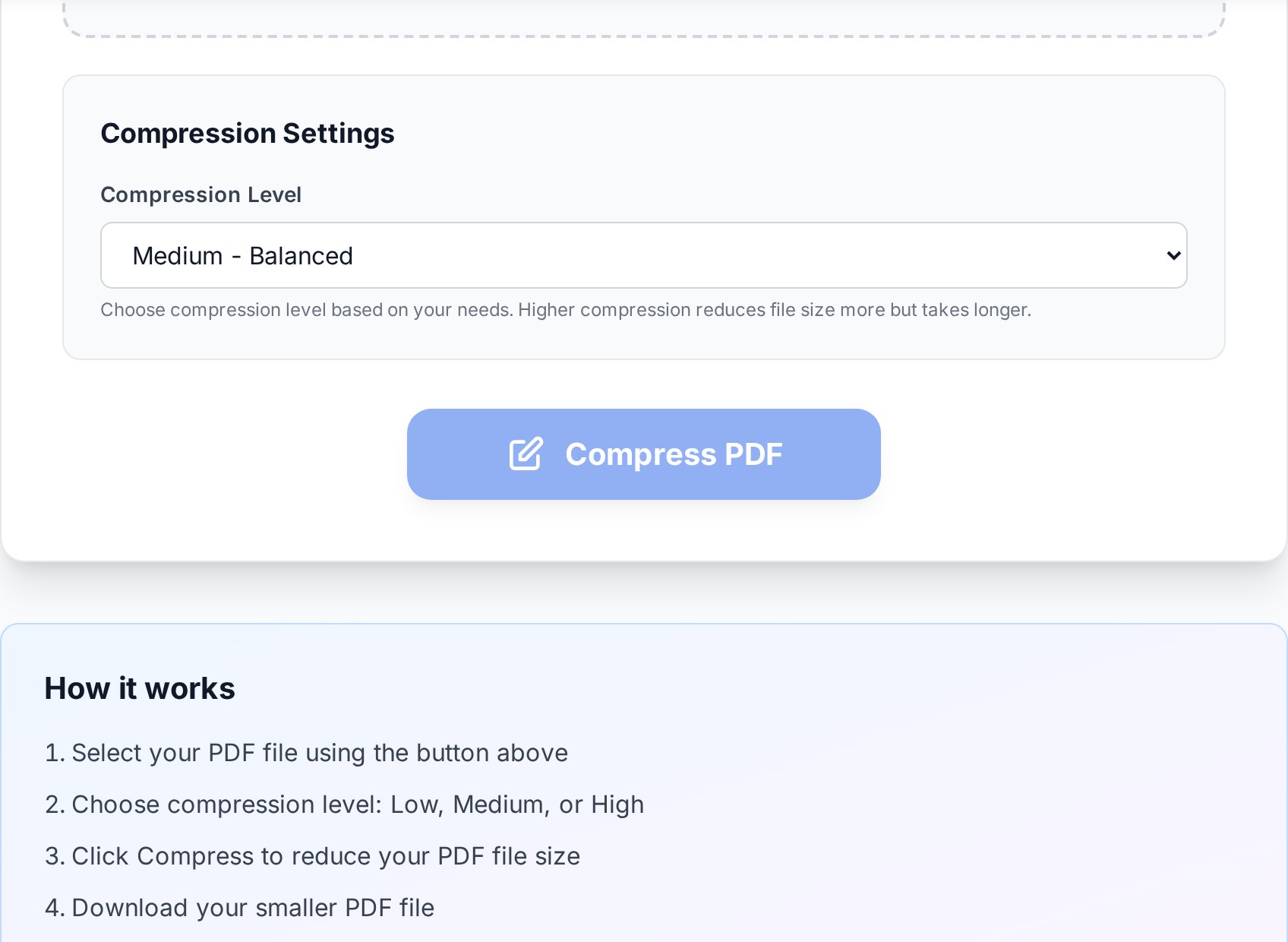
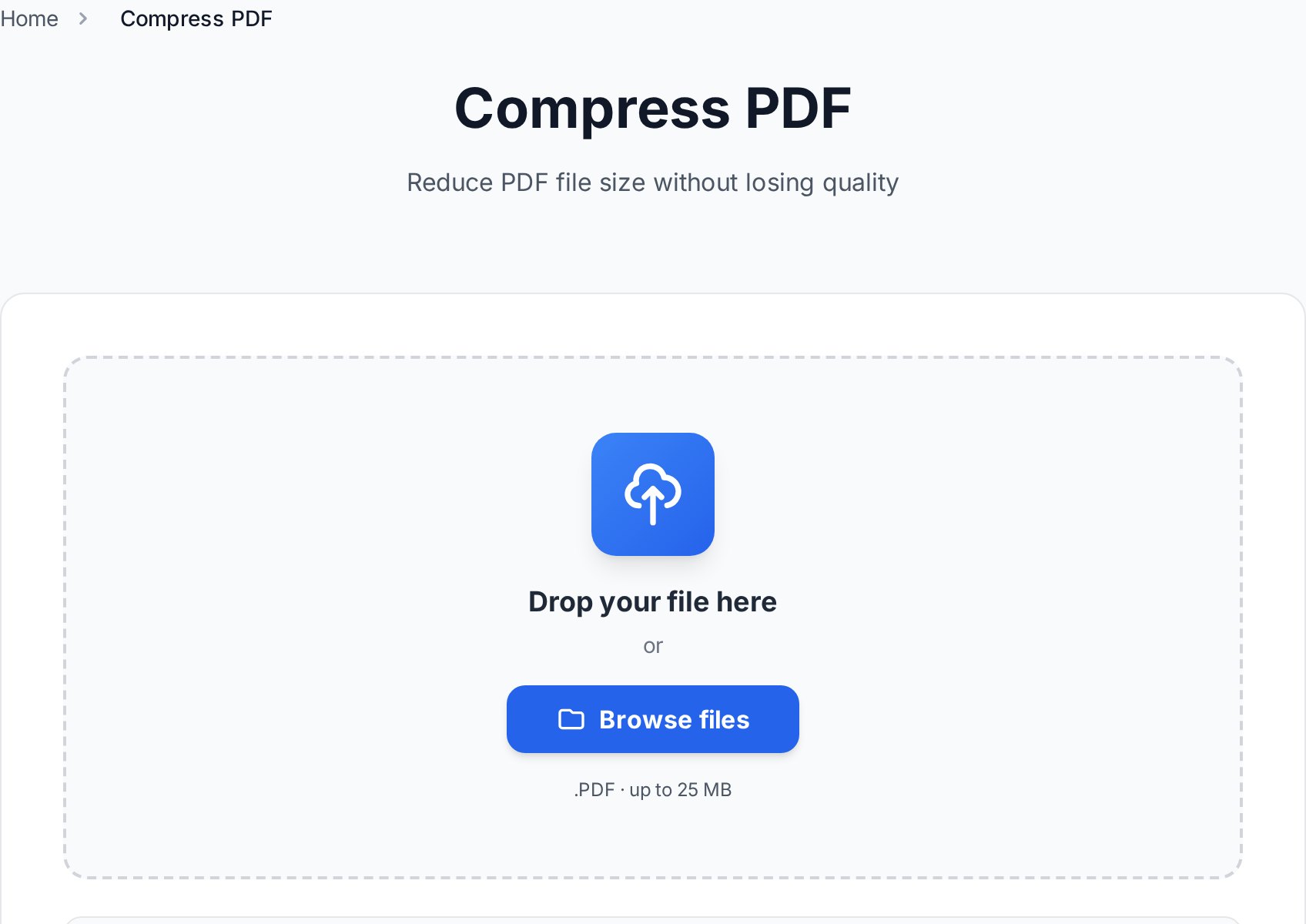
- Open Convertica's free PDF compressor in any browser.
- Drag your PDF onto the upload area, or click to pick the file.
- Choose a preset: low (best quality, modest reduction), medium (recommended), or high (aggressive, for filler text and reference docs).
- Wait for the file to process. Large scans can take 20-40 seconds; very large ones (200+ pages) can take a minute or two.
- Download the compressed copy. The original stays untouched on your device.
Which preset should you pick?
Medium is the right default. It downsamples images to about 150 DPI and strips redundant metadata, which is invisible on a screen and still prints cleanly at A4. Use high only when the recipient doesn't need to print, and use low when the document includes diagrams or photographs that must stay sharp. A small but useful keyboard habit: once the upload completes, you can usually press Enter to confirm the default preset rather than reaching for the mouse. (I'd argue browser tools should default to medium and skip the click, but defaults vary.)Expected size reduction by document type
This is where most "up to 90% smaller!" marketing claims fall apart. Honest numbers, based on what compression can actually do:| Document type | Typical reduction | Example |
|---|---|---|
| Text-only PDF (exported from Word, web) | 80-95% | 40 MB → 2-8 MB |
| Mixed text + photos | 40-70% | 30 MB → 9-18 MB |
| Pure scan (every page is an image) | 30-60% | 50 MB → 20-35 MB |
| Already-compressed PDF | 0-15% | Try a different method |
Method 2 - Split the PDF into smaller chunks
Sometimes the file genuinely needs to stay at full quality (legal exhibits, design proofs) and compression isn't enough. Splitting beats compressing when:- The recipient asked for the original quality.
- Compression alone gets you to 30 MB, not 20 MB.
- The PDF has natural section boundaries (chapters, monthly statements, exhibits A through D).
- You're sending evidence to a regulator who'll reject anything that looks re-encoded.
2026-04-28_proposal_part-1-of-3.pdf
2026-04-28_proposal_part-2-of-3.pdf
2026-04-28_proposal_part-3-of-3.pdfMethod 3 - Convert scans to a text-based PDF
If your file is a scanned contract, fax, or photo-of-a-page, the bytes are images, not text. No compression preset gets a 50 MB pure scan under 10 MB without visible quality loss. The fix is to run optical character recognition (OCR), which extracts the words and re-exports the document as a text-based PDF. Workflow:- Run OCR on the scan to produce a Word or text version.
- Verify accuracy on the first page - look for "rn" rendered as "m", "1" rendered as "l", and any cluster where the recogniser hedged.
- Re-export to PDF from Word.
- Compress the new file with Method 1.
Quality vs size: what to expect
Be honest with yourself about what the recipient actually needs:- Reading on screen. Medium compression is invisible. Use it freely.
- Printing on standard office paper. Medium is still fine. High starts to show on photos.
- Professional printing or signing. Stick with low compression or keep the original and send a cloud link.
- Legal exhibits or evidence. Don't compress at all. File integrity matters more than email convenience, and opposing counsel can use re-encoding as a credibility argument.
- Court filings via e-filing portals. Many courts publish exact PDF specs (PDF/A 1b, no embedded fonts beyond core 14, max 35 MB). Match their spec rather than guessing.
When to use a cloud link instead
If your PDF is over 100 MB to start, or you need to send several large files in one go, stop fighting email and switch to a link. Most people already have one of these:| Service | Free upload size | Notes |
|---|---|---|
| Google Drive | 15 GB total free | Recipient needs link permission set |
| WeTransfer (free) | 2 GB per transfer | Link expires after 7 days |
| Dropbox | 2 GB free total | Persistent share links |
| OneDrive | 5 GB free | Best for Outlook recipients |
FAQ
Why is my PDF still over 25 MB after compressing?
Either the file is mostly scanned images (Method 1 caps out around 60% reduction on pure scans) or it's already been compressed once. Try Method 3 to OCR the scans, or Method 2 to split it into two emails. If it's a born-digital PDF that won't shrink, check the attachments panel for embedded files riding along.
Does compressing a PDF reduce its quality?
Medium compression downsamples images to roughly 150 DPI, which is invisible at normal reading distance and prints fine on A4. High compression does show on photos and detailed diagrams. Text is unaffected at any preset because vector text isn't downsampled.
Can I compress a password-protected PDF?
You'll need to unlock it first using the password you own, then compress, then re-protect if needed. Compression tools can't read encrypted page contents, which is by design - if any tool could, the encryption wouldn't be meaningful.
What is the safe file size for corporate email?
Aim for under 10 MB. Many Exchange servers bounce attachments over 10-15 MB, and the recipient's spam filter may add another margin. If in doubt, compress to under 8 MB or use a cloud link.
Will the recipient be able to print my compressed PDF?
Yes. Medium and low compression preserve enough resolution for clean office printing. If the document will be professionally printed at large format (anything bigger than A3), stick with the low preset or send the original.
Try it now
Most "PDF too big to email" problems are solved in under a minute with the medium preset. Drop your file into Convertica's compressor and send the trimmed copy with confidence. Open the PDF compressor tool →


