

Why accountants prefer one PDF over many
Bookkeeping software has evolved, but document handoff has not. Almost every accountant, whether they use QuickBooks, Xero or FreshBooks, prefers a single bundled file because:- It archives cleanly. Document management systems index one file per period, not 47 floating attachments.
- Page numbering supports the audit trail. "See page 12 of April invoices" is a real reference; "see invoice from the email on the 17th" is not.
- It's easier to forward. A bookkeeper handing your records to a tax preparer attaches one file, not a folder.
- It aligns with attachment workflows in QuickBooks and Xero. Both support attaching one PDF per journal entry or transaction; juggling multiple is friction nobody wants on month-end. (Yes, even today: Xero capped journal-entry attachments at one file per entry as recently as 2024 and only relaxed it for paid tiers.)
- It maps cleanly to e-discovery and tax audit requests. When a tax authority asks for "all April invoices", handing over a single file beats explaining a folder.
A single well-named PDF per month is the difference between a 90-minute archive job and a 10-minute one.
Naming convention before you merge
Order the source files first, merge second. Most online merge tools, including ours, combine files in the order you upload them or in alphabetical order. That makes the filename the steering wheel. Use this format for each invoice:YYYY-MM-DD_vendor_amount.pdf
2026-04-03_aws_142-50.pdf
2026-04-08_adobe_19-99.pdf
2026-04-11_office-supplies_88-30.pdf
2026-04-22_internet_45-00.pdf- ISO date sorts correctly in any operating system, regardless of locale.
- Vendor in the middle lets you scan visually for "did I pay AWS this month?".
- Amount at the end matches your bank reconciliation without opening the file.
2026-04-03_aws_142-50_a.pdf and 2026-04-03_aws_142-50_b.pdf. The letter sorts under the date and avoids overwriting. Avoid using the time as a tie-breaker; suppliers' invoice timestamps are inconsistent and can lie about when the work was actually billed.
One more habit worth building: when you save the file from a vendor portal, rename it before it ever leaves the Downloads folder. Doing it at moment of receipt costs ten seconds. Doing it on month-end for thirty files at once feels like a chore and you'll skip it the second month.
Step-by-step: merge invoices in browser
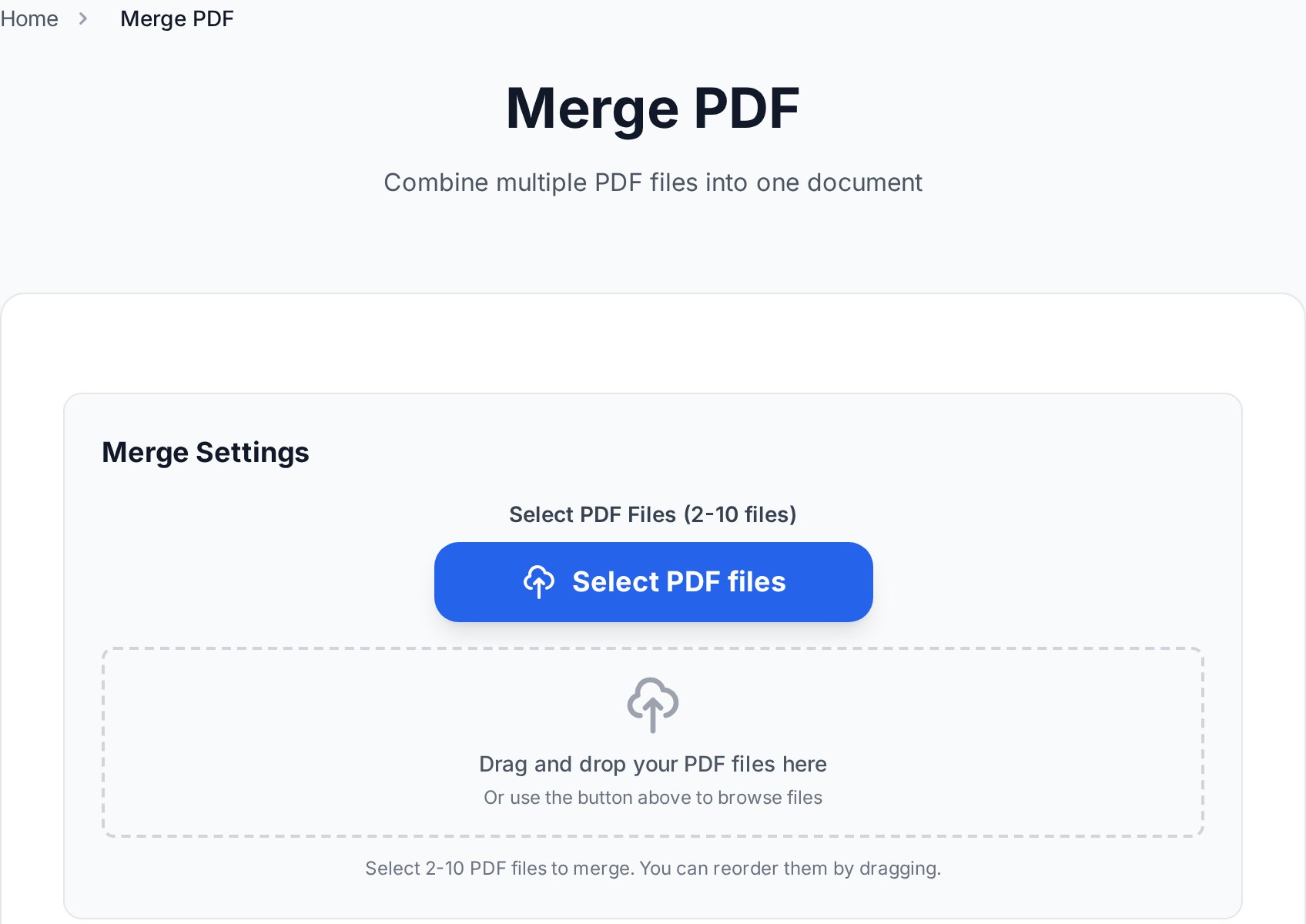
Once your files are renamed:- Open Convertica's merge tool in any browser. Nothing to install, nothing to log in to.
- Drag every invoice file from your folder onto the upload area at once. The tool keeps your filename order.
- Verify the order in the thumbnail strip. Drag any out-of-place invoice to the right slot.
- Click Merge. The result downloads as one PDF.
- Rename the output to match the period:
2026-04_invoices_yourname.pdf.
merged.pdf, which is the worst possible thing to have in a Downloads folder six months from now. (I once spent fifteen minutes hunting for a specific bundle because three different "merged.pdf" files had collided in cloud sync. Many people hit this on their first month.)
Adding a cover page or table of contents
For larger expense submissions (20+ invoices, or anything going to a finance team rather than your own bookkeeper), a cover page repays the two minutes it takes. A simple summary sheet works:| Date | Vendor | Amount | Page |
|---|---|---|---|
| 2026-04-03 | AWS | 142.50 | 1 |
| 2026-04-08 | Adobe | 19.99 | 2 |
| 2026-04-11 | Staples | 88.30 | 3 |
Mixed formats: JPG receipts and PDF invoices
Reality check: at least a third of small-business receipts arrive as photos. Restaurant tabs, taxi receipts, hardware-store paper slips, the deli around the corner that prints on fading thermal paper. The merge tool only takes PDFs, so you have a one-step conversion before the merge.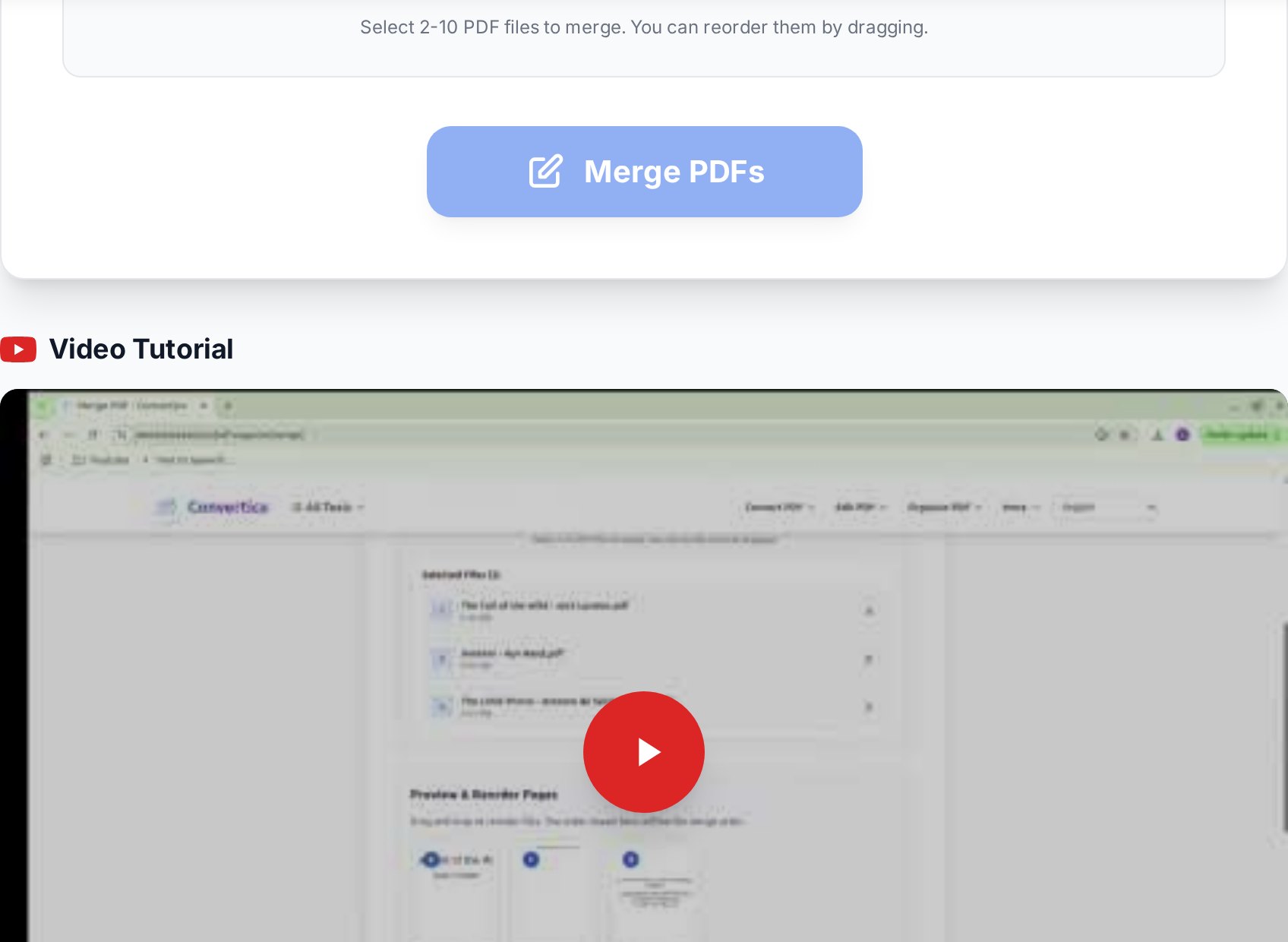
- Group all your JPG receipts in a folder.
- Convert JPG receipts to PDF in one batch. The tool produces one PDF per image (or a single combined PDF if you prefer).
- Rename each output to match the YYYY-MM-DD vendor format above.
- Drop them into the same folder as your PDF invoices.
- Merge in chronological order.
Monthly workflow for freelancers
The whole point is to make this routine, not heroic. A workable monthly close:End-of-month routine (about 10 minutes)
- First of the new month, morning. Open your "Invoices" folder for the month that just ended.
- Cross-check against the bank. Open your business bank statement. Anything on the statement that's not in the folder, hunt down the missing invoice. Anything in the folder not on the statement, flag for next month.
- Rename to YYYY-MM-DD_vendor_amount. Two minutes for 15 files.
- Convert any JPG receipts. One round trip through the JPG-to-PDF tool.
- Merge. Drag all into the merge tool, verify order, download.
- Save the bundle as
2026-04_invoices_yourname.pdfin your "Accounting/2026" folder. - Email the accountant. One attachment, with a one-line note about anything unusual.
Backup before merging
Keep the originals. Always. The merged PDF is your handoff format, not your archive. If a supplier disputes an amount or your accountant needs the un-redacted version of a single invoice, you want the source file, not a page extracted from the merge. Most cloud drives version files automatically; if yours doesn't, copy the month folder to a "raw_originals" subfolder before you start renaming. Set a simple retention rule: keep originals for seven years (the standard tax-record window in most jurisdictions), keep merged bundles indefinitely because they cost nothing.Sending to the accountant
If the merged PDF lands above 20 MB (common when you have a lot of photographed receipts), compress the final bundle for email with the medium preset. For sensitive bundles (invoices showing your bank details, salary breakdowns, or anything covered by a client NDA), consider password-protecting the PDF and sharing the password through a different channel - a text message, not the same email thread. If your accountant uses a portal (Karbon, ClientHub, or QuickBooks Online's Accountant view), upload directly there instead of attaching to email. Portals usually have higher size limits, automatic versioning, and an audit log that email can't match.FAQ
Will merging invoices change the original files?
No. The merge tool reads each source PDF and writes a new combined file. Your originals stay exactly as supplied, which matters if a supplier or auditor ever asks for the unmodified copy.
How do I keep invoices in chronological order?
Rename each file with a YYYY-MM-DD prefix before merging. The tool follows your filename order, so a clean naming convention does the sorting for you. If you forget to rename, drag the thumbnails into order before clicking merge.
Can I merge JPG receipts with PDF invoices?
Convert the JPG files to PDF first using a JPG-to-PDF tool, then merge alongside the existing PDF invoices. Most online merge tools (ours included) only accept PDFs as input.
Is it safe to upload invoices with bank details to an online tool?
Use a tool that processes files in-session and deletes them shortly after. Convertica removes uploads after a short retention window. For especially sensitive invoices, password-protect the merged PDF before sharing, and avoid uploading from a public Wi-Fi network where the upload could be intercepted.
How many PDFs can I merge at once?
The practical ceiling is usually browser memory and total upload size, not the tool. For typical month-end bundles of 10-50 invoices, you won't hit any limit. For 200+ files, split into two merges and combine the results.
Try it now
Bring April's pile of invoices into one neat file your accountant will actually thank you for. Open the merge PDF tool →


