What Acrobat actually does (and what you actually use)
Acrobat Pro bundles roughly two dozen features. In practice, surveys of casual users keep landing on the same short list:
- Convert PDFs to and from Word, Excel, and images.
- Merge several PDFs into one, and split one into several.
- Compress a PDF so it fits an email.
- Fill in and sign forms.
- Password-protect a file before sending it.
- Run OCR on a scanned document so the text becomes selectable.
Every item on that list has a free, browser-based equivalent that does the job to the same standard for occasional use. The features you are paying extra for - redaction with audit trails, PDF/A archival compliance, Bates numbering at scale, advanced pre-press - are real, but they are not why most people open Acrobat.
The task-by-task replacement map
This is the heart of the comparison. Find the job in the left column; the free replacement is on the right.
| Job you do in Acrobat | Free replacement | How close is it? |
|---|---|---|
| PDF to Word / Excel | PDF to Word, PDF to Excel | Same engine class; 98-100% on digital PDFs |
| Word / Excel to PDF | Office to PDF | Identical output for standard documents |
| Combine files | Merge PDF | Full parity for ordering and combining |
| Split / extract pages | Split PDF | Full parity by page or range |
| Shrink file size | Compress PDF | Comparable ratios at matched quality |
| Sign a document | Sign PDF | Fine for self-signing; not a full e-sign workflow |
| Password-protect | Protect PDF | Same AES encryption standard |
| OCR a scan | OCR / image to text | Strong on clean scans; see notes below |
| Reorder / rotate pages | Organize PDF | Full parity, drag-and-drop |
| Edit existing text in a PDF | Convert to Word, edit, convert back | The one workflow that is genuinely clunkier |
That last row is the honest weak spot, and it has its own deep dive: editing text directly inside a PDF is the one thing free browser tools handle awkwardly. The full breakdown of the five different things people mean by "editing a PDF" is in the edit a PDF without Acrobat guide.
Converting: the most common reason people open Acrobat
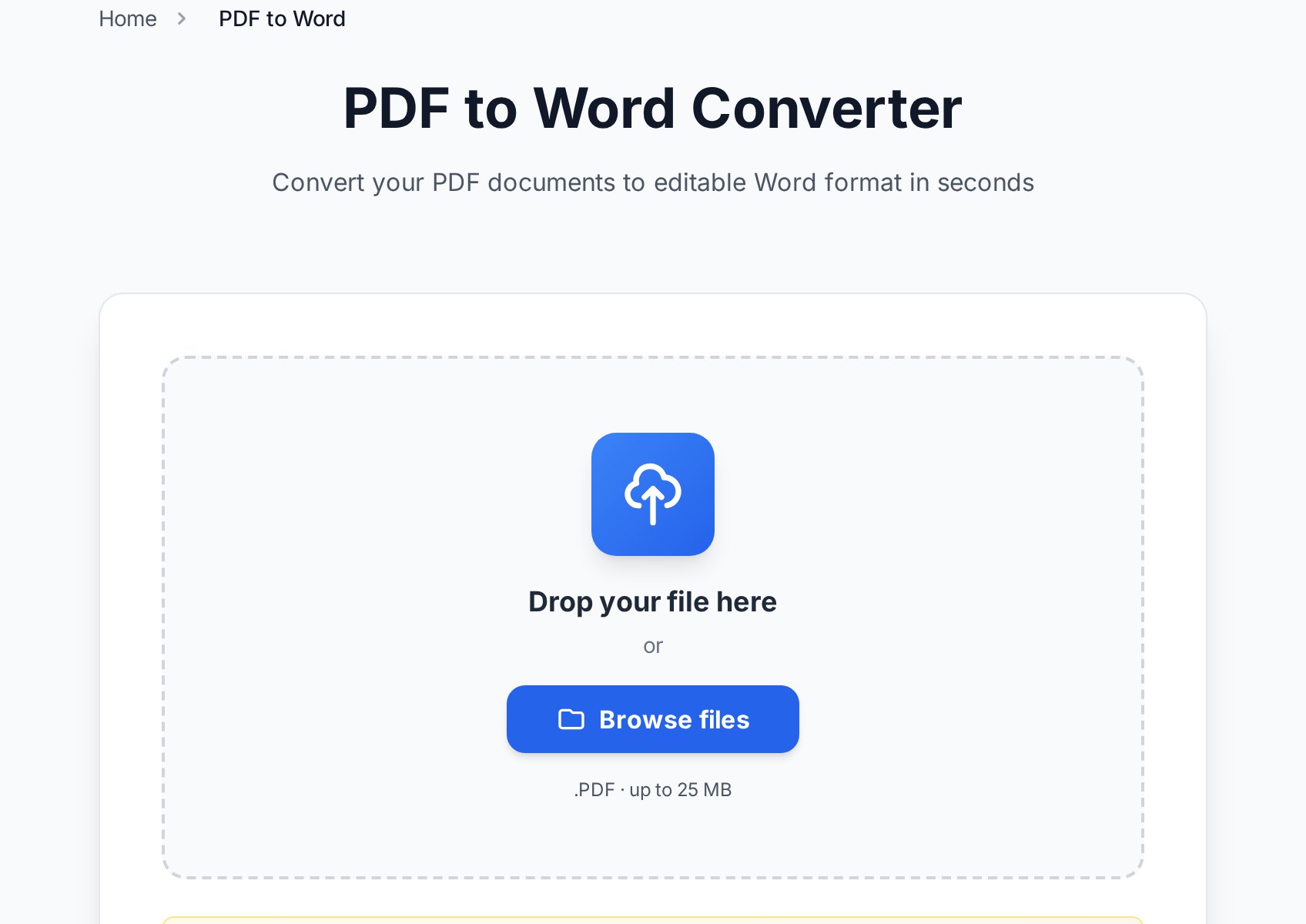
Acrobat's "Export PDF" feature is, under the hood, a text-and-layout reconstruction engine. Free converters use the same class of engine. For a digital PDF - one created from Word, a web page, or an accounting tool - the PDF to Word output is effectively indistinguishable from Acrobat's: near-100% text accuracy with fonts, headings, and basic tables preserved.
The one place results diverge is scanned documents, which need OCR rather than a straight parse. If you are not sure which kind of PDF you are holding, the two-second test and the full decision tree are in the PDF to Word vs OCR guide.
Combining and splitting: full parity
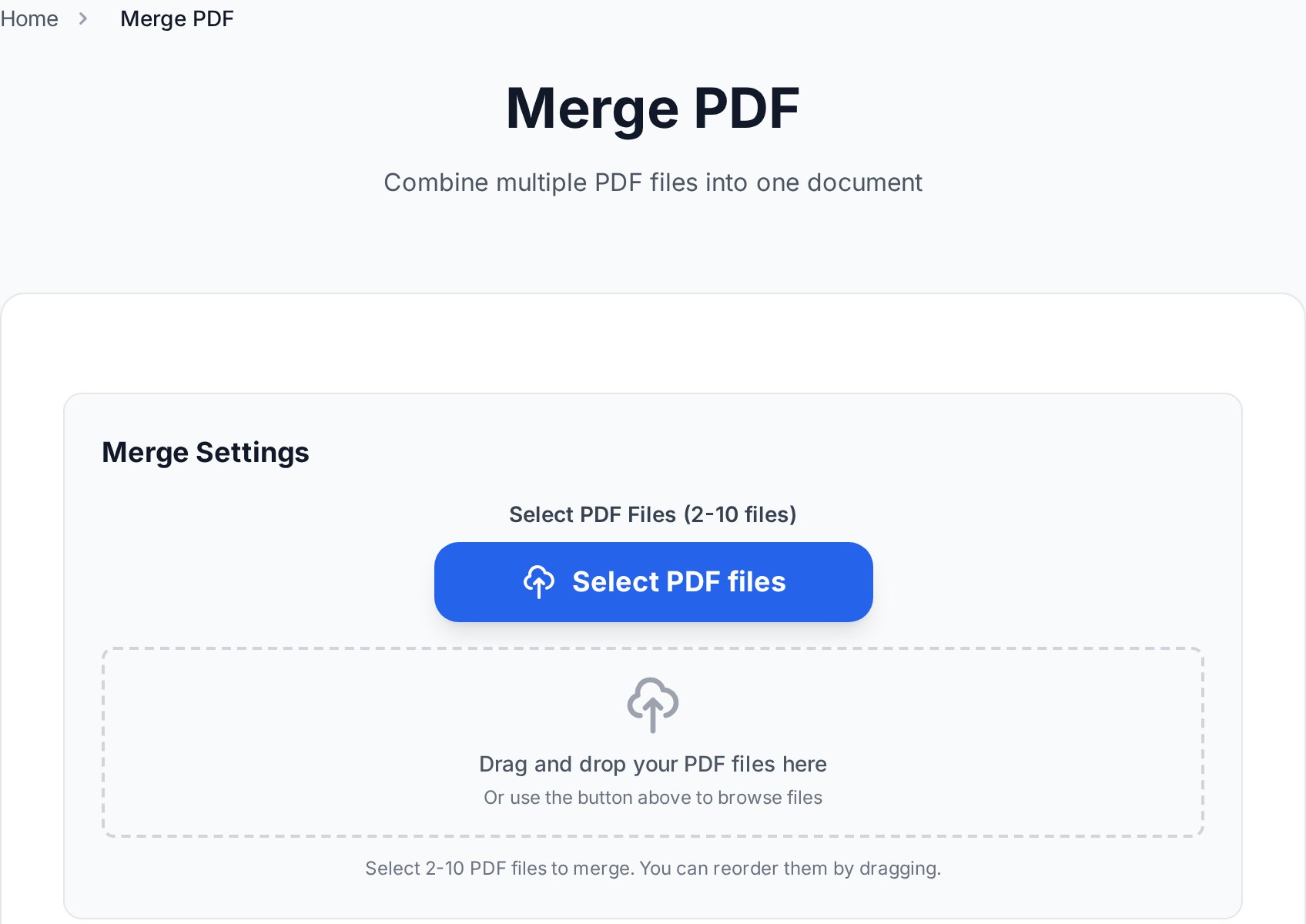
This is where free tools simply match Acrobat with nothing lost. Merging lets you stack files in any order and produce one document; splitting pulls out a page range or breaks a file into single pages. There is no quality penalty because nothing is re-rendered - pages are copied byte-for-byte into the new container. If anything, doing it in a browser is faster than launching Acrobat.
Signing and protecting: read the fine print
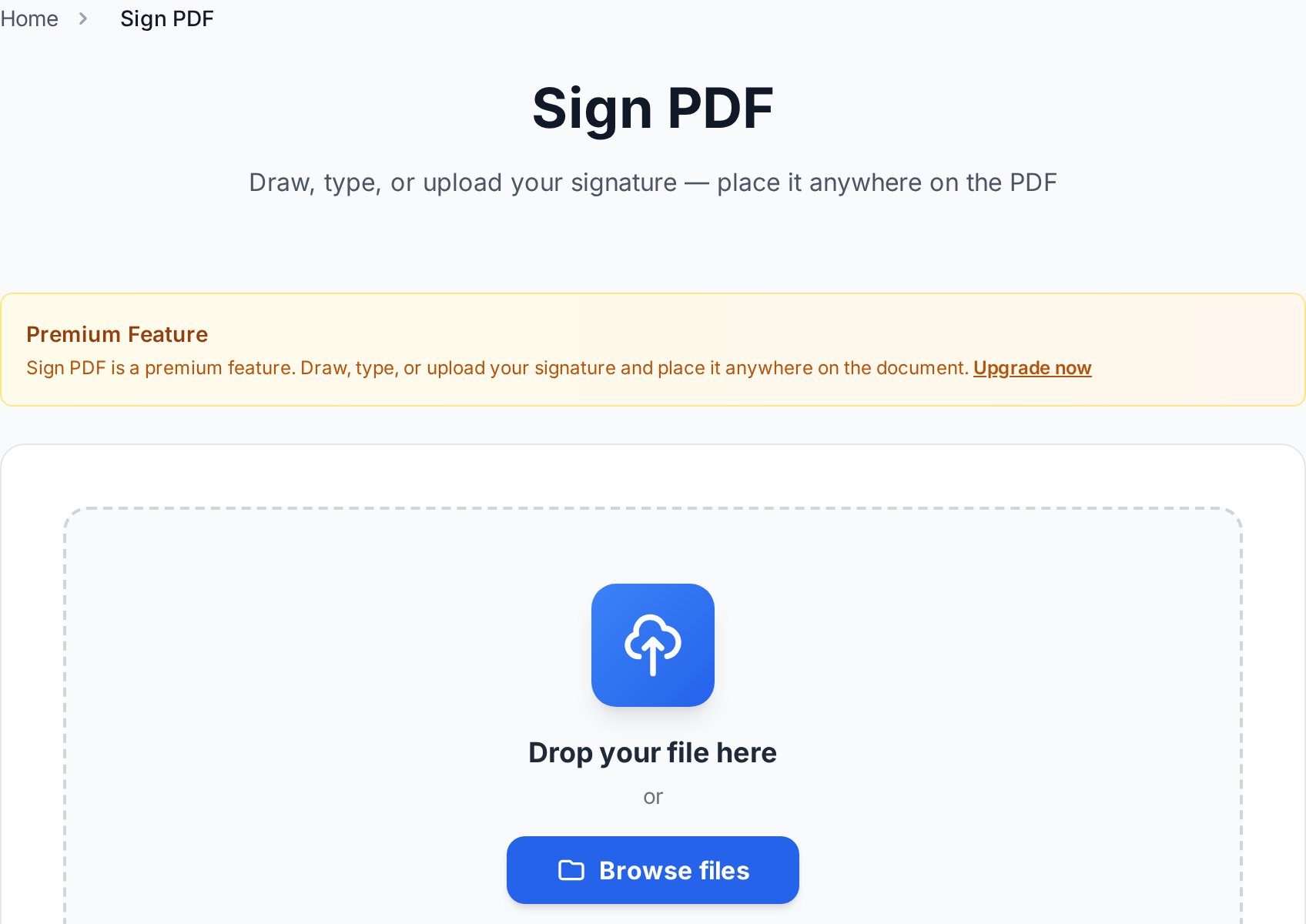
Two features here look identical to Acrobat's but carry caveats worth knowing.
Signing. For dropping your signature onto a contract you received - a self-sign - the free sign PDF tool does exactly what Acrobat's basic Fill & Sign does. What free tools do not replace is a full e-signature service (think DocuSign or Adobe Sign) that sends a document to other parties, tracks who signed when, and produces a legally auditable certificate. If you only need to sign things yourself, that machinery is overkill.
Protecting. Acrobat encrypts PDFs with AES; so does the free protect PDF tool. The encryption standard is the same, which means a password set by a free tool is exactly as strong as one set by Acrobat. The deeper walkthrough on choosing passwords and when encryption matters is in the password-protect a PDF guide.
Compressing for email: matched ratios
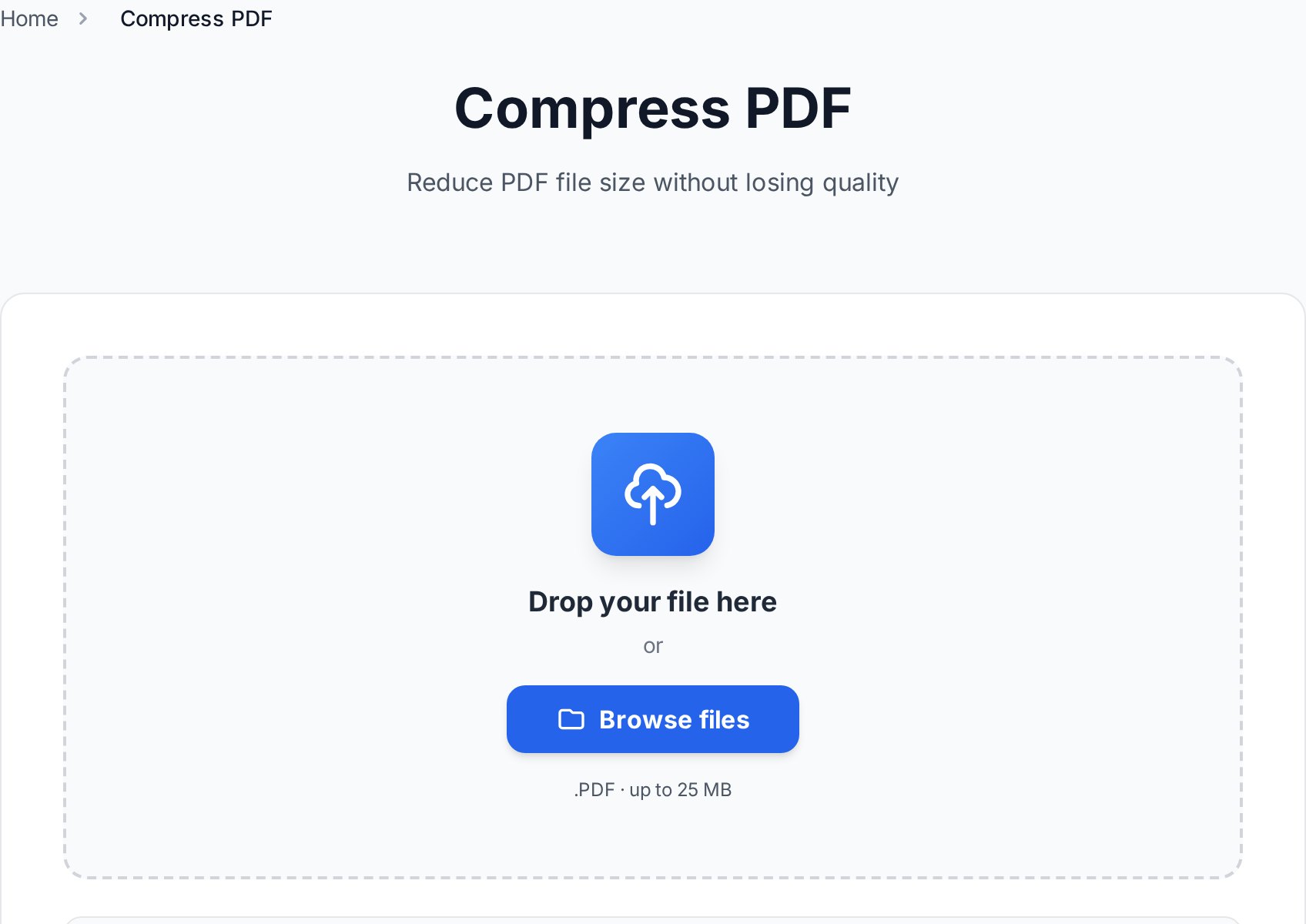
Acrobat's "Reduce File Size" and a free PDF compressor both work by downsampling images and stripping redundant data. At a matched quality target the size reduction is comparable. The practical playbook - what target to hit for Gmail's 25 MB and Outlook's 20 MB limits, and what to do when one file simply will not shrink enough - is in the compress for email guide.
OCR: strong, with one honest caveat
Acrobat's OCR is excellent, the product of years of tuning. Free OCR tools are very good on clean, well-lit scans and printed pages - accuracy in the high 90s. Where Acrobat still pulls ahead is messy input: faded faxes, skewed phone photos, mixed-language pages. If your scans are clean, you will not notice a difference. If you OCR damaged documents daily, that is one of the few genuine reasons to keep Acrobat.
Where Acrobat still wins (the honest part)
A comparison that pretends the free option always wins is just marketing. Acrobat Pro earns its subscription in specific situations:
- True redaction. Permanently removing text and metadata - not just drawing a black box over it - with a verifiable audit trail. This matters for legal and compliance work and is not something to improvise with free tools.
- PDF/A and archival compliance. If a regulator or records system requires PDF/A-format files, Acrobat's validation is purpose-built for it.
- Heavy, repeated form authoring. Building interactive forms with calculated fields, dozens of times, is faster in Acrobat.
- Pre-press and print production. Color separations, ink management, and print-shop checks are professional features with no casual equivalent.
- All-day, every-day volume. If PDFs are your full-time job, a desktop app with batch actions beats a browser tab.
If none of those describe you, you are paying for a toolbox to use one screwdriver.
Cost and privacy compared
Cost is the obvious gap: roughly $155-240 a year for Acrobat Pro versus $0 for browser tools that cover the common jobs. Over three years that is a few hundred dollars for features a casual user opens a handful of times.
Privacy is the question people raise next, and it is a fair one. A desktop app processes files on your own machine; a browser tool uploads them to a server. The right answer is not "desktop is always safer" - it is to check the tool's policy. Reputable services encrypt uploads in transit and auto-delete files within a short window. For genuinely sensitive documents, the simplest belt-and-braces move is to password-protect the file before sharing the result, regardless of which tool produced it.
So do you need Acrobat?
If your PDF life is convert, merge, split, compress, sign-your-own, and protect, free browser tools cover all of it at the same quality. Keep Acrobat only if you need true redaction, PDF/A compliance, heavy form authoring, or pre-press - or if PDFs are your full-time job.
You can try the full set without an account or an install. Browse all the free tools and replace Acrobat one task at a time.
FAQ
Is there a free version of Adobe Acrobat?
Adobe Acrobat Reader is free but only views, fills, and signs PDFs - it cannot convert, merge, compress, or edit. The full editing features live in the paid Acrobat Standard and Pro tiers. The free browser tools in this guide cover the editing jobs Reader cannot.
Are free PDF tools as good as Acrobat for converting?
For digital PDFs, yes - the conversion engines are the same class and produce near-identical output. The only real gap is OCR on damaged or low-quality scans, where Acrobat's tuning still leads.
Is it safe to use online PDF tools instead of a desktop app?
With a reputable service, yes. Look for encryption in transit and automatic file deletion. For sensitive files, password-protect them before uploading or before sharing the result as an extra layer.
Can free tools edit the text inside a PDF like Acrobat?
Direct in-PDF text editing is the one job free browser tools handle awkwardly. The reliable workaround is to convert the PDF to Word, edit there, and convert back. See the dedicated edit-without-Acrobat guide for the full method.
Will a password set by a free tool be as strong as Acrobat's?
Yes. Both use the AES encryption standard, so a strong password is equally secure regardless of which tool applied it. Password strength, not the tool, is what determines security.
When is paying for Acrobat actually worth it?
When you need true redaction with audit trails, PDF/A archival compliance, heavy interactive-form authoring, pre-press production, or you simply work with PDFs full time. For occasional use, free tools cover the same ground.
Try it now
Pick the one task you usually open Acrobat for and do it free instead. Open all free PDF tools →