What "converting" a PDF actually means
A PDF does not store a document the way Word does. Word stores meaning: this is a heading, this is a bulleted list, this paragraph uses a 12pt body font. A PDF stores appearance: a glyph at these coordinates, a line of a certain weight here, an image there. It is closer to a printout than to an editable file.
Converting to Word means reverse-engineering meaning from appearance. The tool looks at where the glyphs sit, how they cluster into lines and blocks, where font sizes jump, and guesses: that big bold line at the top is probably a heading, those evenly indented lines are probably a list, that grid of cells is probably a table. When the original PDF was generated cleanly from a digital source, those guesses are almost always right. When the layout is dense or unusual, the guessing gets harder - and that is exactly where conversions go wrong.
This is also why two PDFs that look identical on your screen can convert completely differently. The one made directly from a Word file or a web page carries clean, well-structured text. The one that is really a scan - a photograph of a printed page - carries no text at all, just an image. We will come back to that distinction, because it is the single most common reason a conversion "fails."
What survives the conversion - and what breaks
Knowing this in advance changes how you read the result. Instead of being surprised, you go straight to the parts that need a look.
| Element | How well it converts | What to watch for |
|---|---|---|
| Body paragraphs | Excellent | Usually clean on digital PDFs; reflow as soon as you type. |
| Headings & bold/italic | Good | Styling survives; Word's heading styles may not be tagged. |
| Bulleted & numbered lists | Good | Occasionally a list becomes plain paragraphs with manual bullets. |
| Simple tables | Fair to good | Borders and cell splits can drift; check alignment. |
| Complex / nested tables | Poor | Often merge or fragment; the worst offender by far. |
| Multi-column layouts | Fair | May collapse into one long column or scramble reading order. |
| Images & logos | Good | Preserved, but position can shift by a line or two. |
| Fonts | Variable | Substituted with a near-match if the font is not embedded. |
The pattern is clear: linear, text-heavy documents convert beautifully, and anything that depends on a precise grid - financial tables, multi-column newsletters, forms - is where you spend your cleanup time. If your document is mostly the latter, it is worth deciding up front whether Word is even the right destination, which we cover below.
Getting a clean result: before you convert
A few seconds of prep saves a lot of cleanup. None of this is mandatory, but each one removes a common failure.
- Remove the password first. An encrypted PDF cannot be read by the converter. If you know the password, unlock it; the tool will reject a locked file rather than half-convert it.
- Check whether it is a scan. Try to select a word with your cursor. If individual letters highlight, it is a digital PDF and standard conversion works. If the whole page highlights as one block like an image, it is scanned and needs OCR - more on that shortly.
- Use the best-quality source you have. If you were emailed a compressed or re-saved copy, the original almost always converts better. Re-flattened and re-compressed PDFs lose structural hints the converter relies on.
- Decide if you actually want Word. If your real goal is to work with the numbers in a table, Word is the wrong target - skip ahead to the spreadsheet section.
Doing the conversion
The actual step is the easy part. Open the PDF to Word converter, drop your file in, and let it process. For a typical digital PDF - a report, a contract, a resume - a clean .docx comes back in seconds, with the text fully editable and the layout close to the original.
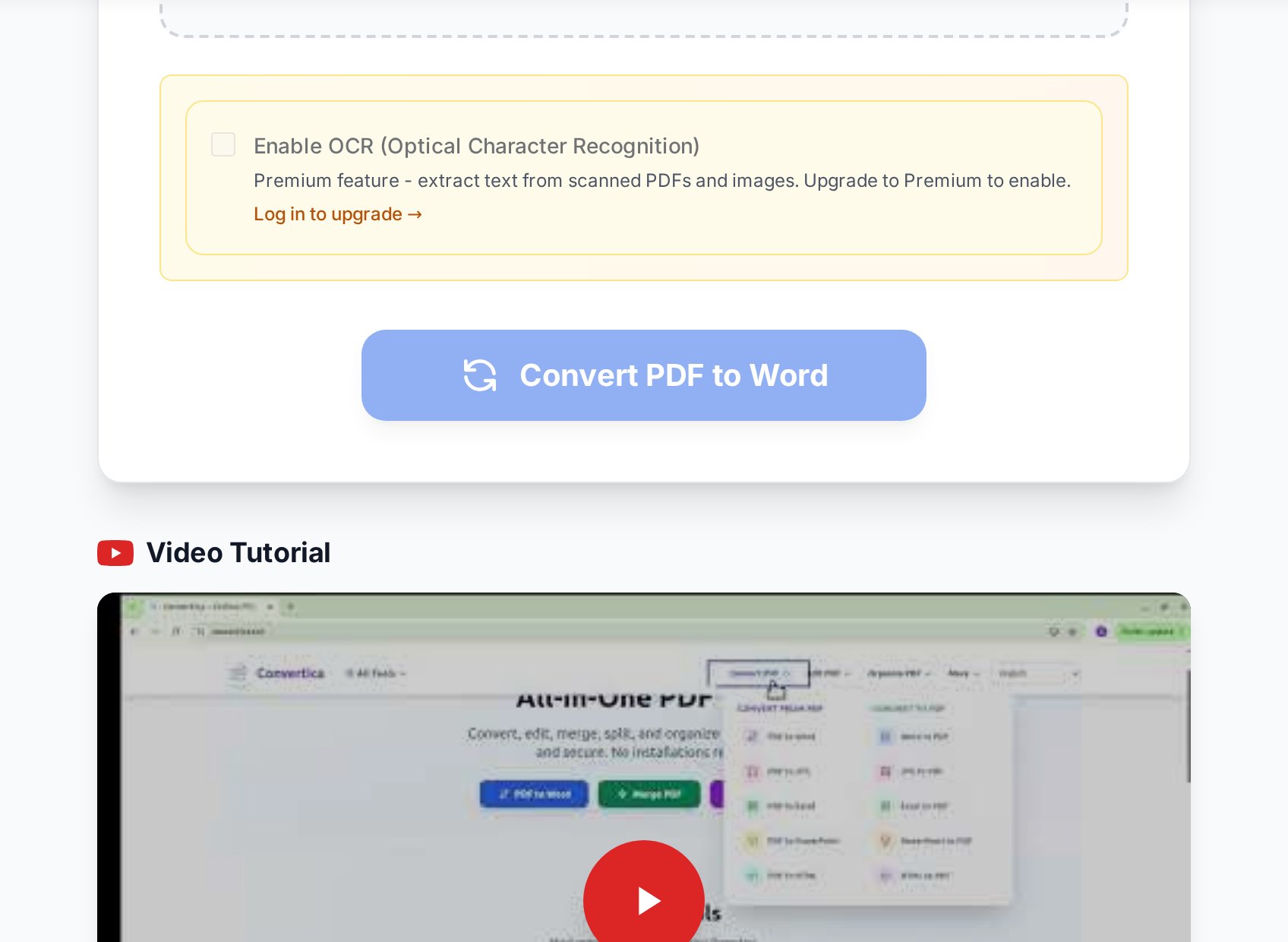
Two things are worth knowing about the output. First, the result is a real .docx, not a PDF wearing a Word costume - you can edit every paragraph, not just annotate on top. Second, conversion happens on the server and the file is processed only for the duration of the job, so you are not leaving a permanent copy behind. There is no account to create and no watermark stamped on the result.
If the converted document opens completely blank, with no text anywhere, you almost certainly had a scanned PDF and used standard conversion. The fix is not a different converter - it is OCR. See the next section.
When the PDF is scanned: use OCR
A scanned PDF is a picture of text, and pictures have no characters to extract. Standard conversion will run, report success, and produce a Word file that is empty or contains only a faint image. The tool that solves this is OCR (optical character recognition), which reads the shapes in the image and reconstructs them as real, editable letters.
If your document is a scan, a photo of a page, or a fax, run it through an OCR tool that turns images into text first, then work with the recognized text. OCR is slower than a plain parse and never perfectly accurate - expect to proofread numbers and proper nouns - but it is the only way to get editable text out of an image. For a full walkthrough of language settings and quality expectations, the scanned PDF to editable Word guide goes deeper, and if you are unsure which path your file needs, the PDF to Word vs OCR comparison settles it in two minutes.
The five-minute cleanup that makes the result usable
Even a good conversion benefits from a quick pass. Do these in order and most documents are publication-ready:
- Read the first and last page side by side with the PDF. Reading order problems and missing blocks show up immediately.
- Fix the tables. This is where 80% of cleanup lives. Check that columns line up and no cells merged. For a badly broken table, it is faster to delete it and rebuild a small one than to repair cell by cell.
- Reapply heading styles. The text may look like a heading but not be tagged as one. Select each heading and apply Word's Heading 1/2 styles so the navigation pane and table of contents work.
- Sort out fonts. If a substituted font looks off, select all and set a single clean body font rather than chasing each substitution.
- Turn on formatting marks (the paragraph symbol). Stray spaces, manual line breaks, and empty paragraphs become visible and easy to delete.
Once you are editing in Word, you also gain everything Word does that a PDF cannot: track changes, comments, and real reflow when you add or remove a sentence. That is the whole reason to convert in the first place - so a one-line edit does not require re-typing the surrounding paragraph.
When you should not convert to Word at all
Word is the right destination for prose. It is the wrong one for two specific cases.
The first is data. If the PDF is essentially a table of numbers - an invoice, a price list, a financial statement - and you want to sort, total, or chart those numbers, do not route them through Word. Converting to Word and then copying the table into Excel almost always scrambles the structure. Extract the tables straight to a spreadsheet instead; the rows and columns survive far more reliably when the tool targets a spreadsheet from the start.
The second is light edits to the PDF itself. If you only need to delete a page, sign it, redact a phone number, or add a watermark, converting to Word and back is a long detour that can damage the layout. Those jobs are faster done directly on the PDF - the guide to editing a PDF without Acrobat maps each small task to the right free tool. Convert to Word only when you genuinely need to rewrite the words.
FAQ
Will converting PDF to Word keep my formatting?
For a digital PDF, mostly yes - paragraphs, headings, bold and italic, simple lists, and images come through well. The fragile parts are complex tables and multi-column layouts, which often need a short cleanup pass. Plan to spend a few minutes on tables and headings rather than expecting a pixel-perfect copy.
Why is my converted Word document empty?
The PDF was almost certainly a scan - an image of text with no actual characters to extract. Standard conversion finds nothing to convert. Run the file through OCR instead, which recognizes the letters in the image and produces editable text.
Can I convert a PDF to Word for free without an account?
Yes. Convertica's PDF to Word converter runs in the browser with no sign-up, no watermark, and no installed software. You upload the file, it converts, and you download the .docx.
Is it safe to upload a confidential PDF to convert it?
The file is encrypted in transit and processed only for the duration of the conversion, not stored long-term. For genuinely sensitive documents, still check the retention policy of any web tool, and consider password-protecting the result before you share it onward.
My PDF is mostly tables - should I still convert to Word?
Probably not. If you need to work with the numbers, extract the tables to Excel instead, where the rows and columns are preserved reliably. Convert to Word only when the document is mainly text you need to rewrite.
Try it now
Check whether your PDF is digital or scanned, then pick the right path. Open the PDF to Word converter →