

How to tell if your PDF is scanned
Three quick checks:- Text selection. Try to select a single word. If the entire page becomes one selectable rectangle, the page is an image.
- File size. A 10-page text PDF is usually 100 to 500 KB. A 10-page scanned PDF is often 5 to 30 MB because every page is a high-resolution image.
- Visual artifacts. Scans show speckle, slight rotation, faded edges, and visible paper texture. Born-digital PDFs have crisp letters with anti-aliased edges and no background noise.
- The cursor shape. Hover over text. A digital PDF flips your cursor to the I-beam over text and an arrow over images. A scanned PDF stays as an arrow everywhere - because everything is an image.
What OCR actually does
OCR is pattern recognition for letterforms. The engine looks at clusters of pixels, compares them to a model trained on millions of glyph images, and emits a best-guess character along with a confidence score. Modern engines also use surrounding context: if it's 80% sure the next word is "agreement" and the third letter is ambiguous between "r" and "n", it picks "r" because "agreement" is a real word. Two settings drive accuracy more than anything else:- Source language. An English-trained model on a French document misreads accented characters and confuses common words. Always set the language explicitly when the tool offers it.
- Source DPI. 300 DPI is the practical floor for clean OCR. 200 DPI scans can work for big print but struggle with small footnotes. Below 150, accuracy collapses fast.
Step-by-step: scanned PDF to Word
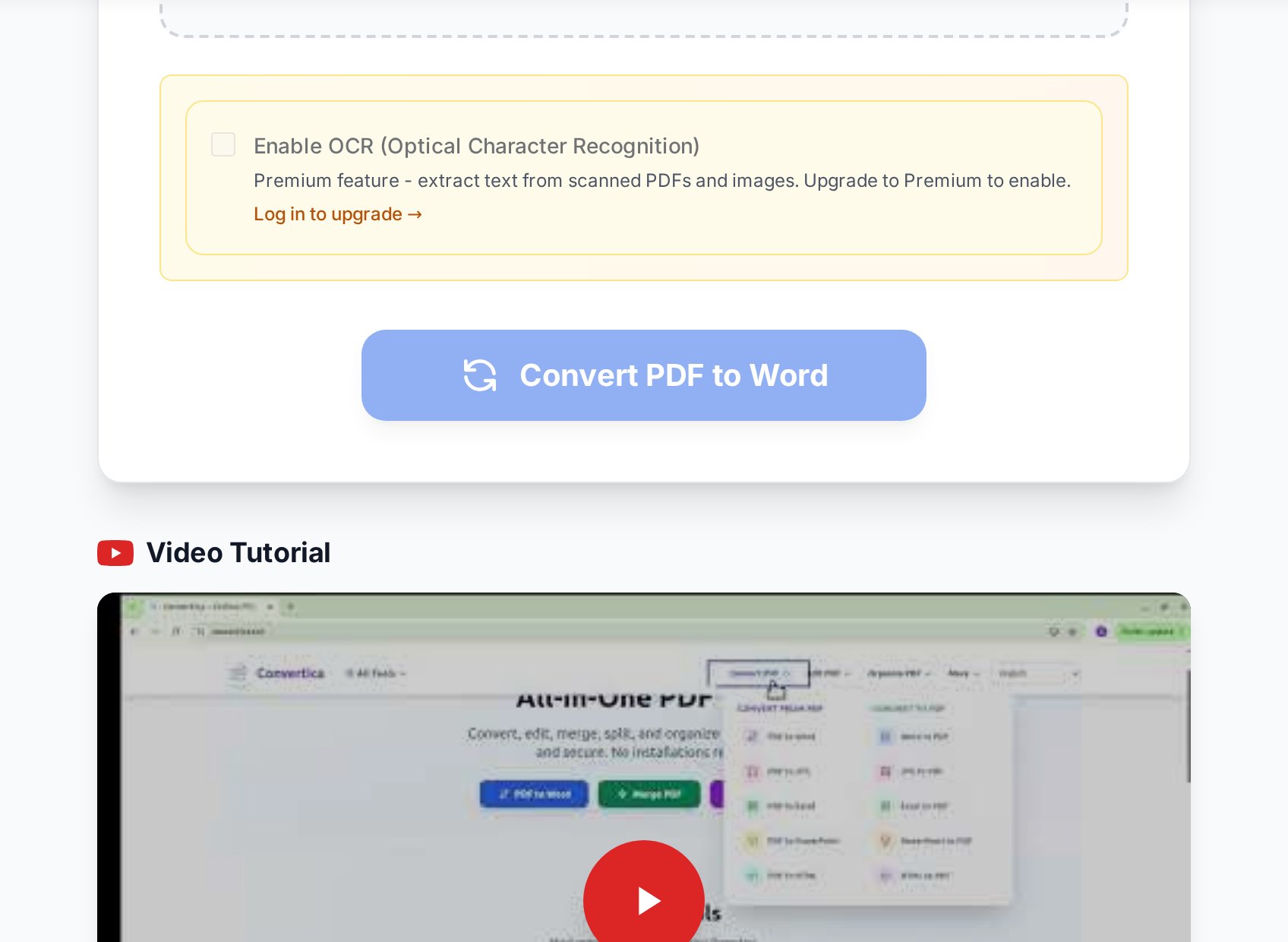
- Open the convert PDF to Word tool and upload your scan. The tool detects whether OCR is needed automatically when text selection returns empty.
- Select the source language so the recognizer uses the right dictionary. English, Spanish, German, French, Italian, Portuguese, Russian, and Polish all behave noticeably better when set explicitly.
- Run the conversion. A 10-page scan takes roughly 30 to 90 seconds depending on image complexity. A 100-page archive might run several minutes.
- Download the .docx and open it in Word. Spot-check the first page against the original PDF before trusting the rest.
Always keep the original scanned PDF. If OCR mangles a page, you want to be able to compare it to the source rather than guess what the unreadable word should have been.Worth checking once before you trust the output: open the .docx in Word and look at the formatting marks (toggle them with Ctrl+Shift+8 on Windows, Cmd+8 on macOS). If you see lots of paragraph marks at the end of every line - because OCR thought each visual line was a paragraph - you'll want to fix that with a find-and-replace before editing. The fix is simple: replace single paragraph marks with a space, then double paragraph marks back to single. (I'd argue this single Word trick saves more time than any OCR setting.)
Realistic accuracy expectations
Marketing claims of "99% accuracy" assume clean printed text on white paper at 300 DPI. Real-world documents vary wildly. Here is what to actually expect:| Document type | Typical OCR accuracy | Cleanup needed |
|---|---|---|
| Clean printed text, modern document | 95-99% | Minimal, mostly punctuation |
| Faxed or photocopied document | 80-90% | Page-by-page proofreading |
| Old typewritten / pre-2000 print | 75-90% | Heavy proofreading, especially for "1" vs "l" |
| Handwriting | 30-70%, highly variable | Often faster to retype |
| Tables of numbers | Layout fails most of the time | Manual reformatting |
| Multi-column newspaper or magazine layout | Text right, layout wrong | Reflow into single column manually |
| Camera photo of a page (good lighting) | 85-95% | Crop and deskew first for best results |
Pre-OCR cleanup that boosts accuracy
Five minutes of prep cuts post-OCR cleanup time in half:- Rotate sideways pages. OCR engines assume horizontal text. A 90-degree-off page returns gibberish or nothing. Use a tool to rotate sideways pages first before OCR.
- Crop excess margins. Wide white borders confuse the layout analyzer into thinking your single column is two. Crop the margins down to where the text actually starts.
- Increase contrast. Faded scans benefit from a contrast boost in your scanner software or any image editor before re-saving as PDF. Pure black text on pure white background is the gold standard.
- Deskew. Pages tilted by even 2 to 3 degrees hurt accuracy. Most scanner software has an auto-deskew option, and it's worth running.
- Drop colour to grayscale or black-and-white before scanning if you can. Colour tints (the typical yellow-tinged office photocopier output) shift contrast in ways that throw off the recogniser.
- Remove staples and crinkles before scanning. Sounds obvious, but folded pages produce shadowed lines that OCR misreads as underscores or table borders.
Post-OCR cleanup checklist
Once the .docx lands, run a few find-and-replace passes before you start editing in earnest. These are the most common OCR errors across English documents:rnoften becomesm, or vice versa. Search for "rn" and "modern" lookalikes.l(lowercase L) confused with1(one). Especially common in invoice numbers and dates.0(zero) confused withO(capital o) inside codes and IDs.- Smart quotes flipped to straight quotes or vice versa, breaking quotations.
- Em dashes converted to two hyphens or hyphen-space-hyphen.
- Headers and footers from every page may end up inline as text. Delete them once and lock down a real Word header instead.
- Bulleted lists rendered as plain paragraphs prefixed with a literal "•" or a stray "o" character.
- Hyphenated line-end words (mer-/chant on consecutive lines) sometimes survive into the Word doc as actual hyphens. Search for "- " (hyphen-space) and clean up.
When OCR isn't worth it
Sometimes the right answer is to retype rather than OCR-and-clean. The break-even point depends on document length and source quality:- Under one page of clean print: Retyping is often faster than running OCR, downloading, opening Word, and proofing.
- One to ten pages of clean print: OCR wins, even with cleanup.
- Ten or more pages of bad fax quality: OCR wins on time, but the cleanup pass can be tedious. Plan it as a real task, not a quick five-minute job.
- Anything handwritten: Retype unless the document is hundreds of pages and the alternative is "don't have it digitally at all".
- Numerical data: Retyping numbers is faster than verifying every digit of OCR output, and the verification step is mandatory if accuracy matters.
FAQ
Why does my Word doc come out blank after conversion?
Almost always, you ran a non-OCR converter on a scanned PDF. The converter found no text layer, so it produced a Word doc with the page images embedded but no editable text. Re-run the file through an OCR-enabled conversion path.
Can OCR handle handwritten notes?
Sometimes, badly. Handwriting OCR has improved with neural models but still ranges from 30% to 70% accuracy on real-world handwriting. For anything important, retyping is usually faster than correcting OCR output. Block-printed handwriting (like a form filled in capitals) does much better than cursive.
Which languages does OCR support?
Most engines, including the one Convertica uses, cover all major European languages including English, Spanish, French, German, Italian, Portuguese, Russian, Polish, and many more. Set the source language explicitly for accented or non-Latin scripts. Mixed-language documents (English with quoted French passages) work best when set to the dominant language.
Why are tables coming out as scrambled text?
OCR reads left-to-right, top-to-bottom, and table cell boundaries confuse that flow. Numbers from row 1 column 3 may end up next to row 2 column 1. For tabular data, converting straight to Excel and rebuilding the table there is usually faster than fixing it in Word.
Is OCR conversion confidential?
Reputable browser-based tools process the file in a temporary session and delete it shortly after. Read the privacy policy of any tool before uploading sensitive documents. For highly confidential material, consider local OCR (Tesseract, ABBYY) instead of any web service.
How long does OCR take for a 50-page scan?
Roughly two to five minutes on a good service, depending on image resolution and server load. Scans at 600 DPI take noticeably longer than 300 DPI without producing better results.
Try it now
Stop retyping. Upload your scan to the PDF to Word converter, set the source language, and you'll be editing in Word a minute later. Just plan for a quick proofreading pass before you ship the result.


