

Why password-protect a ZIP file?
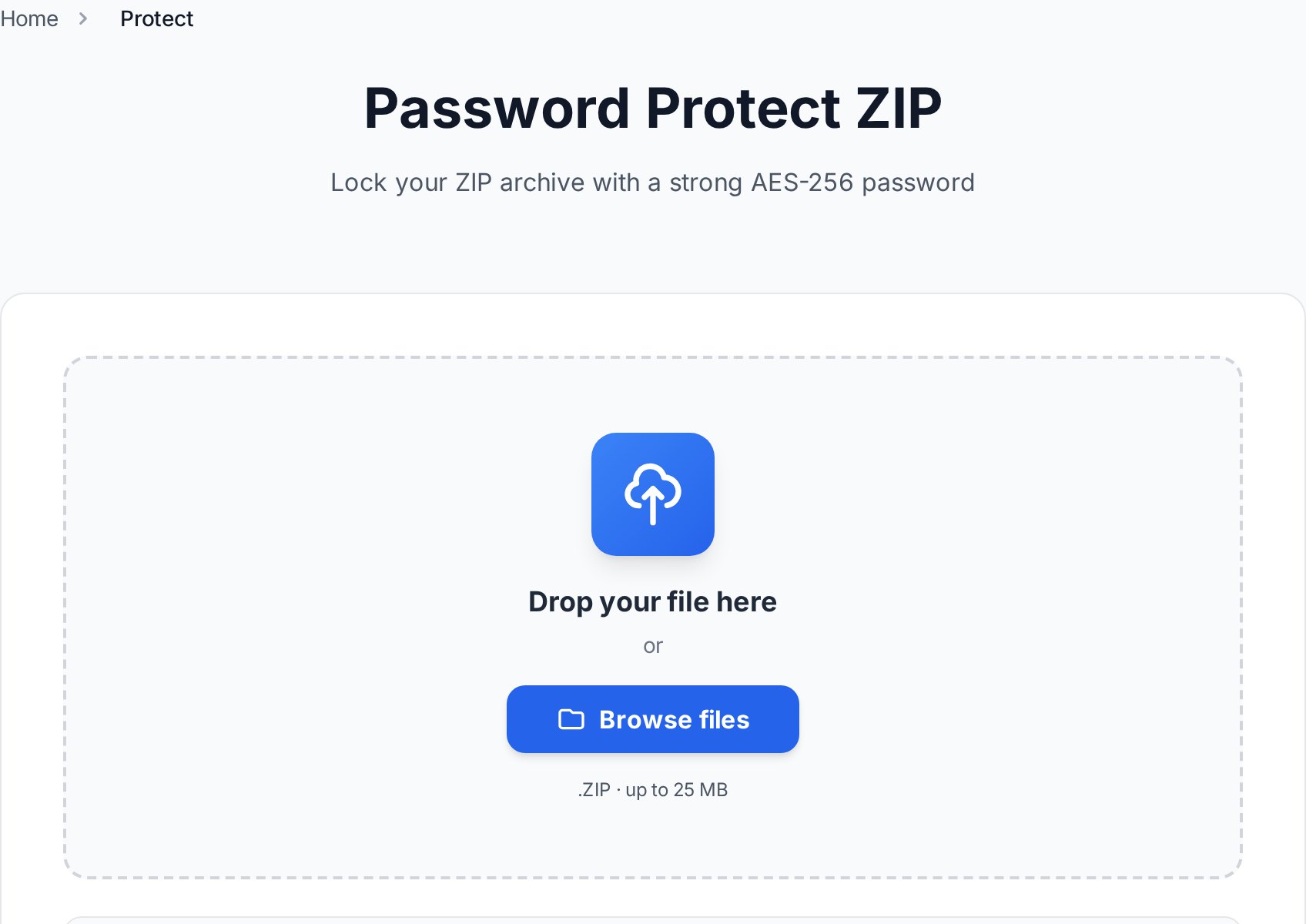
There are three common scenarios where an unprotected archive is a real risk:
- Email attachments. Email is replicated across servers and backed up for years. A ZIP of contracts, payslips, or medical records sent unprotected can be read by anyone with access to those backups.
- Cloud storage and shared drives. Uploading sensitive files to Google Drive, Dropbox, or a company SharePoint means the cloud provider and anyone with whom the folder is ever shared can access the contents.
- USB and physical handoff. A USB stick can be lost, found, and plugged into any computer. An encrypted ZIP on the stick cannot be opened without the password.
Password protection is not a substitute for all security measures — you still need a strong password and a secure way to share it. But it is the simplest layer of protection available without specialist software on either end.
AES-256 vs ZipCrypto — choose the right encryption
Not all ZIP password protection is equal. There are two main standards:
- ZipCrypto (also called "traditional" or "Zip 2.0" encryption). Built into the original ZIP specification from the 1990s. It is weak — modern tools can crack it in seconds with a dictionary attack. Its only advantage is that Windows File Explorer and macOS Archive Utility can open it natively.
- AES-256. The current gold standard, used by banks, governments, and major cloud storage providers. It is computationally infeasible to brute-force with any hardware that exists today. Convertica's Protect ZIP tool uses AES-256.
Use AES-256 for anything that actually matters. ZipCrypto offers a false sense of security — it delays a determined attacker by minutes, not years.
Compatibility note: who can open an AES-256 ZIP?
The tradeoff with AES-256 is that the built-in archive tools in Windows and macOS do not support it:
- Windows File Explorer — cannot open AES-256 encrypted ZIPs. It will either show an error or silently show an empty archive.
- macOS Archive Utility (the built-in double-click extractor) — cannot open AES-256 encrypted ZIPs.
Recipients need to install a free third-party archiver. All of the following support AES-256 and are free:
- 7-Zip (Windows) — free, open source, widely used.
- WinRAR (Windows) — technically trial software but fully functional for opening ZIPs.
- WinZip (Windows/macOS) — commercial but common in enterprise environments.
- Keka (macOS) — free from the developer's website, paid on the Mac App Store.
- The Unarchiver (macOS) — free on the Mac App Store, handles AES-256 ZIPs.
When you send a password-protected ZIP, include a note telling the recipient which app to use if they do not already have one. This prevents the common complaint of "the file is corrupt" when the real issue is an incompatible extractor.
Step-by-step: protect a ZIP file with Convertica
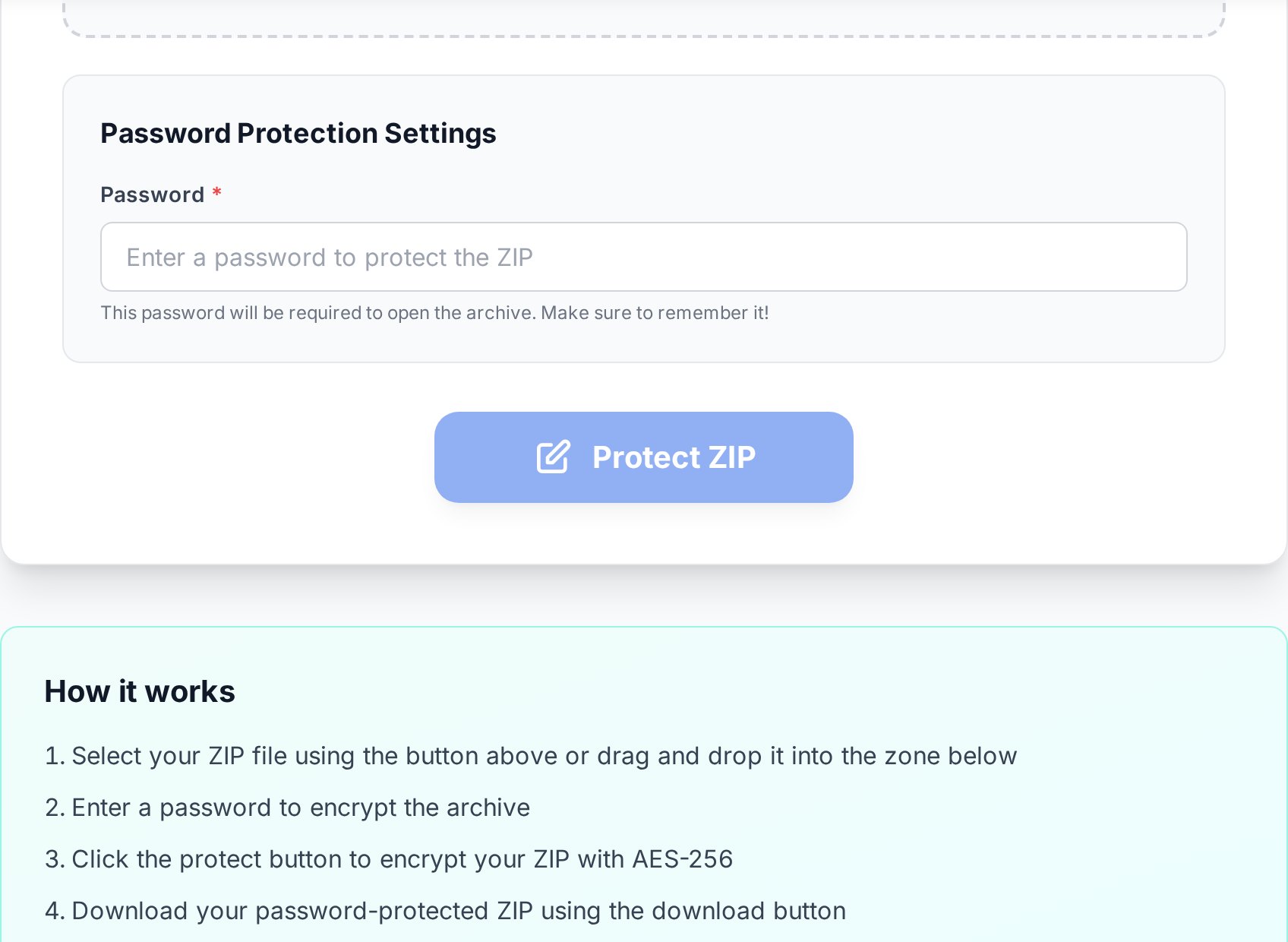
- Open the Protect ZIP tool on Convertica. No account or registration required.
- Upload your ZIP file. If you have loose files, zip them first using your operating system's built-in "compress" or "send to ZIP" option, then upload the resulting archive.
- Enter a strong password. See the tips below for what "strong" means in practice. Type it carefully — there is no recovery option if you forget it.
- Click the protect button. Convertica applies AES-256 encryption and generates a new, password-protected ZIP.
- Download the protected file. Open it yourself with 7-Zip or another compatible archiver to confirm it works before sending it to anyone else.
- Share the file — and the password through a separate channel. Email the file, but send the password by SMS, a messaging app, or a one-time-secret link. Never put the password in the same email as the attachment.
Convertica processes your file in memory and does not retain it after the download link is generated. No account is needed, and your files are not stored on the server after processing.
How to choose a strong password for your ZIP
The encryption is only as strong as the password protecting it. AES-256 is theoretically unbreakable, but a weak password can be guessed or brute-forced offline once an attacker has the file.
- Length over complexity. A 16-character random string is stronger than an 8-character string full of symbols. "CloudDeskLemonPaper7" is much harder to crack than "P@55w0rd!".
- Use a password manager's generator. Tools like 1Password, Bitwarden, or KeePass generate random passwords you do not have to remember — you store them in the manager.
- Avoid personal data. Names, birthdays, company names, and pet names can be guessed from public information.
- Keep a backup copy. Store the password in your password manager the moment you create it. If you lose it, the file is unrecoverable — AES-256 cannot be reversed without the key.
How to remove the password from a ZIP file
If you no longer need the protection — for example, you have distributed the file and want an unencrypted copy for your own archive — Convertica's Unlock ZIP tool can remove the password for you.
Important limitations to understand:
- You must know the current password. The tool decrypts the archive using the password you supply, then saves the result without encryption. It does not crack or bypass unknown passwords.
- If you have forgotten the password and no backup exists, the file cannot be recovered through any practical means. This is by design — it is what makes AES-256 secure.
The process is the same as protection: upload the encrypted ZIP, enter the password, download the unlocked archive. No registration required.
Best practices summary
- Always use AES-256. Never use ZipCrypto for anything sensitive.
- Tell recipients which archiver to install if they are not technical users.
- Send the password through a different channel than the file.
- Store the password in a password manager immediately — there is no recovery.
- Keep the original unprotected copy in a secure location so you can re-encrypt if needed.
- Verify the protected file opens correctly before sending. A typo in the password is not detectable until the recipient tries to open it.
FAQ
Can Windows open a password-protected ZIP without extra software?
Only if the ZIP uses the older ZipCrypto encryption — which is weak enough to be cracked quickly. ZIPs encrypted with AES-256 (what Convertica uses) cannot be opened in Windows File Explorer. Tell your recipient to install 7-Zip, which is free and takes under a minute to set up.
Is the encryption strong enough for sensitive documents?
Yes. AES-256 is the same standard used to protect classified government information and financial data worldwide. The risk is almost always the password, not the algorithm — use a long, randomly generated password and you are well protected.
What happens if I forget the password?
The file is effectively unrecoverable. There is no master key, no recovery option, and no way to crack AES-256 within any practical timeframe. This is why keeping a copy of the password in a password manager — and keeping the original unencrypted files somewhere safe — is essential before you encrypt.
Can I password-protect a ZIP that already contains files?
Yes. The Protect ZIP tool works on any existing ZIP archive. If you have loose files, zip them first using Windows or macOS, then upload the ZIP to Convertica to add AES-256 password protection.
Does Convertica store my files after processing?
No. Files are processed in memory and the download link expires shortly after generation. Convertica does not retain your files, and no account or registration is required to use the tool.
Try it now
Open the Protect ZIP tool, upload your archive, set a strong password, and download the encrypted file. Then use the Unlock ZIP tool any time you need to remove the password — as long as you still know it.


