

Why copy-paste turns a table into a mess
A PDF does not really store a table. It stores text at fixed positions on a page, plus lines drawn around them that your eye reads as a grid. When you copy, you grab the text in reading order but lose the grid, so columns melt into one another and numbers line up with the wrong labels. A proper conversion works differently: it looks at where each value sits, reconstructs the columns, and rebuilds an actual spreadsheet where every number lands in its own cell.
First, check what kind of PDF you have
This one check decides everything that follows, so it is worth ten seconds. Open the PDF and try to select a single number with your cursor.
- If the text highlights, you have a native PDF. The data is real, selectable text, and conversion will be clean and accurate.
- If nothing highlights and the page behaves like a picture, you have a scanned PDF. The table is an image, so the numbers have to be read with OCR (optical character recognition) before they can become cells. That still works, it just needs the extra recognition step and a closer look at the result.
Convert the PDF to Excel
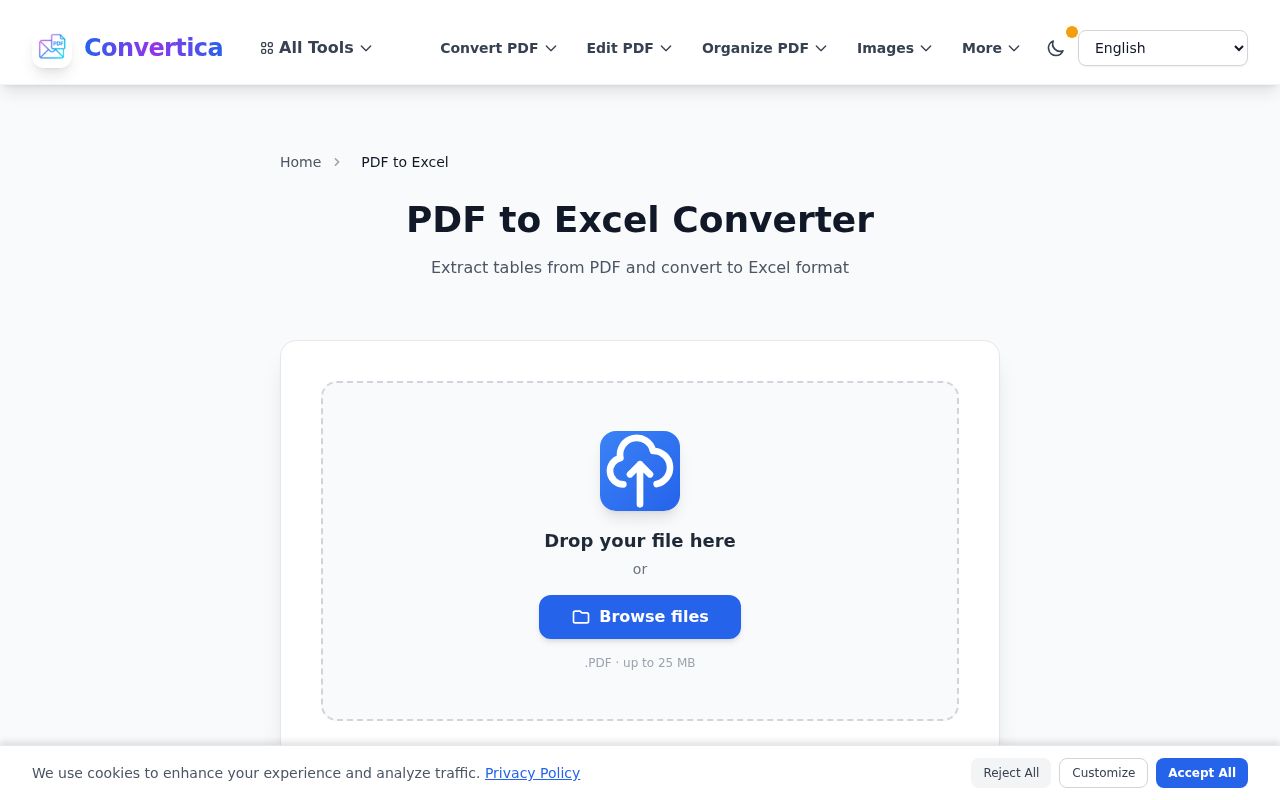
- Open the PDF to Excel converter and upload your file (up to 25 MB).
- Let it process. For a native PDF this is quick. For a scanned one it reads the text first, which takes a little longer.
- Download the XLSX file and open it in Excel, Google Sheets, or LibreOffice Calc. Your rows and columns are now editable cells you can sort, filter, and total.
Files you upload are removed from the server after a short window, which matters when the table in question is a bank statement or a payroll report.
Cleaning up after the conversion
Even a good conversion sometimes needs a light touch, especially on dense or scanned tables. A few quick fixes handle almost everything:
- Merged columns. If two columns landed in one, select it and use Excel's Data, then Text to Columns to split them back apart on a space or comma.
- Numbers stored as text. If a column will not sum, Excel is treating it as text. Select it, and use the small warning icon or Data, then the number format, to convert it back to real numbers.
- An extra header row. Repeated page headers can slip in on multi-page tables. Delete the stray rows and you are done.
- Scanned files. Always spot-check a scanned conversion. OCR can misread a smudged 8 as a 3, so glance down each column before you trust the totals.
XLSX or CSV: which should you pick?
XLSX is the right default. It keeps formatting, multiple sheets, and anything Excel-specific, and it is what most people mean by a spreadsheet. Reach for CSV only when you are importing the data somewhere else, an accounting package, a database, a web app, that expects a plain comma-separated file. CSV is lighter and universally accepted, but it holds just the raw values, with no formatting or formulas. If you are opening the result yourself in Excel, stay with XLSX.
A real example: turning statements into something you can total
Say you keep the books for a small business and every supplier statement arrives as a PDF. Retyping them is slow and invites typos, and a single wrong digit throws off a reconciliation. Converting each statement to Excel instead gives you columns you can sum, filter by date, and paste straight into your accounting sheet. What was an hour of careful typing becomes a couple of minutes of conversion and a quick check. If your workflow runs the other way too and you need to send a sheet as a fixed document, the Excel to PDF converter closes the loop.
FAQ
Will my formulas survive the conversion?
No, and that is expected. A PDF only holds the calculated values, not the formulas behind them, so what you get back are the numbers as they appeared. If you need live formulas, rebuild them in Excel on top of the converted data, which is still far faster than retyping everything.
Can I convert a scanned PDF to Excel?
Yes. The converter reads the text with OCR and rebuilds the table from what it recognizes. Accuracy depends on how clean the scan is, so a sharp, straight scan converts well while a faint or skewed one needs more checking. Always review a scanned result before relying on the figures.
What if the PDF has several tables or many pages?
Multi-page tables convert fine and continue across the sheet. When a document holds several different tables, review the output and split them onto separate sheets or ranges if you want them kept apart.
Is there a limit on file size?
A single file can be up to 25 MB, which covers most statements and reports. If a scanned PDF is larger than that, compressing it first usually brings it under the limit without hurting the text.
Do I need to install anything?
No. The conversion runs in your browser, so there is nothing to download or set up. You need only the PDF and the spreadsheet program you already use to open the result.
Try it now
If a table you need is stuck inside a PDF right now, upload it to the PDF to Excel converter and open the spreadsheet that comes back. And if you ever need the reverse, turning a finished sheet into a tidy, uneditable document, Excel to PDF handles that side just as quickly.


