

Where blank pages come from
Knowing the source helps you spot them faster:- Duplex scanners on single-sided originals. The classic. Every other page in the output is empty.
- Word docs with section breaks. Section breaks set to "next odd page" or "next even page" insert a blank when needed to maintain pagination, and that blank survives the export to PDF.
- Form templates with placeholder pages. Many contract and report templates ship with pages reserved for "exhibits", "appendices", or signatures that you may or may not actually use.
- Merged PDFs from mismatched sources. Combining files where each ended on an even-page boundary leaves blanks behind. Annual reports and pitch decks are common offenders.
- Print drivers. "Print to PDF" with certain printer settings can append a confirmation page or padding page at the end. Older HP universal print drivers were notorious for this around 2018-2020.
- Mobile scanner apps. Apps like CamScanner and Adobe Scan sometimes insert a "scanned with [app]" promotional page on the free tier, which feels less like a feature and more like a watermark you have to fight.
Step-by-step: remove pages visually
This is the right approach when you can't easily predict which pages are blank without looking.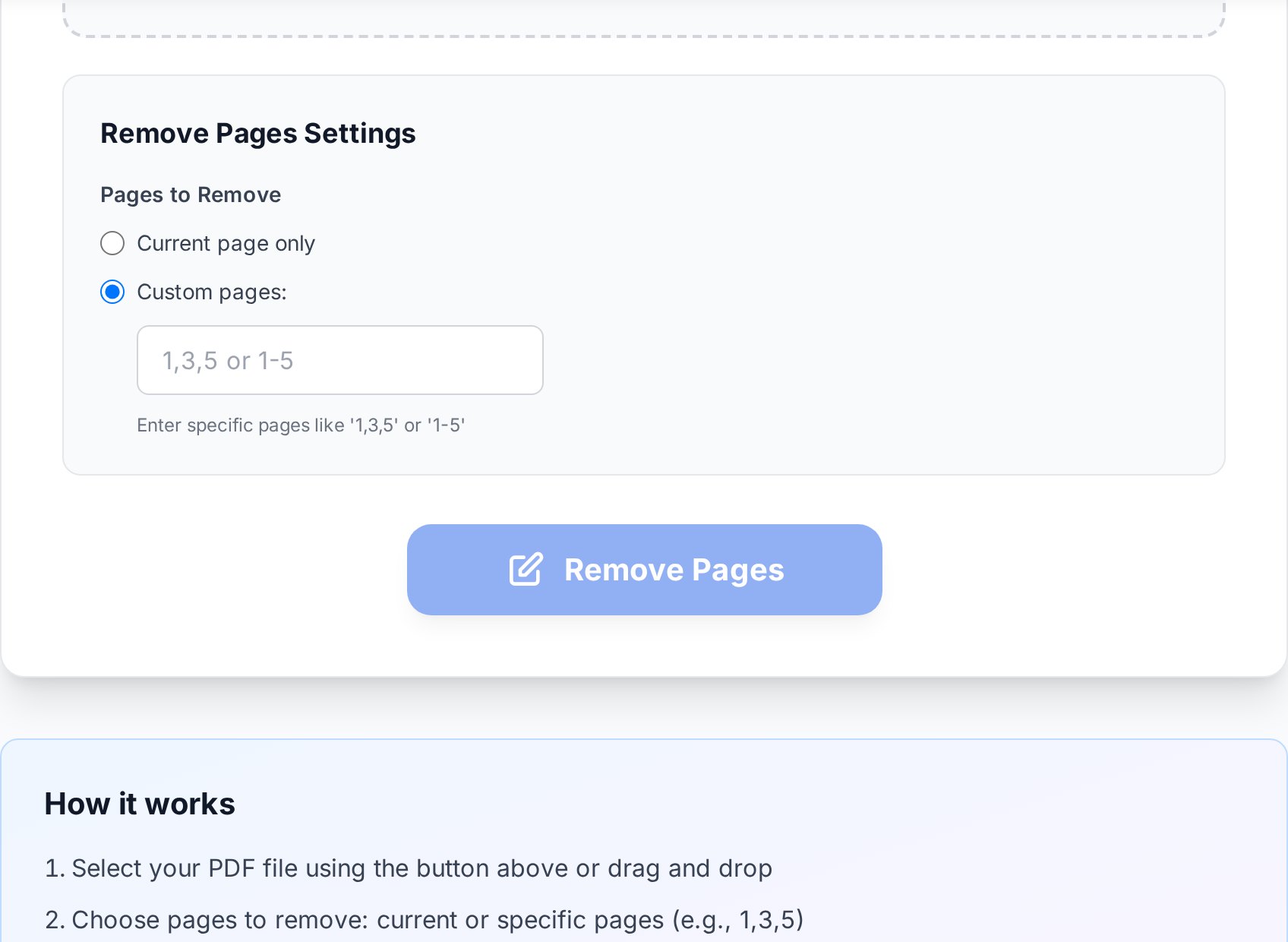
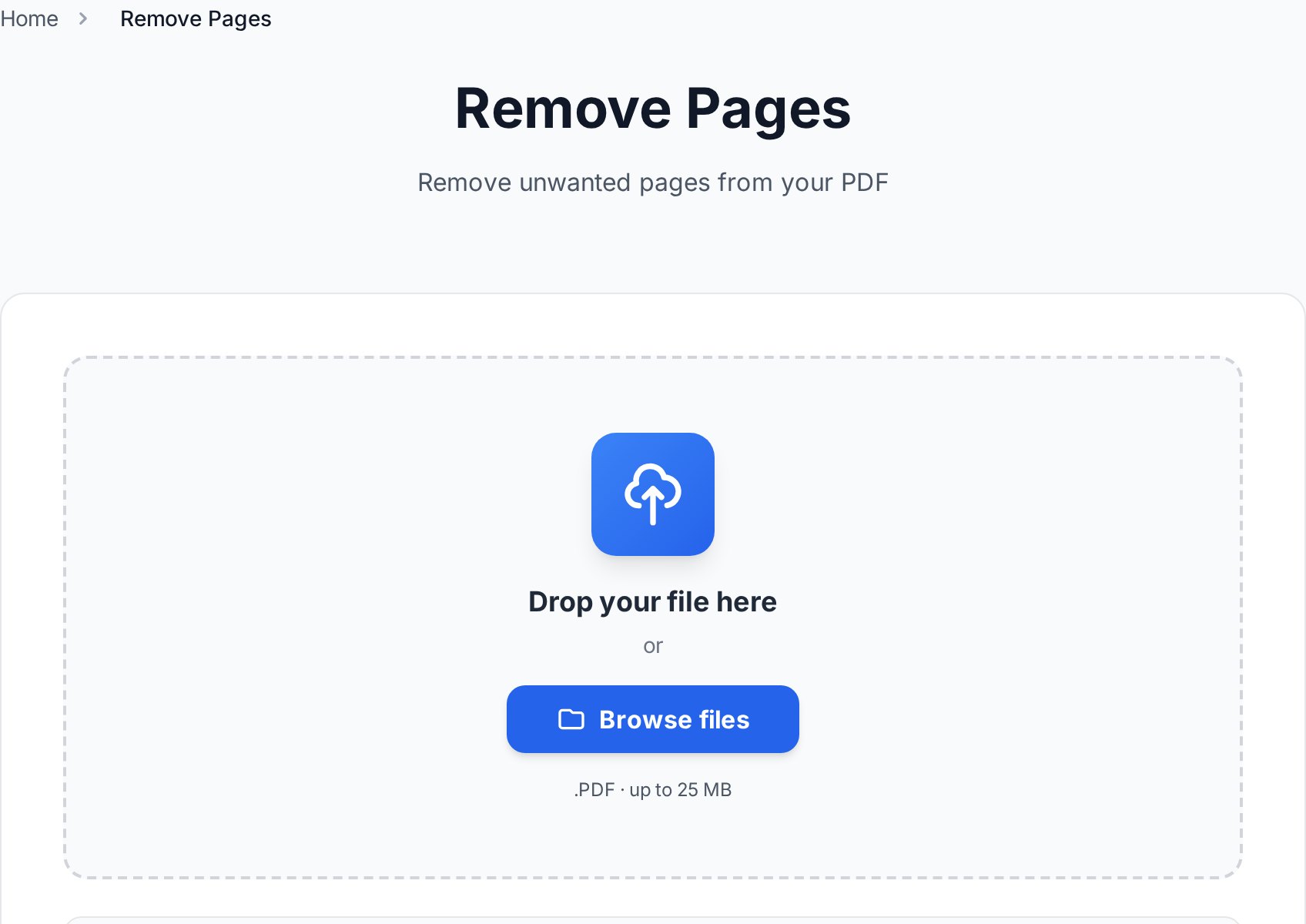
- Open the remove pages from PDF tool and upload your file.
- Look at the thumbnail grid. Blanks are obvious: solid white tiles with no text or images. Pages with faint scanner noise still have visible texture, so they show as light gray rather than pure white.
- Click the pages you want to delete. Most tools highlight the selection with a colored border or trash icon.
- Confirm and download the cleaned-up file. Verify the page count matches what you expect.
Step-by-step: remove pages by range
When you already know the page numbers you want gone, typing them is faster than clicking.- Upload the PDF.
- Switch to range mode (most tools toggle between visual and range entry).
- Type your range using a comma-separated list with hyphens for spans.
3, 7-9, 12means: delete page 3, pages 7 through 9, and page 12. Pages outside that list stay. - Apply and download.
Page numbers in this syntax refer to physical pages, not the printed page numbers on the document. If your contract starts numbering at "1" on the third physical page, your "page 1" might be physical page 3.Worth knowing: most range fields don't accept open-ended ranges like
50- meaning "everything from 50 to the end". You'll need to type the actual end-page (e.g. 50-78 for a 78-page file). Counting once at the start saves cycles of "wait, that didn't work" later.
Removing vs hiding pages
A few PDF tools (and Adobe Acrobat) let you "hide" pages rather than delete them. Hidden pages don't display but the data still exists in the file. Anyone who opens the file in another viewer, or who unhides them, can see the content again. For sensitive material this is a real problem. If you remove a salary page from an HR document by hiding it, the salary information still travels with the file. Permanent removal is the only safe answer when:- The pages contain confidential information that must not reach the recipient.
- You are sharing the file outside your organization.
- The file might be archived or forwarded.
- The document will be subject to e-discovery or freedom-of-information requests, where hidden content may still be discoverable.
Re-numbering after removal
Most PDFs don't have programmatic page numbers, just text "1", "2", "3" baked into each page during the original export. Removing pages doesn't magically renumber what is left. If your document had a numbered footer reading "Page 5 of 12" on every page, after removal you might have pages reading 1, 2, 4, 6, 7 of 12, which looks broken. Two options:- Live with it for internal documents where the printed numbers don't really matter.
- Re-number by stripping the existing footer and adding fresh ones. Tools that add fresh page numbers let you overwrite a header or footer area across the whole document in one pass.
Bulk cleanup for scanned archives
Cleaning a 200-page scan one click at a time is unpleasant. Two tricks help:Spotting blanks at scale
Increase thumbnail size if the tool supports it. White rectangles jump out instantly. For very faint scanner noise, briefly squint at the page numbers; if you can't make out any text or shapes, it is blank. Some tools render thumbnails at very low resolution to save bandwidth. If your blanks aren't obviously white because of dithering or compression artifacts, switch to the larger thumbnail view (often a button labelled "Large preview" or "Detailed thumbnails") before scanning the file. The extra render time is worth not deleting a real page by mistake.The duplex-scanner shortcut
If you scanned a stack of single-sided originals on a duplex scanner, every back side is blank. That means you want to delete every even-numbered physical page in the PDF. A range like2, 4, 6, 8, 10, ... works, and most tools let you generate that range with a "delete every nth page" or "even pages" option.
Confirm by checking the first few results. If your scanner sometimes flips originals or if the stack started with a back side, the pattern will be off by one and you'll want to delete every odd page instead. The Fujitsu ScanSnap series is particularly prone to this when the auto-feeder grabs two sheets at once - your first page becomes the back of the pair, throwing the pattern off for the rest of the document.
After cleanup, you may find the file would benefit from being broken into smaller documents. The split into chapters instead route works well when you cleaned up a 200-page archive that should really be five 40-page documents.
Verifying before you ship
Before you send a cleaned file to someone else, do two checks. First, confirm the page count is what you expected (210 pages in, every other page removed, 105 pages out). Second, scroll through the result quickly to make sure no real pages got caught up in the cleanup. Edge cases worth watching for: section title pages with very little text can look almost blank in a thumbnail and get accidentally deleted. So can pages that consist of a single image (a chart, a signature, a logo) when the thumbnail render scaled the image to invisibility.FAQ
How do I remove blank pages from a 200-page scan automatically?
If the blanks follow a pattern (every other page from a duplex scanner), use range mode and delete the even-numbered pages in one operation. If they're scattered randomly, the visual thumbnail grid is faster than any rule because you can scroll quickly and click each white tile.
Will removing pages break my page numbering?
If your document has hard-coded page numbers in the footer (text like "Page 5 of 12"), yes. The remaining pages keep their original numbers. Either ignore it for internal use, or strip and re-add page numbers across the whole file after cleanup.
Can I undo a page removal?
The tool itself produces a new file, so your original is untouched on your computer. If you removed pages and downloaded the result, just go back to the original PDF if you made a mistake. Always keep originals until you've verified the cleaned-up version.
Why do removed pages sometimes "come back"?
That happens when the tool only hid pages rather than deleting them, or when the file was opened in an editor that restored from a saved revision. Use a tool that genuinely strips the page data, and verify by checking the final file size and page count match expectations.
Can I remove pages from a password-protected PDF?
You need to supply the password first. Most online page-remover tools prompt for it on upload. Without the password, you can't legitimately modify the file.
Try it now
Stop scrolling past blank pages. Open the PDF page remover tool, click the thumbnails you don't want, and download a clean version in well under a minute. Faster than even finding your Acrobat license key.


