

When you actually need to reorder pages
Reordering is one of those tasks that sits quietly in the background until it's suddenly urgent. The most common cases are surprisingly similar across industries:
- Two or three files were combined and now the appendix sits in front of the cover letter.
- A scanner pulled pages out of the feeder in a slightly different order than expected (the second page tucked itself into the next sheet, classic auto-feeder failure mode).
- A presentation deck needs a last-minute reshuffle before a stakeholder review.
- A client asked for the executive summary first, even though it was written last.
- Multiple sources of a contract got merged in alphabetical order rather than logical order.
- An accountant returned a tax pack with corrections, and you need to insert the revised page where the old one used to live.
In each case, the fastest solution is to organize PDF pages visually rather than rebuild the file from scratch.
Step-by-step: drag and drop reorder
The flow is intentionally similar to rearranging slides in PowerPoint or Keynote, so you can borrow the muscle memory you already have.
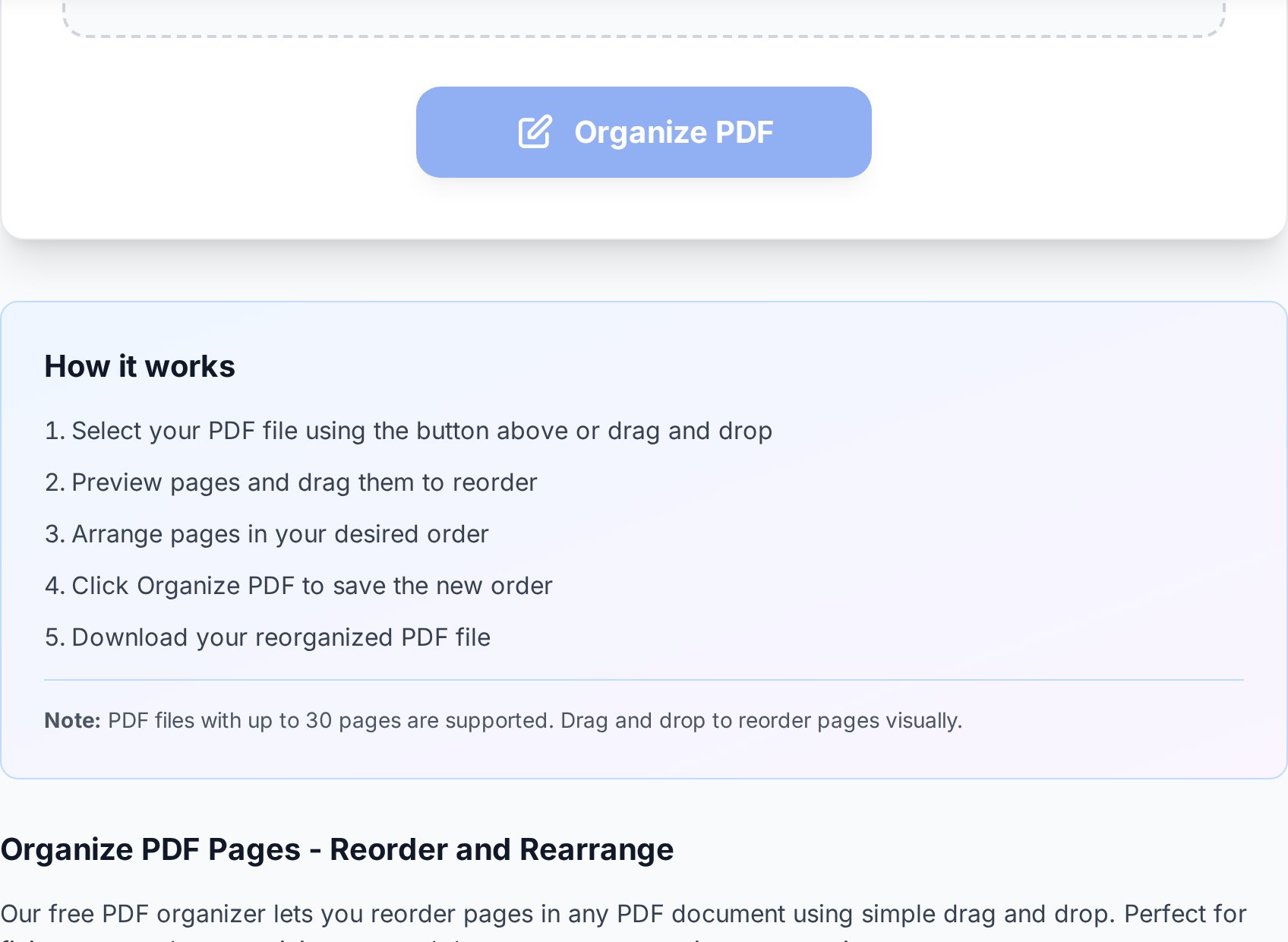
- Upload the PDF. Open the organize tool and drop the file into the upload box. Anything from a 3-page contract to a 200-page report works.
- Wait for the thumbnail grid. Each page renders as a small preview tile, numbered in the current order. Larger files take a few seconds to render every page; that's the tool extracting and rasterising thumbnails, not lag.
- Drag pages to their new positions. Click and hold a thumbnail, drag it between two other tiles, and release. The numbers update instantly so you can see the new sequence.
- Apply and download. Click the action button and the tool rebuilds the PDF in the new order. The output is a fresh file - your original is left alone.
If you mis-drop a page, drag it again. There's no save-yet, so nothing is permanent until you click download.
What the thumbnails actually show
Thumbnails are rendered at low resolution to keep the page snappy, so very small text may be illegible in the preview. That's expected. You're looking at the thumbnails to identify pages, not to read them. If two pages look identical at thumbnail size (a common situation with chapter title pages or repeated section dividers), hover or tap to enlarge.
Also worth knowing: thumbnails for the first page render before the rest. If the first page looks correct but later thumbnails are still loading, give it a few more seconds before judging the file. Many users start dragging too soon, miss the thumbnail they wanted, and end up with the wrong page in the wrong slot.
Combined operations: reorder, delete and rotate in one trip
Most real-world clean-ups aren't a single action. You usually want to reorder, delete a blank cover sheet, and rotate two scans that came in sideways. Running three separate tools means three uploads, three downloads, and three chances to lose track of which file is the latest one. (Many people end up with document_v2.pdf, document_v2_rotated.pdf, and document_v2_rotated_clean.pdf all sitting next to each other and have to open each one to find the keeper.)
Inside the organize tool you can do all three on the same thumbnail grid:
- Reorder by dragging.
- Delete by clicking the small bin icon on a thumbnail.
- Rotate by clicking the rotate icon on the affected thumbnail or, if everything came in sideways, applying rotation in bulk. If only a few pages need rotating, you can also rotate any sideways pages in a dedicated tool.
Doing it in one trip means one final file, named once, with no half-finished intermediates clogging your downloads folder.
Reordering before merging beats fixing after
If you're about to combine several PDFs into one, take ten seconds to put the source files in the right order on the merge screen first. The merge tool concatenates files in the order you list them, so you can merge PDFs in the right order by dragging file tiles into sequence before you press the merge button.
Fixing order after merging is fine - the drag-and-drop reorder above does it - but you'll be moving more pages around. For a 20-page output built from three 7-page sources, ordering the three sources first means three drag actions instead of potentially nineteen. The principle is the same one print shops have lived by for decades: collate before you bind, not after.
One reorder, multiple revisions
If you're working on a document that goes through several review cycles, reorder once at the start when the section logic is settled, then make all later edits in place. Re-reordering on every revision invites cumulative drift; the document ends up in some hybrid order that nobody specifically asked for.
Mobile vs desktop experience
Reordering PDF pages is one of the few editing tasks that genuinely works on a phone. You're dragging large tiles, not selecting tiny text, so a touch screen is in some ways better than a mouse. (I'd argue this is the rare case where the iPad version is more pleasant than the desktop version, even on a 27-inch display.)
On a phone or tablet
- Long-press a thumbnail until it lifts (about 300 ms on most browsers; iOS Safari is sometimes slightly slower).
- Drag with your finger to the new slot. The grid scrolls automatically as you reach the edge.
- Pinch to zoom in if thumbnails are too small to identify.
- If the auto-scroll feels jumpy, lift your finger, scroll manually, then re-grab the page.
On a desktop
- Click and drag with the mouse, the way you'd move a file in your file manager.
- Hold Shift to select a range of thumbnails (where supported) and move several pages at once.
- Use the browser zoom (Ctrl/Cmd + plus) to enlarge the grid if your screen is dense.
- Trackpad users: the standard two-finger scroll works inside the thumbnail grid, so a long PDF is one swipe away from the page you want.
Saving the result correctly
The reorder tool always produces a new file. It doesn't overwrite the original. That's deliberate - if you change your mind in two days, the source file is still untouched on your disk or cloud drive.
A few small habits prevent the classic "where is the latest version" crisis:
- Add a suffix like
_reorderedor_v02to the downloaded filename. - Keep the original until you're sure the reorder is right. Delete it later, not immediately.
- If you reorder the same file again, keep bumping the version number rather than overwriting.
- Name the version with the date of the change (
contract_2026-04-28.pdf) rather than justv2when there are multiple reviewers, so the reviewer notes line up with the file they're commenting on.
For a deeper take on this, the PDF naming conventions guide covers patterns that scale beyond a single project.
What if you also need to split the result?
Sometimes reordering reveals that the document was actually two documents shoved together. Once everything is in the right order, it's much easier to split into sections after reordering than to do it from a jumbled source. Reorder first, then split - you'll thank yourself later.
FAQ
Can I reorder pages on my phone?
Yes. The thumbnail grid is touch-friendly: long-press a page to lift it, drag with your finger, and release in the new spot. iOS Safari, Chrome on Android, and tablet browsers are all supported. You'll probably want to rotate the phone to landscape for more grid space.
Will reordering change page numbers automatically?
No. Visible page numbers that are baked into the page content stay where they were drawn - reordering just changes the sequence of physical pages, not the text on them. If you need re-numbered pages, run the file through a page-number tool afterwards.
Can I undo if I drag a page to the wrong spot?
Drag it again to the correct position. Nothing is committed to disk until you click the download button, so the entire session is effectively a draft you can re-edit freely. Closing the browser tab abandons the session entirely; there's no auto-save state to recover.
Does reordering work on password-protected PDFs?
Not directly - the tool needs to read page content to render thumbnails. Unlock the PDF first if you own it, reorder, then re-protect the result. If the document isn't yours, ask the owner for an unlocked copy.
Can I reorder and delete in one step?
Yes. The organize tool exposes both actions on the same thumbnail grid, so you can drag pages into the right order and click the bin icon on any pages you want to drop. Both changes are applied to the single output file.
Try it now
Stop printing and re-scanning to fix page order. Upload your PDF, drag the pages where they should have been all along, and download a clean file in under a minute. Open the organize PDF tool →


